Author: Malik Arham

  • Video Downloader Online for Facebook – Download Videos Easily

    Video Downloader Online for Facebook – Download Videos Easily

    There are so many videos on Facebook you should watch and save, from tutorials to recipes, recorded live shows to business promotions, and family videos. Most of the content on Facebook doesn’t have a built-in save button, which is why a lot of people look for something that’s easy to get hold of and save for offline viewing.

    Online video downloader for Facebook is a web browser-based program that allows you to paste a video link on it and receive a downloadable file typically in MP4 format, without the need to download any software. It’s favored by students recording lectures, marketers storing videos from campaigns, teachers creating offline lesson repositories, and anyone wanting to see a video again without using up mobile data.

    This guide explains how these tools work, how to use one correctly, what to be mindful of, and the legal and ethical boundaries. At the end, you will find out how to download a Facebook video in just a few clicks — and how to do so responsibly.

    Quick Answer

    Online facebook video downloader is a web application used to get a public facebook video URL and download it as an MP4 file. Simple, no app, no extension, no account needed — you simply paste the URL, select the resolution and download. It is only applicable to videos that you have permission to save.

     what is a Facebook Video Downloader Online?

    In simple terms: it is a tool that does not require downloading Facebook, but rather requires you to enter a URL that includes the video from a Facebook post and then save it to your device.

    You can download some of the videos you’ve uploaded to Facebook with your account settings, but not those you’ve uploaded by pages, groups or other users. These are the tools which fill that gap.

    This is how it usually works in one’s workflow:

    A teacher sees an excellent video explaining a concept shared in a public Facebook group and wishes to make a copy for his/her own class, which has no reliable Internet connection.

    A small business owner wishes to use a video posted on their page that they’ve used for promotion but the original file is missing.

    A researcher is gathering historically public content for research on a media study and requires an offline archive.

    This tool is merely a converter, which reads the public video data at the back of a link and repackages it into a file that you can download. It won’t ignore privacy settings, and it won’t ever be able to watch videos that you don’t have permission to view unless they are publicly available.

    Limitations worth knowing:

    Only works for publicly viewed videos.

    It cannot access content from private profiles, closed groups or restricted pages.

    Download speed is not only related to the tool but also the size of the video source and internet connection.

    Regarding copyright: having the technical capacity to download a video does not necessarily mean that they have the rights to reuse it. A video does not necessarily become copyright free when it is made public on Facebook. Keep videos for which you have rights, or videos that you are using for your own personal, non-redistributive, off-line viewing.

    How to use a Facebook Video Downloader?

    Basically: you copy the URL of a Facebook video, paste it into the tool, wait for it to process the URL, select a quality value, and download the resulting MP4 — this process takes less than a minute.

    Breaking that down:

    Use the “Copy Link” button on Facebook videos or the URL on a Facebook video page to obtain a link to the video.

    Copy and paste the link into the tool — The downloader reads the link and is able to determine which video stream is linked to that post.

    Processing — The tool retrieves the video data that is available and determines the options for downloading it, usually in several resolutions.

    Select quality – you select the resolution (SD or HD) for the file size and the available devices.

    Download the MP4 — It downloads to your downloads folder, phone gallery or selected location.

    It doesn’t require any additional software, is used identical on Chrome, Firefox, Edge, or Safari, and is just as easy to use on desktop and mobile.

    How to Download Facebook Videos Online

    Here’s the exact process using VideosDownloaderTool:

    1. Open Facebook and find the video you want to save.
    2. Click the three-dot menu on the post and select Copy Link (or copy the URL from the address bar if you’re viewing the video directly).
    3. Go to VideosDownloaderTool.com.
    4. Paste the video link into the input box.
    5. Click Download.
    6. Select your preferred video quality from the options shown.
    7. Save the MP4 file to your device.
    8. Open the file locally anytime — no internet connection required afterward.

    That’s the entire workflow. No sign-up, no software, no browser extension permissions to grant.

    Features of Our Facebook Video Downloader

    • Completely free to use, with no hidden charges for standard downloads.
    • No software installation — everything runs in your browser.
    • Fast processing, so you’re not waiting around for a simple video grab.
    • HD support for videos that were originally uploaded in high resolution.
    • Multiple resolution options, so you can pick a smaller file for quick sharing or a larger one for quality.
    • Mobile-friendly interface that works as well on a phone screen as a desktop.
    • Cross-browser compatibility across Chrome, Firefox, Edge, and Safari.
    • Straightforward, clutter-free design — paste, click, download.

    Benefits of Using a Facebook Video Downloader

    • Offline viewing — watch saved videos without using mobile data or needing signal.
    • Faster access — no need to search through Facebook again to find a video you liked.
    • Consistent quality — download in the resolution you actually need for your use case.
    • No installation friction — nothing to update, uninstall, or worry about taking up storage as an app.
    • Cross-device flexibility — works whether you’re on a laptop, tablet, or smartphone.
    • Useful for education — build an offline library of instructional videos for classrooms with limited connectivity.
    • Handy for presentations — embed a locally saved video in a slide deck instead of relying on a live internet connection.

    Common Reasons People Download Facebook Videos

    • Educational content — lecture clips, tutorials, and how-to guides.
    • Business use — a company saving its own promotional or product demo videos.
    • Marketing review — analyzing publicly posted campaign videos for research purposes.
    • Personal memories — saving a video from a friend’s or family member’s public post before it’s taken down.
    • Recorded livestreams — grabbing a copy of a Q&A or event stream to rewatch later.
    • Creative inspiration — designers and editors studying public reels for style reference.
    • Research — academics or journalists archiving publicly available social media content for study.
    • Offline entertainment — saving videos for a flight, commute, or area with poor signal.

    Supported Devices and Browsers

    VideosDownloaderTool works across virtually every modern setup, since it runs entirely through your web browser rather than through installed software.

    Devices: Windows, macOS, Linux, Android, iPhone

    Browsers: Chrome, Firefox, Edge, Safari

    PlatformCompatibilityNotes
    Windows (Chrome/Edge/Firefox)Full supportNo extension needed
    macOS (Safari/Chrome)Full supportDownloads save to default folder
    AndroidFull supportFiles save to phone gallery/downloads
    iPhone (Safari)Full supportMay require “Save to Files” prompt
    LinuxFull supportWorks via any modern browser

    Common Problems and Solutions

    Invalid Facebook URL Make sure you copied the full link from the post’s share menu or address bar, not a shortened or partial link.

    Private or restricted videos If the video belongs to a private group, closed profile, or restricted page, the tool won’t be able to process it — this is by design, since it only works with publicly accessible content.

    Slow downloads This is usually tied to your internet connection speed or the original video’s file size rather than the tool itself. Try switching to Wi-Fi or a stronger connection.

    Unsupported videos Some live videos or very recently posted content may take extra time to become fully processable. Try again after a few minutes.

    Browser issues Clear your browser cache or try an updated browser version if the page doesn’t load correctly.

    Download failures Check your device’s available storage space, and confirm your browser has permission to save files.

    Best Practices When Downloading Facebook Videos

    • Only download videos you own, have permission to save, or are using strictly for personal, non-commercial purposes.
    • Never redistribute or re-upload someone else’s video without their consent.
    • Use a secure, private internet connection when downloading, especially on public Wi-Fi.
    • Choose the video quality that actually matches your intended use — there’s no need to download in HD if you’re just saving a quick reference clip.
    • Keep your downloaded files organized in folders by date or topic so they’re easy to find later.
    • Keep your browser updated for the smoothest experience and best security.

    Facebook Video Downloader vs Other Download Methods

    FeatureVideosDownloaderToolBrowser ExtensionsDesktop SoftwareScreen Recording
    SpeedFast, instant processingFast, but limited by extension updatesVaries, often slower setupSlow — real-time only
    Ease of UseVery easy, no installModerate — requires install and permissionsHarder — installation and setup stepsEasy but manual
    InstallationNone requiredBrowser extension requiredFull software install requiredBuilt-in OS tool, no install
    Video QualityMatches source resolutionMatches source resolutionMatches source resolutionLimited by screen/display resolution
    SecurityNo extension permissions neededRequires granting browser accessRisk from untrusted installersNo third-party access needed
    ConvenienceHigh — works anywhere, any deviceModerate — tied to one browserLow — desktop onlyModerate — needs manual timing

    Frequently Asked Questions

    1. What is a Facebook Video Downloader?

     It’s an online tool that lets you save a publicly posted Facebook video as a file on your device, typically in MP4 format. You paste the video’s link, and the tool prepares a downloadable version, without needing any app or browser extension.

    2. Is Facebook video downloading free?

     Yes, VideosDownloaderTool is free to use for standard downloads. There’s no sign-up required, and no hidden fees for basic video saving.

    3. Can I download Facebook videos in HD?

     Yes, as long as the original video was uploaded in HD. The tool will show you the resolution options available for that specific video, so you can choose the highest quality supported.

    4. Can I download Facebook videos on mobile? 

    Yes. The tool works directly in your phone’s browser on both Android and iPhone, with downloaded files saving to your gallery or downloads folder.

    5. Is downloading Facebook videos legal?

     It depends on the content and how you use it. Downloading a video you own or have permission to save is fine. Downloading someone else’s copyrighted content and redistributing it without permission is not, and could violate copyright law or Facebook’s terms of service.

    Conclusion

    A video downloader online for Facebook solves a problem: Facebook makes it hard to save most videos for using later even when you should be able to. Tools like VideosDownloaderTool fill that gap with a browser-based way to download videos that works on any device without needing to install anything.

    Used the way. For your own videos videos you have permission to save or for watching by yourself later. This kind of tool is really helpful, in how you watch social videos. Just remember about copyright and Facebooks rules before you save or share anything that’s not yours.

    Willing to give it a try? Go to VideosDownloaderTool.com. Save your first Facebook video in a few seconds.. If you often save videos from other sites too look at our other tools listed below.

    If you’re looking for another online video downloading solution, you can also explore SaveFrom. It offers browser-based downloading for supported platforms without requiring software installation. Compare its features with VideosDownloaderTool to choose the option that best fits your needs.
  • Download Video Link to MP4 – Convert Videos Online Easily

    Download Video Link to MP4 – Convert Videos Online Easily

    I have seen a lot of videos online that I want to keep. It is really annoying when I have to go every time I want to watch them. If I could just save these videos as files that would be great. This is where a video link to MP4 converter comes in. It helps solve this problem by turning the video link into an MP4 file.

    People do this for reasons. For example students like to save lecture recordings. Marketers like to archive their campaign videos. Teachers like to build libraries of lessons that they can use offline.. People like me just want to have videos that they can watch anytime without waiting for them to load. A video link to MP4 converter is a tool that takes the address of a video and turns it into a standard MP4 file. I can then save this video organize it. Play it anywhere I want. This is really useful for a video link, to MP4 converter.

    Quick Answer

    A video link to MP4 downloader is an online tool that converts a video URL into a downloadable MP4 file. You paste the link, the tool processes it, and you choose a quality option before saving — no software installation required, and only for videos you’re authorized to download.

    What Does Download Video Link to MP4 Mean?

    In short: it means taking the web address of an online video and converting it into a standalone MP4 file that lives on your device instead of being streamed from a server every time you watch it.

    MP4 is the most widely supported video format across phones, computers, tablets, and media players, which is why it’s the default output for most online downloaders. When you paste a video URL into a converter, the tool identifies the underlying video stream tied to that link and repackages it as an MP4 file.

    This matters because most video platforms don’t offer a native “download” button for content you don’t own. A link-to-MP4 converter fills that gap for videos you’re permitted to save.

    A few things worth understanding:

    • The tool works with the video data behind a public link — it can’t access private or restricted content.
    • Download speed and file size depend on the original video’s resolution and your internet connection.
    • Just because a video is downloadable doesn’t mean you have the right to redistribute it. Public availability and copyright ownership are two different things, so save responsibly.

    How Does a Video Link to MP4 Downloader Work?

    In short: you copy a video’s URL, paste it into the tool, the tool analyzes the source and prepares quality options, and you download the resulting MP4 — a process that typically takes less than a minute.

    Here’s what happens at each step:

    1. Copy video URL — Grab the link from the address bar or the share option on the platform hosting the video.
    2. Paste into the tool — The downloader reads the link and identifies the associated video stream.
    3. Tool analyzes the source — It checks what resolutions and formats are available for that specific video.
    4. Select MP4 quality — You choose the resolution that fits your needs, balancing quality against file size.
    5. Download the file — The MP4 saves directly to your device.

    Because everything runs through your browser, there’s no dependency on your operating system beyond having a modern browser installed. The same steps work whether you’re on a laptop or a phone, and the resulting MP4 file is compatible with virtually every media player on the market.

    How to Download Video Link to MP4

    Follow these steps using VideosDownloaderTool:

    1. Find the video you want to download.
    2. Copy the video’s URL from your browser’s address bar or the platform’s share option.
    3. Visit VideosDownloaderTool.com.
    4. Paste the video link into the input field.
    5. Click the Download button.
    6. Confirm MP4 as your output format.
    7. Choose your preferred video quality.
    8. Save the file to your device.

    That’s the full process — no account creation, no software downloads, no waiting on a queue.

    Features of Our Video Link to MP4 Downloader

    • Free to use, with no hidden costs for standard downloads.
    • No installation required — the entire tool runs in your browser.
    • Fast processing so you’re not stuck waiting for a simple conversion.
    • Reliable MP4 output, ensuring compatibility with nearly any device or media player.
    • HD download support for videos originally uploaded in high resolution.
    • Multiple resolution choices, letting you balance quality against file size.
    • Mobile-friendly design that works as smoothly on a phone as on a desktop.
    • Full desktop support across Windows, macOS, and Linux.
    • Browser-based access with no extensions or permissions to grant.
    • Simple, uncluttered interface — paste, choose, download.
    • Secure processing with no unnecessary data storage.

    Benefits of Converting Video Links to MP4

    • Offline viewing — watch saved videos without needing an active internet connection.
    • Easy sharing — MP4 files are simple to send or transfer between devices.
    • Better device compatibility — MP4 plays on almost anything, from smart TVs to older phones.
    • Saves data usage — no repeated streaming means less mobile data consumed over time.
    • Useful for presentations — embed a locally saved MP4 in a slide deck instead of relying on live streaming.
    • Helpful for education — build an offline collection of instructional content for classrooms with spotty internet.
    • Works across devices — download once, watch on any device that supports MP4.
    • Simple workflow — no technical knowledge required to go from link to file.

    Common Reasons People Download Video Links as MP4

    • Educational lectures saved for later review or offline study.
    • Tutorials that people want to reference step by step without re-searching.
    • Training videos used in workplace onboarding or internal courses.
    • Business presentations that need to run without depending on internet access.
    • Marketing content kept for internal review or campaign analysis.
    • Research materials archived for academic or journalistic work.
    • Personal offline viewing, especially useful while traveling or commuting.
    • Video editing projects, where a local file is easier to work with than a streamed link.

    Supported Devices and Browsers

    VideosDownloaderTool works consistently across common devices and browsers since the whole process happens in-browser rather than through installed software.

    Devices: Windows PC, macOS, Linux, Android, iPhone/iPad

    Browsers: Chrome, Firefox, Edge, Safari

    DeviceSupportedExperience
    WindowsYesFull desktop downloading experience
    AndroidYesMobile-friendly, saves to device storage
    iPhone/iPadYesBrowser-based, may prompt to save to Files
    macOSYesSmooth performance across Safari and Chrome
    LinuxYesWorks through any modern browser

    Common Problems and Solutions

    Invalid Video URL Double-check that you’ve copied the complete link, not a shortened or partial version, directly from the address bar or share menu.

    Slow Download Speed This is usually tied to your internet connection or the size of the source video rather than the tool itself. Try a stronger or more stable connection.

    Unsupported Video Some platforms restrict downloading through their terms of service, which can limit what a converter is able to process.

    Private Videos Private, restricted, or login-protected content isn’t accessible to the tool — this is intentional, since it only works with publicly available links.

    Browser Issues Clear your cache or update to the latest browser version if the page isn’t loading properly.

    Interrupted Downloads Restart the download once you have a stable connection; large files are more prone to interruption on unstable networks.

    Best Practices When Downloading Video Links to MP4

    • Only download content you own, have explicit permission to save, or that’s clearly available for personal use.
    • Respect copyright laws and platform terms of service at all times.
    • Stick to secure, reputable websites rather than unfamiliar download sources.
    • Choose a video quality that matches your actual need — there’s no reason to download in HD for a quick reference clip.
    • Keep downloaded files organized by folder or project to avoid clutter.
    • Keep your browser updated for the best performance and security.
    • Avoid sites that ask for unnecessary permissions or personal information before downloading.

    Video Link to MP4 Downloader vs Other Methods

    FeatureVideosDownloaderToolBrowser ExtensionsDesktop SoftwareScreen Recording
    SpeedFast, near-instant processingFast, but tied to extension updatesVaries, often slower setupSlow — limited to real-time playback
    InstallationNone requiredExtension install and permissions neededFull software install requiredBuilt-in OS tool, no install
    QualityMatches source resolutionMatches source resolutionMatches source resolutionLimited by screen resolution
    Ease of UseVery simple, paste and downloadModerate — setup and permissionsMore involved — install and configureEasy but manual and time-consuming
    SecurityNo extension permissions neededRequires granting browser accessRisk from untrusted installersNo third-party access needed
    ConvenienceHigh — works on any device, anywhereModerate — tied to one browserLow — desktop onlyModerate — needs manual timing

    Frequently Asked Questions

    1. What is a video link to MP4 downloader? 

    It’s an online tool that converts a video’s URL into a downloadable MP4 file. You paste the link, choose a quality, and save the file directly to your device — no software or extensions required.

    2. Is downloading video links to MP4 free?

     Yes, VideosDownloaderTool is free for standard downloads. There’s no account creation or hidden charges for basic use.

    3. Can I convert any video URL to MP4?

     You can convert publicly accessible video links. Private, restricted, or login-protected videos aren’t accessible, since the tool only works with content that’s publicly viewable.

    4. How do I download a video link without software? 

    Simply paste the video’s URL into an online tool like VideosDownloaderTool. The entire process runs in your browser, so there’s nothing to install.

    5. Can I download HD MP4 videos?

     Yes, as long as the original video source was uploaded in HD. The tool will display the resolution options actually available for that specific video.

    Conclusion

    Converting a video link, to MP4 makes online video more useful. You can watch it without an internet connection use it on different devices and not worry about losing access when the connection drops. With VideosDownloaderTool this process is simple: copy the link choose a quality and download.

    The one thing to remember is to use this tool. Only download videos that you own have permission to save. Are allowed to keep for personal use. This way you enjoy the benefits of having videos offline without any problems.

    Want to try it out? Go to VideosDownloaderTool.com. Turn your first video link into MP4 in just a few seconds. If you often save videos from websites look at the tools we have listed below for a better experience.


    If you’re looking for another online video downloading solution, you can also explore SaveFrom. It offers browser-based downloading for supported platforms without requiring software installation. Compare its features with VideosDownloaderTool to choose the option that best fits your needs.
  • Online Download Video from Website – Save Videos Easily

    Online Download Video from Website – Save Videos Easily

    Online download video from website-Not every video you find online has a download button. Sometimes it is placed inside a blog post, a course page or a news article and the only choice the website offers is “play.” An online website video downloader fixes that by allowing you to copy the web pages URL and take the video out as a MP4 file. No browser extension, no software, no complicated steps.

    This guide is, for anyone who has faced that problem: students keeping lecture recordings marketers saving webinar content researchers storing reference clips or just someone who wants a video to have without needing the page to load again. Below you will find how the process works, detailed steps, device support, typical problems and some copyright information to remember before you save anything.

    Quick Answer

    Online download video from website refers to using a browser-based tool to save a video embedded on a webpage as an MP4 file, without installing software. You paste the page’s URL, the tool detects the video source, and you choose a quality to download — all directly in your browser.

    What Is Online Download Video from Website?

    In simple terms: it’s the technique of getting a video from a webpage and storing it locally – rather than the page remaining online or the video streaming on. You copy the link, the program looks for a video that can be played at this link and you receive a file.

    It will be useful if a video doesn’t offer a download link, if you need to download it while traveling or if the internet connection is weak, or if you’re collecting videos for a project. This usually takes less than a minute and will work on most of the publicly accessible pages.

    What’s limited is that most streaming videos (behind logins, DRM or paywalls) cannot be extracted this way, so the tool is only useful for HTML5 video sources that are publicly viewable.

    As in all other areas, copyright is a matter. There are many videos on websites that are freely available: tutorials, public webinars, open-license content, etc. but there are also many other videos that are not yours to give away. It is okay to download your own uploads, content that is available for open licence or content which has been made downloadable by a site owner. If not, any other type of content, it is worth looking into the source’s terms before saving a copy.

    How Does an Online Website Video Downloader Work?

    Here’s the basic sequence:

    1. You copy the webpage’s URL from your browser’s address bar.
    2. You paste that link into the downloader tool.
    3. The tool scans the page for embedded or publicly accessible video streams (typically HTML5 video sources).
    4. It retrieves the video’s available resolutions.
    5. You select your preferred quality.
    6. The tool packages the stream into a downloadable MP4 file.
    7. Your browser saves the file to your downloads folder.

    Since everything runs in-browser, it works the same across Chrome, Firefox, Safari, and Edge without needing an extension.

    How to Download a Video from a Website

    1. Open the webpage containing the video.
    2. Copy the webpage’s URL.
    3. Visit VideosDownloaderTool.com.
    4. Paste the URL into the input field.
    5. Click Download.
    6. Choose the available video quality.
    7. Save the file to your device.

    That’s the entire workflow, start to finish.

    Features of Our Website Video Downloader

    • Free to use, with no hidden costs
    • No software installation — works entirely in-browser
    • Browser-based, so nothing to maintain or update
    • Fast downloads, even for longer videos
    • HD support up to the source’s original resolution
    • Multiple quality options to fit your storage and needs
    • Mobile-friendly for Android and iPhone browsers
    • Desktop compatible across Windows, macOS, and Linux
    • Secure processing, with no video data retained afterward
    • Simple, clean interface built for quick use

    Benefits of Downloading Videos from Websites

    • Offline viewing when a page might not stay accessible
    • Faster access without needing to reload the original site
    • Educational use, keeping lecture or tutorial content on hand
    • Business presentations using saved product or training clips
    • Research support, archiving reference material locally
    • High-quality downloads without noticeable quality loss
    • No installation required, unlike desktop-based tools
    • Cross-device use between phone, tablet, and computer
    • Convenient, quick workflow that takes under a minute

    Common Reasons People Download Website Videos

    • Saving educational lessons for later review
    • Keeping online tutorials as step-by-step references
    • Archiving product demonstrations for offline use
    • Storing training videos for team onboarding
    • Saving business presentations shared via web pages
    • Keeping recordings of public webinars
    • Supporting academic or professional research
    • Gathering creative inspiration from design or content sites
    • Preparing videos for offline travel viewing

    Supported Devices and Browsers

    PlatformSupportedNotes
    WindowsYesWorks in any modern browser
    macOSYesFull Safari and Chrome support
    LinuxYesWorks via Chrome or Firefox
    AndroidYesMobile browser downloads supported
    iPhone/iOSYesSafari and Chrome both supported
    ChromeYesFully supported
    FirefoxYesFully supported
    EdgeYesFully supported
    SafariYesFully supported on desktop and mobile

    Common Problems and Solutions

    Invalid webpage URL — Confirm you copied the complete page link, including “https://” at the start.

    Video not detected — Some pages load video through custom players that don’t expose a standard HTML5 source; try checking if the site offers its own download option instead.

    Unsupported websites — Pages requiring a login or subscription typically block external tools from accessing the video stream.

    Protected streaming videos — DRM-protected content (common on major streaming services) can’t be downloaded through this or any similar tool, by design.

    Slow downloads — Usually related to your connection speed or the source file’s size; a lower resolution often helps.

    Browser issues — Clearing your cache or trying a different browser typically resolves display problems.

    Connection problems — Keep a stable connection throughout the download, since switching networks mid-process can interrupt it.

    Interrupted downloads — Restart the process, as most tools don’t resume partial downloads automatically.

    Best Practices When Downloading Website Videos

    • Respect copyright at all times.
    • Download only videos you own, have permission to save, or that are legally available for that purpose.
    • Use a secure internet connection, especially on public networks.
    • Select a suitable video quality based on your storage and playback needs.
    • Keep your browser updated to avoid compatibility issues.
    • Organize downloaded files so they’re easy to find later.

    Website Video Downloader vs Other Download Methods

    MethodSpeedEase of UseInstallationVideo QualitySecurity
    Online Downloader (this tool)FastVery easyNoneUp to HDHigh
    Browser ExtensionsModerateEasyRequiredVariesDepends on source
    Desktop SoftwareModerateModerateRequiredOften highVaries
    Screen RecordingSlowModerateSometimesLower (re-encoded)High

    An online, browser-based tool generally wins on convenience — nothing to install, and no extension permissions to manage.

    Frequently Asked Questions

    Is an online website video downloader free?

     Yes, this tool is free to use with no subscription or sign-up required for standard downloads.

    Can I download videos from any website?

     Not always. It works well on pages using standard, publicly accessible HTML5 video, but DRM-protected or login-restricted streams can’t be extracted.

    Can I download videos in HD?

     Yes, provided the source video supports higher resolutions, you can select those options before downloading.

    Is downloading videos from websites legal? 

    It depends on the content and the source. Downloading your own uploads or openly licensed material is fine; copyrighted content without permission generally isn’t, so check the site’s terms first.

    Can I use the tool on mobile?

     Yes, it works directly in mobile browsers on Android and iPhone without needing an app.

    Conclusion

    An online website video downloader is a practical way to save videos that don’t come with their own download option — useful for study, research, business, or just keeping a favorite clip on hand. The process is quick: paste the link, pick a quality, and save. The key is being mindful of where the video came from: stick to content you own, have permission for, or that’s openly available, and respect the source site’s terms for everything else. If you found this useful, VideosDownloaderTool.com also supports downloading from a range of specific platforms.


    If you’re looking for another online video downloading solution, you can also explore SaveFrom. It offers browser-based downloading for supported platforms without requiring software installation. Compare its features with VideosDownloaderTool to choose the option that best fits your needs.
  • Online Reddit Video Downloader – Download Reddit Videos Online

    Online Reddit Video Downloader – Download Reddit Videos Online

    Reddit has a lot of videos that’re really worth keeping, like cool gaming moments, funny stuff, tutorials and news clips.. Reddit does not have a way to save these videos. That is where a Reddit video downloader on the internet comes in. You do not have to record your screen or add something to your browser. just put the link to the post into a tool on the web. You get a video file in just a few seconds.

    This guide is, for people who want to keep a video from Reddit on their computer or phone. This includes students who want to save things they need to study people who are doing research and want to keep track of what people’re talking about or people who just want to watch a video again without having to look for it on Reddit. Below I will tell you how to do it with steps to follow what devices you can use, what problems you might have and what you need to know about copyright before you download a Reddit video.

    Quick Answer

    An online Reddit video downloader is a tool that works in your web browser. It saves videos that’re on Reddit to your computer as MP4 files. You copy the link from the Reddit post. The tool finds the video that’s, inside the post. Then you get the video on your device. You do not need to install any program. Do not need to have an account. You do not need to add any tool to your browser.

    What Is an Online Reddit Video Downloader?

    In short: it’s a web tool that converts a Reddit-hosted video into a file you can keep and watch offline. Instead of a live stream tied to the post, you get a standalone MP4 saved to your device.

    You’d typically need this when a video is buried in your scroll history, when you want to reference a clip later without an internet connection, or when you’re compiling material for a project or presentation. The appeal is speed and simplicity — no extension permissions, no desktop app.

    The main limitation is that the tool only works on Reddit’s own hosted video format (v.redd.it); videos embedded from YouTube or other platforms need their respective downloaders instead. Deleted posts, removed content, or restricted communities also can’t be accessed.

    As with any downloader, responsible use matters. Reddit hosts a mix of original user content and reposted material that may belong to someone else — a sports clip, a news segment, a copyrighted broadcast moment. Downloading your own posts, openly shared content, or material the original creator has approved for saving is fine; reposted copyrighted clips are better left to stream rather than download and redistribute.

    How Does an Online Reddit Video Downloader Work?

    The process is a short, repeatable sequence:

    1. You copy the Reddit post’s URL from your browser’s address bar or the share button.
    2. You paste that link into the downloader tool.
    3. The tool detects the Reddit-hosted video within the post.
    4. It fetches the available resolutions and a preview thumbnail.
    5. You select your preferred video quality.
    6. The tool packages the video (and, where needed, merges the separate Reddit audio track) into a single MP4 file.
    7. Your browser saves the file to your default downloads folder.

    Because it runs entirely in-browser, it works the same way on Chrome, Firefox, Safari, and Edge, with no extensions to install.

    How to Use the Online Reddit Video Downloader

    Follow these steps:

    1. Open Reddit and find the video post you want.
    2. Copy the post’s link (via the address bar or the Share button).
    3. Visit VideosDownloaderTool.com.
    4. Paste the URL into the input field.
    5. Click Download.
    6. Select your preferred video quality.
    7. Wait a few seconds for processing.
    8. Save the file to your device.

    The whole process usually takes under a minute.

    Features of Our Online Reddit Video Downloader

    • Free to use, with no hidden charges
    • No software installation — everything runs in the browser
    • Fast downloads, even for longer Reddit clips
    • HD support up to the original upload’s resolution
    • Multiple resolution options to balance quality and file size
    • Mobile-friendly design for Android and iPhone browsers
    • Desktop compatible across Windows, macOS, and Linux
    • Browser-based, so there’s nothing to update or maintain
    • Secure processing with no video data retained afterward
    • Simple interface built for quick, first-time use

    Benefits of Using an Online Reddit Video Downloader

    • Offline viewing when you don’t have a reliable connection
    • Easy sharing of a saved file outside Reddit’s platform
    • Educational reference, keeping useful clips on hand
    • Support for research, letting you archive discussion-relevant media
    • High-quality downloads without re-encoding losses
    • No installation compared to desktop download managers
    • Cross-device compatibility between phone, tablet, and computer
    • Time savings versus manually screen-recording a clip

    Common Reasons People Download Reddit Videos

    • Saving educational discussions for later review
    • Keeping tutorials for step-by-step reference
    • Archiving funny clips worth rewatching
    • Collecting gaming highlights from favorite communities
    • Saving news clips shared in relevant subreddits
    • Keeping sports moments discussed in fan communities
    • Gathering creative inspiration for design or content work
    • Preparing videos for offline viewing while traveling
    • Supporting academic or professional research
    • Compiling clips for presentations or internal training

    Supported Devices and Browsers

    PlatformSupportedNotes
    WindowsYesWorks in any modern browser
    macOSYesFull Safari and Chrome support
    LinuxYesWorks via Chrome or Firefox
    AndroidYesMobile browser downloads supported
    iPhone/iOSYesSafari and Chrome both supported
    ChromeYesFully supported
    FirefoxYesFully supported
    EdgeYesFully supported
    SafariYesFully supported on desktop and mobile

    Common Problems and Solutions

    Invalid URL error — Make sure you copied the full Reddit post link, including “https://” at the start.

    Slow downloads — Usually tied to your internet connection or a large source file; try a lower resolution if this happens often.

    Unsupported Reddit posts — Some posts embed video from other platforms (YouTube, Twitch clips) rather than hosting it natively, which this tool can’t process.

    Deleted posts — Once a post or its video is removed, no downloader can retrieve it.

    Private or restricted communities — Videos in private or quarantined subreddits generally can’t be accessed by any external tool.

    Browser issues — Clearing your cache or switching browsers usually resolves display glitches.

    Connection problems — A stable connection is needed for the whole download; switching networks mid-download can cause it to fail.

    Interrupted downloads — Simply restart the process, since most tools don’t resume partial downloads.

    Best Practices When Downloading Reddit Videos

    • Respect copyright — download only your own content, openly licensed material, or clips the original poster has approved for saving.
    • Download only when permitted by the content owner and Reddit’s terms.
    • Use a secure connection, particularly on public Wi-Fi.
    • Choose an appropriate quality based on your storage and intended use.
    • Organize saved videos into folders for easy retrieval later.
    • Keep your browser updated to avoid playback or compatibility issues.
    • Respect Reddit community guidelines, including rules individual subreddits set around reposting or redistributing content.

    Online Reddit Video Downloader vs Other Download Methods

    MethodSpeedEase of UseInstallationVideo QualitySecurity
    Online Downloader (this tool)FastVery easyNoneUp to HDHigh
    Browser ExtensionsModerateEasyRequiredVariesDepends on source
    Desktop SoftwareModerateModerateRequiredOften highVaries
    Screen RecordingSlowModerateSometimesLower (re-encoded)High

    Browser-based downloading tends to be the most convenient option since there’s no extension to install or software to keep updated.

    Frequently Asked Questions

    Is an Online Reddit Video Downloader free?

     Yes, the tool is free to use with no subscription, sign-up, or hidden fees for standard downloads.

    Can I download Reddit videos in HD?

     Yes, as long as the original upload supports higher resolutions, you can select those quality options before downloading.

    Is downloading Reddit videos legal?

     It depends on the content. Downloading your own posts or openly licensed material is fine; saving reposted copyrighted clips without permission isn’t, so consider the source before downloading.

    Can I download videos from private Reddit communities?

     No. Videos in private or restricted subreddits are protected by Reddit’s access controls and can’t be reached by external tools.

    Does it work on mobile?

     Yes, it works directly in mobile browsers on both Android and iPhone with no app installation required.

    Conclusion

    An online Reddit video downloader helps you keep clips that’re worth holding onto. Whether thats for studying, researching or just watching again later without searching through your feed. The process is fast: copy the link pick a quality and download. The one thing to remember is where the content is, from. Stick to your posts, clips that are shared openly or material that you have permission to save and watch the rest directly on Reddit. If this tool was helpful VideosDownloaderTool.com also works with other websites.

    If you’re looking for another online video downloading solution, you can also explore SaveFrom. It offers browser-based downloading for supported platforms without requiring software installation. Compare its features with VideosDownloaderTool to choose the option that best fits your needs.
  • Video Download YouTube Link – Download Videos Legally & Easily

    Video Download YouTube Link – Download Videos Legally & Easily

    Downloading YouTube Video by Link” refers to linking to YouTube video and pasting the URL of a video into the program that can extract and download a video file to your device. It’s a fast, no-software way to keep a copy of a video — but it only makes sense to do this when you actually have the right to download that particular video.

    Not all videos posted on YouTube are legal to download. The majority of the videos are copyrighted and it is only through YouTube’s official downloading options such as YouTube Premium’s offline downloads that can be legally downloaded. Most third party video download sites that offer download for any video you paste in their site’s URL are in violation of the terms.

    This guide is for content that you can download responsibly, your own uploaded video content, Creative Commons-licensed video content, and public domain video content. The categories where a link-based downloader comes in handy — and where you’re not subject to legal danger if you use one — are those that students, educators, researchers, and content creators use.

    Quick answer

     There are several ways to legally download a YouTube video via a link, including if the video is owned by you, if the creator has applied a Creative Commons license to it, if it is in the public domain, and if it is part of YouTube Premium’s official offline feature. In all other cases, without permission, it is a violation of YouTube’s Terms and Copyright law.

    What is your definition of a video that can be legally downloaded from YouTube?

    A YouTube video can be safely downloaded if any of the following conditions are met: You are the copyright owner, the creator has released the video under Creative Commons, the creator has put it in the Public Domain, or you use YouTube’s official download feature. In all other cases, the video will be copyrighted automatically, even if no copyright symbol or lock is seen on the video.

    Let’s look at how each category applies:

    Your own uploads. You will have the rights to the video if you posted it, and it’s up to you to decide whether or not to download a backup copy (if you haven’t transferred the rights in a separate agreement).

    Creative Commons (CC BY) videos. Others give their videos Creative Commons Attribution licenses, which allow viewers to use the video or download it without any restrictions as long as they give proper credit to the video creator. This license is displayed by YouTube in the video description, when you click on “Show more.

    Public domain content. Older government-created movies, work with expired copyrights and a portion of historical footage are in the public domain, making them free to use.

    Download videos from YouTube using YouTube Premium offline. YouTube Premium will enable users to download eligible videos directly in the YouTube app for offline viewing without breaking any YouTube guidelines.

    Videos that are not in any of these buckets (which is most of YouTube) should not be downloaded via a link-paste tool, because of the convenience factor, to say the least.

    How a YouTube Link Downloader Functions?

    A link-based downloader reads the ID of the video from the URL you paste and checks the permissions, if the video is allowed to be downloaded it will download the video file and then you can save it on your computer. It’s fast but the permission check is the most important part.

    Typical flow:

    Click on Share and copy the URL from YouTube.

    Copy and paste the download link in the downloader software.

    The tool verifies whether the video is yours, under Creative Commons or is public domain.

    You choose between a resolution, including 720p, 1080p or the available resolutions for HD/4K.

    This file will download onto your device and is typically an MP4.

    Any tool which bypasses step 3 (the license check) and allows you to download any link you paste is not helping you. It’s leaving you with all of the compliance liability.

    Here are the steps for downloading a YouTube video from a link (legally).

    If you are sure it is your own video or a Creative Commons or Public Domain:

    Watch the video on YouTube.

    Verify it has a Creative Commons License in the description, or it is your own upload.

    Copy the URL of the video from the address bar or Share button.

    Use a downloader tool that also checks licences like VideosDownloaderTool.

    Copy and paste the YouTube link.

    Click Download.

    Select your desired resolution (HD, Full HD or options).

    Save the document to your device.

    If you don’t own the video or it’s not Creative Commons or public domain, subscribe to YouTube Premium instead, as it has an integrated offline download function that will allow you to save the videos for offline use without violating terms of service.

    The features you should seek in a YouTube Link Downloader:

    A reliable downloader should do more than simply grab a file; it should assist you to abide by the rules and provide a smooth experience. These characteristics to search for are:

    Detection of licenses/rights status of videos (Creative Commons, public domain and copyright);

    No software installation – runs directly inside your browser.

    Several resolutions (HD if the source video is available)

    MP4 output – the most widely compatible video format

    Mobile and desktop compatibility.

    Secure processing, without storing your files longer than necessary

    Good communication if a video is not downloadable (Don’t download it just in case!)

    Tools that don’t perform the license-detect step may appear to be quicker, but they’re shifting risk to you, the user.

    There are multiple advantages to downloading eligible YouTube videos.There are a number of advantages to downloading eligible YouTube videos.

    A link-based tool, when it maintains your content that you are permitted to download, has real value with little risk:

    When travelling, flying or in areas with low connectivity, you can access your content offline (not online).

    Classroom use — teachers recording their own lectures or learning resources which are CC licensed.

    Research archiving – maintaining a local stable copy of historical footage that is already available for public use.

    Content back-up — creators have their own copies of their own uploads.

    Presentations – embedding own materials or properly licensed materials within presentations without needing to have internet access while presenting

    None of these use-cases involve physically touching copyrighted content that is not one’s.This is precisely the point of all of these use-cases: none of them involve physically touching copyrighted content that is not one’s.


    Supported Devices and Browsers

    A good link-based downloader should work consistently across common devices and browsers, since users switch between phones, laptops, and tablets throughout the day.

    Devices

    • Windows
    • macOS
    • Linux
    • Android
    • iPhone

    Browsers

    • Chrome
    • Firefox
    • Edge
    • Safari
    PlatformBrowser SupportNotes
    WindowsChrome, Firefox, EdgeFull feature support
    macOSSafari, Chrome, FirefoxFull feature support
    LinuxChrome, FirefoxFull feature support
    AndroidChrome, Firefox (mobile)Downloads save to device storage
    iPhone/iPadSafari, Chrome (iOS)Downloads may require “Save to Files”

    For browser-specific download settings, Apple, Microsoft, and Mozilla each publish official guidance.


    Common Problems and Solutions

    Even with a legitimate video, downloads can hit snags. Here’s how to troubleshoot the most common ones:

    • “Invalid URL” error — Make sure you copied the full link, including https:// and the video ID after watch?v=.
    • Tool says the video isn’t eligible — This usually means the video is standard copyright, not Creative Commons or public domain. Respect that result rather than searching for a workaround.
    • Slow downloads — Check your internet connection speed, or try a lower resolution.
    • Downloads not appearing — Check your browser’s default download folder, or your device’s file manager.
    • Interrupted downloads — Stay on a stable Wi-Fi connection and avoid switching networks mid-download.

    Best Practices When Downloading YouTube Videos

    • Always check the video’s license before downloading — look under “Show more” in the description.
    • When in doubt, don’t download. Ask the creator directly, or use YouTube Premium’s offline feature instead.
    • Credit the original creator when reusing Creative Commons content, as the license requires.
    • Use a secure, private internet connection when downloading.
    • Keep your browser updated for security and compatibility.
    • Organize downloaded files clearly, noting the source and license type for future reference.

    Legal Downloading vs Other Methods

    FeatureLink-Based Tool (License-Checked)Browser ExtensionsYouTube Premium Offline
    Works for CC/public domain videosYesVariesNo
    Works for your own uploadsYesVariesYes
    Works for standard copyrighted videosNo (by design)Often, but violates ToSYes, within the app
    Installation requiredNoYesNo (uses existing app)
    Compliant with YouTube’s TermsYes, for eligible contentGenerally noYes

    The safest approach for everyday copyrighted content you don’t own is still YouTube Premium’s official offline download — it’s the one method built and sanctioned by YouTube itself.


    Frequently Asked Questions

    What is a “video download YouTube link” tool?

     This is a website where you can copy and paste a YouTube video link to download the video to your computer. The real websites will check if the YouTube video is allowed to be downloaded for free. They do this by seeing if the video is something you made yourself or if it has a Creative Commons license or if it is domain. If it is one of these then you can save the YouTube video to your device. You can download your YouTube video or a YouTube video that is Creative Commons or public domain.

    Can I download any YouTube video by copying its link? 

    No. Most YouTube videos are copyrighted, and downloading them without permission breaches YouTube’s Terms of Service and copyright law, regardless of how easy a tool makes it.

    How do I know if a video is Creative Commons licensed?

     Open the video, click “Show more” under the description, and look for a Creative Commons Attribution (CC BY) label. If it’s not listed, assume standard copyright applies.

    Can I download my own YouTube videos? 

    Yes. As the uploader, you generally own the rights to your own content, so downloading a backup copy is your decision to make.

    Is downloading public domain videos legal?

     Yes. Public domain content has no active copyright holder, so anyone can download and reuse it freely, though crediting the original source is still good practice.

    Conclusion

    Downloading a YouTube video by pasting its link is easy. It is only a good idea when you have the correct permission to use that video. Your own videos, content that is licensed under Creative Commons or material that is in the public domain. For all videos the official offline feature, from YouTube Premium is the right choice.

    Using tools that check licenses keeps you safe from problems while still allowing you to quickly get videos that you are allowed to save. If you are not sure look at the license give credit to the person who made the video and use the way.

    If you’re looking for another online video downloading solution, you can also explore SaveFrom. It offers browser-based downloading for supported platforms without requiring software installation. Compare its features with VideosDownloaderTool to choose the option that best fits your needs.
  • Download URL MP4 – Convert Any Video Link to MP4 Online

    Download URL MP4 – Convert Any Video Link to MP4 Online

    You’ve got a video link — maybe a direct file URL, a public clip someone shared, or a video hosted somewhere that doesn’t offer its own save button. “Download URL MP4” is exactly what it sounds like: taking that link and turning it into an actual MP4 file sitting on your device, instead of a page you have to reopen every time you want to watch it.

    This kind of tool is popular with anyone who moves between a lot of video sources — students saving lecture clips, marketers pulling reference material, or just someone who found a video worth keeping. Below, you’ll learn how URL-to-MP4 conversion actually works, how to use it step by step, which sites it plays nicely with, and where the real limits are.

    Quick answer

     Download URL MP4 refers to converting a video’s web link into a downloadable MP4 file you can save and watch offline. It works with publicly accessible video links, and support varies by source — some platforms allow it freely, others restrict downloading through their own terms of service.

    What Is Download URL MP4?

    In short: Download URL MP4 is the process of turning a video’s URL into a saved MP4 file using an online tool, instead of a desktop program. It works for publicly viewable video links, and it’s meant for content you’re allowed to save — your own uploads, openly licensed videos, or platforms that explicitly permit downloading.

    A useful way to think about it: every video URL points to content sitting somewhere on the internet, and a “download URL MP4” tool reads that link, finds the video file behind it, and gives you a copy in MP4 — the most widely compatible video format around.

    Here’s the part that’s easy to skip past: not every platform treats downloading the same way. Some, like Vimeo, let creators flip a setting that explicitly allows downloads. Others, most notably YouTube, spell out in their terms of service that you’re not allowed to download content unless the platform itself shows you a download button (through YouTube Premium, for instance). Using a third-party tool to pull a video from a site that explicitly prohibits it isn’t something a responsible downloader should help with, regardless of the link.

    So the realistic, responsible use cases are:

    • Direct video file links (a URL that points straight to an MP4 or similar file).
    • Public videos on platforms that allow personal downloading.
    • Your own uploaded content, wherever it’s hosted.
    • Openly licensed video (Creative Commons or similar), where the license permits downloading.

    How Does a Download URL MP4 Tool Work?

    In short: You copy a video’s URL, paste it into the tool, and it identifies the video file behind the link, offers a choice of quality if more than one exists, and converts or saves it as an MP4 through your browser.

    Here’s the process broken down:

    1. You copy the video URL from wherever it’s hosted or shared.
    2. The tool fetches the video’s public information tied to that link.
    3. It checks which quality options are available.
    4. You select a resolution.
    5. The video is converted to MP4 if it isn’t already in that format.
    6. The file downloads through your browser to your device.

    Because this all runs in the browser, there’s no software to install, and the workflow is the same on a phone or a laptop. MP4 is the target format because it’s supported by essentially every device, operating system, and media player without needing extra codecs.

    How to Use the Download URL MP4 Tool

    Here’s the actual step-by-step:

    1. Copy the video’s URL from its source page.
    2. Go to VideosDownloaderTool.com.
    3. Paste the URL into the input field.
    4. Click Download.
    5. Select MP4 as your output format.
    6. Choose your preferred video quality.
    7. Start the conversion.
    8. Save the MP4 file to your device.

    If a link doesn’t return any download options, it’s usually because the source doesn’t offer public access to the video, or the platform explicitly restricts third-party downloading — not a glitch in the tool.

    Features of Our Download URL MP4 Tool

    In short: The tool is free, browser-based, and requires no installation. It converts to MP4 automatically, supports multiple quality options where available, and works the same way on mobile and desktop.

    • Free to use for standard downloads.
    • No software installation — everything runs in the browser.
    • Fast conversion, typically within seconds.
    • MP4 output by default, for maximum compatibility.
    • Multiple resolution options, when the source supports them.
    • Mobile and desktop friendly.
    • No account required for standard use.
    • Simple, clutter-free interface.

    Benefits of Using a Download URL MP4 Tool

    • Offline viewing anywhere, without depending on a live connection.
    • One universal format — MP4 plays on nearly everything.
    • Saves time compared to manually locating and saving video files.
    • No installation needed, just a browser.
    • Cross-device workflow — same steps on phone or desktop.
    • Useful for education and presentations, where a stable local file beats streaming.
    • Simple, repeatable process for anyone managing video links regularly.

    Supported Websites

    In short: Support for URL-to-MP4 downloading varies by platform. Some sites, like Vimeo, allow it when the creator enables downloads. Others, including YouTube, explicitly restrict third-party downloading in their terms of service, so those links are handled with that limitation in mind rather than treated as freely downloadable.

    Generally, this kind of tool works best with:

    • Direct video links (URLs pointing straight to a video file).
    • Vimeo videos where the creator has enabled downloads.
    • Facebook and Dailymotion public videos, for personal offline viewing.
    • Public, openly shared clips on platforms without strict per-video access controls.

    For YouTube specifically, it’s worth being upfront: YouTube’s terms of service only permit downloading through official channels like YouTube Premium. Third-party downloading of YouTube content isn’t something this tool is built to encourage, and you should stick to YouTube’s own download features for that platform.

    For platform-specific guidance, our dedicated pages — including the Vimeo Video Downloader, Facebook Video Downloader, and Dailymotion Video Downloader — go into more detail on what’s supported for each one.

    Supported Devices and Browsers

    In short: The tool works across all major operating systems and browsers since it’s fully web-based — Windows, macOS, Linux, Android, and iPhone are all supported without any extra software.

    PlatformSupportedNotes
    WindowsYesWorks in any modern browser
    macOSYesNo extra permissions needed
    LinuxYesBrowser-based, no install
    AndroidYesChrome, Samsung Internet, and more
    iPhone / iPadYesSafari and Chrome supported
    BrowserSupported
    ChromeYes
    FirefoxYes
    SafariYes
    EdgeYes

    Common Problems and Solutions

    • “Invalid URL” error — Make sure you copied the complete link, not a shortened or partial version.
    • Unsupported website — Some platforms restrict third-party downloading by design; check whether the source allows it before assuming the tool is broken.
    • Slow download — Usually a local connection issue; try a different network or a lower resolution.
    • Broken video link — The source video may have been removed, made private, or moved.
    • Browser issues — Clear your cache or switch browsers if the page misbehaves.
    • Internet connection problems — A stable connection matters more for larger HD files.
    • Conversion failure — Occasionally caused by an unusual source format; try the direct link again or a different quality setting.
    • Download interruptions — If a download stalls partway, simply restart it.

    Best Practices for Downloading Videos as MP4

    • Only download content you own, have permission to save, or that the platform explicitly allows.
    • Check platform-specific rules before downloading — they vary more than people expect.
    • Use trusted, browser-based tools that don’t ask for account logins or passwords.
    • Choose a resolution that matches your actual use case.
    • Keep downloaded files organized in clearly labeled folders.
    • Use a secure, stable internet connection, especially for HD downloads.
    • Keep your browser updated for the smoothest experience.

    Download URL MP4 vs Other Download Methods

    FeatureVideosDownloaderToolBrowser ExtensionsDesktop SoftwareScreen Recording
    SpeedFastModerateModerateSlow (real-time only)
    Ease of useVery easyModerateRequires setupModerate
    InstallationNoneExtension requiredFull install requiredSometimes required
    Output qualityUp to available HDVariesVariesLimited by screen resolution
    ConvenienceHigh (any device)Browser-specificDesktop-onlyAny device, but re-encodes video
    SecurityNo install, browser-basedExtension permissions neededLarger attack surfaceNo install needed
    Device compatibilityCross-platformBrowser-specificOS-specificCross-platform

    Screen recording re-encodes whatever’s playing on-screen, which usually means a quality drop compared to the original file. Desktop software often adds editing features but comes with installation and update overhead that a browser-based tool skips entirely.

    Frequently Asked Questions

    What does Download URL MP4 mean?

     It refers to converting a video’s web link into a saved MP4 file you can watch offline, rather than streaming it every time from its original source.

    Can I download any video URL as MP4?

     Not always. Support depends on the source — direct file links and platforms that allow downloading generally work, while sites with strict terms of service against third-party downloading, like YouTube, are handled with those restrictions in mind.

    Is Download URL MP4 free? 

    Yes, the standard download feature on VideosDownloaderTool.com is free to use, with no account required.

    Which websites are supported?

     Direct video links, Vimeo videos with downloads enabled, and public videos on platforms like Facebook and Dailymotion generally work. YouTube specifically restricts third-party downloading through its own terms of service.

    Does it work on mobile?

     Yes, it works the same way on Android and iPhone as it does on desktop, since it’s browser-based.

    Conclusion

    Download URL MP4 tools solve a genuinely common problem: turning a video link into a file you actually own a copy of, without installing anything extra. The process is simple — paste the link, pick a quality, and save.

    What matters is matching that convenience with a bit of judgment about the source. Some platforms are built around letting you download freely; others, like YouTube, are explicit that third-party downloading isn’t allowed. Sticking to content you own, have permission for, or that the platform itself permits keeps things straightforward and above board.

    If you’re working with a specific platform regularly, our dedicated guides — including the Vimeo Video Downloader, Facebook Video Downloader, and TikTok Video Downloader — cover the details for each one in more depth.


    If you’re looking for another online video downloading solution, you can also explore SaveFrom. It offers browser-based downloading for supported platforms without requiring software installation. Compare its features with VideosDownloaderTool to choose the option that best fits your needs.
  • Download Video Online Using URL – Save Videos Easily

    Download Video Online Using URL – Save Videos Easily

    Most videos you find online can’t be saved with a simple right-click. Instead, the fastest route is a URL-based downloader: you copy the video’s link, paste it into a tool, and get back a file you can keep.

    This approach is popular with students saving lecture recordings, marketers archiving their own campaign content, teachers building offline lesson libraries, and everyday users who just want something ready to watch without buffering. It works entirely in the browser, so there’s nothing to install and no technical skill required.

    This guide explains exactly what it means to download a video online using a URL, how the process works behind the scenes, and how to use VideosDownloaderTool step by step — along with the limitations and copyright considerations worth understanding before you save anything.

    Quick Answer

    A video URL downloader is an online tool that lets you download videos by copying and pasting a video link. It extracts the available video file and lets you save it, typically in MP4 format, as long as the video is publicly accessible and downloading is permitted.

    What Does Download Video Online Using URL Mean?

    In short: it means using a video’s web address to pull the underlying video file and save it as a standalone file on your device, instead of only being able to stream it from the original page.

    Most video platforms and websites don’t offer a built-in download button for every video, especially ones you don’t own. URL-based downloading fills that gap by letting a tool read the public video data tied to a link and repackage it into a downloadable file.

    Why people prefer this method:

    • It doesn’t require installing any software or browser extension.
    • It works the same way across nearly any site that hosts publicly viewable video.
    • It’s fast — most conversions take under a minute.

    Limitations to keep in mind:

    • The video must be publicly accessible; private or login-protected content isn’t retrievable.
    • Some platforms restrict downloading through their own terms of service.
    • Being able to download a video technically doesn’t mean you have the right to reuse or redistribute it — copyright still applies regardless of how easy the download process is.

    How Does an Online Video Downloader Using URL Work?

    In short: you copy a video’s link, paste it into the tool, the tool detects the video information and processes the source, you pick a quality option, and then download the finished file — all within your browser.

    Here’s the breakdown:

    1. Copy the video URL — from the address bar or a share/copy-link option on the site hosting the video.
    2. Paste the link into the tool — VideosDownloaderTool reads the URL to identify the associated video.
    3. Detect video information — the tool checks what resolutions and formats are actually available.
    4. Process the video source — it prepares the file for download based on what it finds.
    5. Select quality — you choose the resolution that suits your needs.
    6. Download the video file — typically as an MP4, saved directly to your device.

    Because this entire flow happens in the browser, it works consistently whether you’re on Chrome, Firefox, Edge, or Safari, and on both desktop and mobile. An active internet connection is required only during the download itself — once the file is saved, it plays offline like any other video file.

    How to Download Video Online Using URL

    Here’s the exact process with VideosDownloaderTool:

    1. Open the website containing the video you want to save.
    2. Copy the video’s URL.
    3. Visit VideosDownloaderTool.com.
    4. Paste the copied URL into the input box.
    5. Click the Download button.
    6. Select your preferred video quality.
    7. Choose MP4 format if multiple options are available.
    8. Save the video file to your device.

    That’s the entire workflow — no account, no software, no extra steps.

    Features of Our URL Video Downloader

    • Free online access, with no hidden charges for standard downloads.
    • No software installation — everything runs directly in your browser.
    • Fast processing, so downloads complete in seconds rather than minutes.
    • MP4 downloads for broad compatibility across devices and media players.
    • HD video support for videos originally uploaded in high resolution.
    • Multiple resolution options, letting you balance quality against file size.
    • Mobile-friendly design that works just as well on a phone as a desktop.
    • Full desktop compatibility across Windows, macOS, and Linux.
    • Browser-based operation with no extensions or special permissions required.
    • Simple interface — paste the link, choose your options, and download.
    • Secure experience with no unnecessary data retention.

    Benefits of Downloading Videos Online Using URL

    • Offline viewing — watch saved videos without needing a live internet connection.
    • Saves time — no need to search for a video again once it’s saved locally.
    • Easy access anytime — your files are available whenever you need them, connection or not.
    • Works across devices — download on one device, transfer and watch on another.
    • No application installation — nothing extra taking up storage or requiring updates.
    • Better organization — keep videos sorted into folders that make sense for your workflow.
    • Useful for education and presentations — run videos locally without depending on streaming reliability.
    • Convenient workflow — the entire process takes just a few clicks from link to file.

    Common Reasons People Download Videos Using URLs

    • Educational lectures saved for review outside of class.
    • Online courses kept for offline study sessions.
    • Tutorials referenced repeatedly without needing to search again.
    • Training videos used for onboarding or internal company education.
    • Business presentations that need to run reliably without live streaming.
    • Marketing videos archived for internal review and analysis.
    • Research materials collected for academic or journalistic projects.
    • Creative inspiration — reviewing publicly shared videos for style and format ideas.
    • Travel entertainment — saving videos in advance for flights or areas with limited connectivity.

    Supported Devices and Browsers

    VideosDownloaderTool is designed to work consistently across common devices and browsers since it operates entirely in-browser.

    Devices: Windows, macOS, Linux, Android, iPhone/iPad

    Browsers: Chrome, Firefox, Edge, Safari

    Device/BrowserSupportedExperience
    WindowsYesDesktop friendly
    macOSYesSmooth performance
    AndroidYesMobile optimized
    iPhoneYesBrowser access
    ChromeYesRecommended
    SafariYesSupported

    Common Problems and Solutions

    Invalid Video URL Double-check that you’ve copied the full, correct link directly from the address bar or a share option — partial or shortened links can fail to process.

    Slow Download Speed This is usually related to your internet connection, browser performance, or the availability of the original video’s server, rather than the tool itself.

    Unsupported Videos Some websites restrict downloading through their own terms of service or require authentication, which can limit what’s technically retrievable.

    Private Videos Private or protected videos aren’t accessible to the tool — it only works with content that’s publicly viewable.

    Browser Problems Update your browser to the latest version, clear your cache, or try a different browser if the page isn’t behaving correctly.

    Interrupted Downloads Restart the download once you have a stable connection; larger files are more likely to be interrupted on unreliable networks.

    Best Practices When Downloading Videos Using URL

    • Respect copyright laws and only download content you own or have explicit permission to save.
    • Avoid unfamiliar or unsafe websites that ask for unnecessary permissions before downloading.
    • Choose a video quality appropriate for your actual use rather than defaulting to the largest file every time.
    • Keep downloaded files organized in clearly labeled folders.
    • Maintain an updated browser for the best performance and security.
    • Use secure, private internet connections when downloading, especially on public Wi-Fi.

    Online URL Video Downloader vs Other Download Methods

    FeatureVideosDownloaderToolBrowser ExtensionsDesktop SoftwareScreen Recording
    SpeedFast, near-instant processingFast, but dependent on extension updatesVaries, often slower setupSlow — limited to real-time playback
    InstallationNone requiredExtension install and permissions neededFull software install requiredBuilt-in OS tool, no install
    QualityMatches source resolutionMatches source resolutionMatches source resolutionLimited by screen resolution
    Ease of UseVery simple, paste and downloadModerate — setup and permissionsMore involved — install and configureEasy but manual and time-consuming
    SecurityNo extension permissions neededRequires granting browser accessRisk from untrusted installersNo third-party access needed
    ConvenienceHigh — works on any device, anywhereModerate — tied to one browserLow — desktop onlyModerate — needs manual timing

    Frequently Asked Questions

    1. What is a video URL downloader?

     It’s an online tool that lets you download a video by pasting its web link. The tool extracts the available video file and lets you save it, typically as an MP4, without needing any software.

    2. Is downloading videos using URL free?

     Yes, VideosDownloaderTool is free for standard downloads, with no account required and no hidden fees for basic use.

    3. Can I download any video using a URL?

     You can download publicly accessible videos. Private, login-protected, or restricted content isn’t retrievable, since the tool only works with links that are openly viewable.

    4. How do I download a video without software?

     Paste the video’s URL into an online tool like VideosDownloaderTool. The entire process happens in your browser, so there’s nothing to install on your device.

    5. Can I save videos in MP4 format?

     Yes, MP4 is the standard output format offered, since it’s widely compatible with phones, computers, and most media players.

    Conclusion

    Downloading a video online using its URL is one of the ways to get good access to content you are allowed to keep. No special programs, no complicated steps, just a link and a few simple clicks. VideosDownloaderTool works on every major device and browser with options for high quality videos and a simple design.

    The important thing is to use it the right way: only download videos you own videos you have permission to save or videos that are clearly meant for personal use and you can enjoy having videos without any issues, about copyright.

    Want to give it a try? Go to VideosDownloaderTool.com. Download your first video using its URL in just a few seconds. If you often save videos from websites check out our other tools below for an even better experience.


    If you’re looking for another online video downloading solution, you can also explore SaveFrom. It offers browser-based downloading for supported platforms without requiring software installation. Compare its features with VideosDownloaderTool to choose the option that best fits your needs.
  • Copy Link Video Download – Download Videos Using Any Video URL

    Copy Link Video Download – Download Videos Using Any Video URL

    Sometimes the fastest way to save a video is not an app or an extension it is the link. Copy link video download is really simple: you grab the link of a video paste it into a tool and get a video file back that you can watch when you are not online. You do not need to add anything to your browser you do not need to wait for any software updates. You do not need to make an account. This way works because when you copy a video link you already have most of what you need.

    In this guide you will learn how to do it. You will learn how the process works, how to do it one step at a time and what to be careful about so you can download video the way. If you have a link copied already then you are really close to saving a video. You are closer, to a saved video than you think.

    Quick Answer

     Copy link video download is the process of saving a video by pasting its public URL into an online tool instead of using an app, browser extension, or desktop software. The tool reads the link, retrieves the video, and lets you download it directly as an MP4 file — no installation required.


    What Is Copy Link Video Download?

    Copy link video download is a method of saving online videos where you copy a video’s public URL and paste it into a web-based tool that generates a downloadable file. It’s the simplest form of video downloading because it requires nothing more than a link and a browser.

    This approach exists because most video platforms don’t offer a built-in way to save content for offline use outside their own app — and even when they do, the file is often locked to that app. Pasting a link into a dedicated downloader sidesteps all of that, handing you a real, portable MP4.

    The main benefit is how little friction it involves: no extension permissions to grant, no software to keep updated, and no login required beyond the link itself. The limitation is that it only works with public videos — content behind a private account or restricted setting can’t be accessed this way, which is intentional and protects the original poster’s privacy. It’s also worth remembering that downloading a video through a copied link doesn’t transfer any rights to it; the creator still owns the content, so downloaded videos should be used personally or with permission, not reposted elsewhere without consent.

    How Does Copy Link Video Download Work?

    Copy link video download works by taking the URL you paste, using it to locate the actual video file on the source platform’s servers, and returning that file to you in a downloadable format — the whole exchange usually takes just a few seconds. Here’s the process broken down:

    1. Copy the video’s URL from its share menu or address bar.
    2. Paste the link into VideosDownloaderTool’s input field.
    3. The tool fetches the video’s information, including which resolutions are available.
    4. You choose a download quality based on your needs.
    5. The video downloads as an MP4 file.
    6. You save it to your device, ready to open in any media player.

    Because this runs entirely in your browser, it behaves the same on Chrome, Firefox, Safari, or Edge — and a trustworthy tool never needs your account password on the source platform, since the public link is all it requires.

    How to Download Videos by Copying a Link

    Here’s the exact process using VideosDownloaderTool:

    1. Open the video platform where your video is hosted.
    2. Find the specific video you want to save.
    3. Copy the video’s link from the share menu.
    4. Visit VideosDownloaderTool.com.
    5. Paste the copied URL into the input box.
    6. Click Download.
    7. Select your preferred video quality.
    8. Save the file to your device.

    That’s the entire workflow — no sign-up screen, no extension install, and no ads to click through before you get your file.

    Features of Our Copy Link Video Downloader

    Since this whole method depends on speed and simplicity, that’s exactly what we built around:

    • Free to use, with no hidden charges
    • No software installation — the tool runs entirely in-browser
    • Fast downloads, typically just seconds per video
    • HD and Full HD support where the source video allows it
    • Multiple resolution options to balance quality and file size
    • Mobile-friendly on Android and iPhone browsers
    • Desktop compatible across Windows, macOS, and Linux
    • Browser-based, so nothing ties you to one specific device
    • Secure processing, with no login credentials ever requested
    • User-friendly interface that doesn’t require any learning curve
    • Support for multiple platforms, not just one site

    Benefits of Downloading Videos Using a Copied Link

    The appeal of this method comes down to a handful of real, everyday advantages:

    • Offline viewing without needing an active connection
    • Saves mobile data by downloading once instead of re-streaming
    • Easy access to videos you’ve already found once
    • High-quality downloads compared to a screen recording
    • Works on any device with a browser — no app store required
    • No installation means nothing extra to manage or update
    • A fast workflow that takes under a minute start to finish
    • Useful for education, letting teachers reuse clips in lessons
    • Handy for business presentations needing a stable local file
    • Convenient for travel, when you want content ready ahead of time

    Websites Supported

    A good copy-link downloader should work across the platforms people actually paste links from, not just one. Commonly supported websites include:

    • YouTube
    • Facebook
    • Instagram
    • TikTok
    • Vimeo
    • Twitter/X
    • Pinterest
    • Dailymotion

    Support can vary by individual video, and every download remains subject to that platform’s terms of service as well as the original creator’s permissions — public content only, never private or restricted posts.

    Supported Devices and Browsers

    Because this is a browser-based process rather than installed software, it needs to work everywhere you already browse — and it does, across every major operating system and browser.

    PlatformSupportedNotes
    WindowsYesWorks in any modern browser
    macOSYesFully compatible with Safari and Chrome
    LinuxYesWorks via Chrome or Firefox
    AndroidYesNo app needed, mobile browser only
    iPhone (iOS)YesWorks in Safari and Chrome for iOS
    ChromeYesFully supported
    FirefoxYesFully supported
    SafariYesFully supported
    EdgeYesFully supported

    Common Problems and Solutions

    Most snags with copy-link downloading come down to a handful of predictable causes:

    • Invalid URL — Make sure you copied the full link from the share menu, not a shortened preview, and that the video is public.
    • Broken video link — The video may have been deleted or made private since you copied the link; try grabbing it again.
    • Slow download — Usually a connection issue; switch to Wi-Fi or pick a lower resolution.
    • Browser issues — Clear your cache if the page isn’t behaving correctly.
    • Unsupported video — Some formats or extremely long videos may not process correctly; double-check the source platform is supported.
    • Internet connection problems — Restart the download once your connection stabilizes.
    • Download interruptions — Most files won’t resume automatically, so you’ll need to start over.

    Best Practices for Copy Link Video Download

    A few habits keep the whole process smooth, safe, and fair to the people who made the content:

    • Respect copyright — only download videos you’re authorized to save.
    • Download only when permitted by the platform’s terms and the creator’s intent.
    • Use a secure internet connection, especially on public Wi-Fi.
    • Choose suitable quality — HD for presentations, smaller files for quick viewing.
    • Organize your downloaded files into labeled folders for easy retrieval.
    • Keep your browser updated to avoid compatibility issues.
    • Avoid suspicious downloaders that ask for logins, payment, or unusual permissions.

    Copy Link Video Download vs Other Download Methods

    Here’s how pasting a link compares to the other common ways people save videos:

    FeatureVideosDownloaderToolBrowser ExtensionsDesktop SoftwareScreen Recording
    InstallationNoneRequiredRequiredNone
    SpeedFastModerateModerateSlow (real-time)
    QualityOriginal qualityVariesOriginal qualityReduced quality
    Ease of useVery easyModerateModerateEasy but tedious
    SecurityNo login neededVaries by extensionDepends on sourceNative and safe
    Device compatibilityAny browserBrowser-dependentOS-dependentAny device
    ConvenienceHighModerateLowLow

    Screen recording skips installation but captures video in real time, usually at lower quality and taking as long as the clip itself. Extensions and desktop software can work well, but they add permissions and updates that a simple copy-and-paste method avoids entirely.


    Frequently Asked Questions

    What is Copy Link Video Download? 

    Copy link video download is a method where you copy a video’s public URL and paste it into an online tool to save the video as a file, without needing an app, extension, or account.

    Can I download videos by copying a link?

     Yes, as long as the video is public. You copy its share link, paste it into a downloader tool, choose a quality, and the file downloads directly to your device.

    Is Copy Link Video Download free?

     Yes, VideosDownloaderTool is completely free to use, with no subscription or hidden costs involved.

    Does it work on mobile?

     Yes, it works directly in your mobile browser on both Android and iPhone, with no app installation required.

    Which websites are supported?

     Popular platforms like YouTube, Facebook, Instagram, TikTok, Vimeo, Twitter/X, Pinterest, and Dailymotion are commonly supported, though availability can vary by individual video.


    Conclusion

    The video download process is really simple with Copy link video download. You just put in a link. Get a file. That is it. This is an option when you do not want to add something new to your computer just to save one video. You put in the link pick the quality you want and download it. Remember to use videos that people can see respect the person who made the video and only use the video for yourself or with their permission. If you want to try it go to VideosDownloaderTool.com. Put in your first link. If you get videos from the place a lot we have special pages for YouTube Video Downloader, Instagram Video Downloader and Vimeo Video Downloader that tell you how to do it and give you tips that are just, for that place.

    If you’re looking for another online video downloading solution, you can also explore SaveFrom. It offers browser-based downloading for supported platforms without requiring software installation. Compare its features with VideosDownloaderTool to choose the option that best fits your needs.
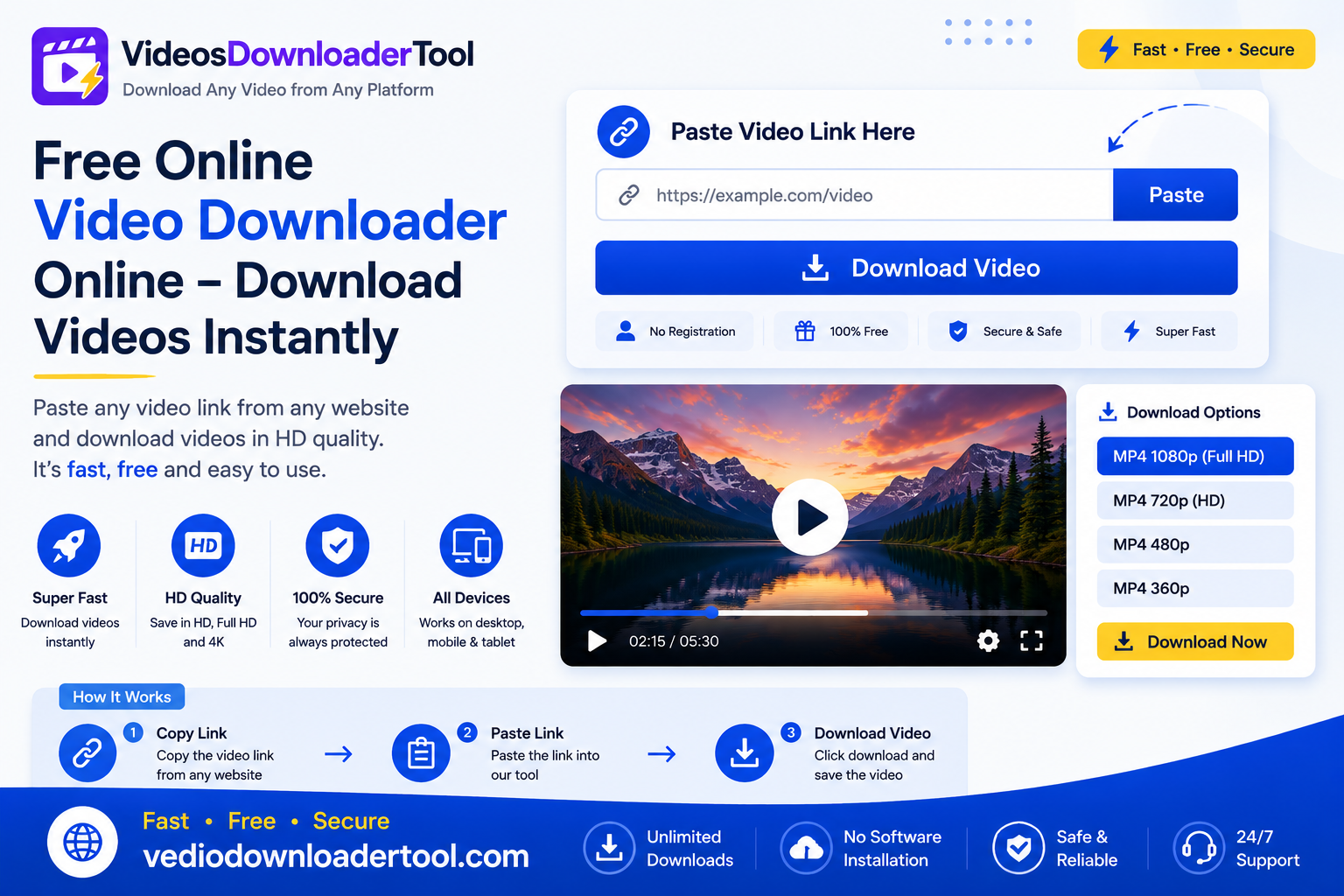
  • Best Video Downloader Online – Download Videos Fast & Free

    Best Video Downloader Online – Download Videos Fast & Free

    Some videos are worth keeping. A tutorial that you will want to watch a clip that is needed for a presentation, a Reel that a friend sent you. An online video downloader makes this possible without installing anything: you copy a link choose a quality and save the file. It is the kind of tool that’s helpful for students getting ready for a lesson marketers taking reference clips or anyone who just wants a video saved for watching without internet on a flight. This guide explains how these tools really work, what to search for in an one and how to use one in a proper way on the websites that you already use. Are you ready to try it? The steps below take less, than a minute.

    Quick Answer

    The best video downloader online is a browser-based tool that lets you save videos from supported platforms as MP4 files without installing software. You paste the video’s URL, choose a resolution, and download the file directly — fast, free, and compatible with any device.


    What Is the Best Video Downloader Online?

    The best video downloader online is something that helps you get videos from the internet. You can use it to turn a video link into a file that you can download and watch when you are not connected to the internet. The video downloader online does this without you needing to install any programs or add anything to your web browser. It takes a video link that anyone can see and makes a file that you can download away. This file is usually, in a format called MP4 that you can play on your computer or phone.

    People use these tools for a reason. Most video websites do not have a built-in “save for feature outside their own apps.. Even if they do that offline version is usually only available, inside that app. A downloader tool fixes this problem. It gives you a file that you can keep, move or play in any video player.

    How Does an Online Video Downloader Work?

    An online video downloader works by reading the video link you provide, locating the video’s actual file on the source platform’s servers, and offering it back to you as a downloadable file — the entire process usually finishes in a few seconds. Here’s the breakdown:

    1. Copy the video URL from the platform you are using.
    2. Paste the URL, into the downloaders input field.
    3. The tool gets the videos metadata, including resolutions.
    4. Download links are created for each quality.
    5. You choose a resolution based on quality needs or file size.
    6. The file downloads as an MP4 for any device.

    Because this all happens through your browser, security matters — a trustworthy tool never asks for your account password on the source platform, since it only needs the public link, not your login.

    How to Use the Best Video Downloader Online

    Using VideosDownloaderTool takes just a few clicks:

    1. Open the video website or app you’re using.
    2. Find the video you want to save.
    3. Copy the video’s URL or share link.
    4. Visit VideosDownloaderTool.com.
    5. Paste the link into the input box.
    6. Click Download.
    7. Choose your preferred video quality.
    8. Save the file to your device.

    No sign-up, no extension to install, and no waiting through ads before you get your file.

    Features of Our Best Video Downloader Online

    A good downloader should make the process painless from start to finish. Here’s what ours offers:

    1. Free to use, with no hidden charges
    2. No installation — runs entirely in the browser
    3. Fast processing, typically just seconds per video
    4. HD download support where the source allows it
    5. Multiple resolution options to balance quality and file size
    6. Mobile-friendly on both Android and iPhone browsers
    7. Desktop compatible across Windows, macOS, and Linux
    8. Browser-based, so there’s nothing tying you to one device
    9. Secure processing with no login credentials requested
    10. Clean interface that’s easy to navigate on the first try
    11. Support for multiple platforms, not just one site

    Benefits of Using an Online Video Downloader

    The appeal of these tools comes down to a handful of practical wins:

    • Offline viewing without needing a live internet connection
    • Faster access to content you’ve already found once
    • Higher-quality downloads compared to a screen recording
    • No software required, so there’s nothing to update or uninstall
    • Cross-device compatibility between phone, tablet, and desktop
    • Saves mobile data by downloading once over Wi-Fi instead of re-streaming
    • Useful for education, letting teachers pull clips into lesson plans
    • Handy for business presentations where a stable local file beats a live stream
    • Convenient for travel, when you want entertainment ready before a flight

    Supported Platforms

    A well-rounded video downloader should work across the platforms people actually use day to day, not just one site. Commonly supported platforms include:

    • YouTube
    • Facebook
    • Instagram
    • TikTok
    • Twitter/X
    • Vimeo
    • Pinterest
    • Dailymotion

    Availability can vary by platform and by individual video, since downloads are only possible for public content and are always subject to that platform’s own terms of service and the original creator’s permissions.

    Supported Devices and Browsers

    Since the tool runs in a browser rather than as installed software, it should work anywhere you already browse — and this one does, across every major operating system and browser in current use.

    PlatformSupportedNotes
    WindowsYesWorks in any modern browser
    macOSYesFully compatible with Safari and Chrome
    LinuxYesWorks via Chrome or Firefox
    AndroidYesNo app required, mobile browser only
    iPhone (iOS)YesWorks in Safari and Chrome for iOS
    ChromeYesFully supported
    FirefoxYesFully supported
    EdgeYesFully supported
    SafariYesFully supported

    Common Problems and Solutions

    Most issues with online downloaders come down to a handful of predictable causes, and each one has a quick fix:

    • Invalid URL — Make sure you copied the full video link, not a shortened preview, and that the video is public.
    • Unsupported link — Some platforms restrict certain video types; double-check the source is on the supported list.
    • Slow download — Usually a connection issue; try switching to Wi-Fi or picking a lower resolution.
    • Browser cache issues — Clear your cache if the page doesn’t load the way it should.
    • Internet connection drops — Restart the download once your connection is stable again.
    • Mobile display issues — Make sure your mobile browser is updated to the latest version.
    • Interrupted downloads — Most files won’t resume automatically, so you’ll need to restart the download.

    Best Practices for Downloading Videos Online

    A few habits make the whole process smoother and safer:

    • Respect copyright — only download videos you’re authorized to save.
    • Download only when permitted by the platform’s terms and the creator’s wishes.
    • Stick to trusted, well-known websites rather than obscure download tools.
    • Keep your browser updated to avoid compatibility problems.
    • Choose the appropriate quality for your purpose — HD for presentations, smaller files for quick offline viewing.
    • Organize your downloads in labeled folders so you can find them later.
    • Avoid suspicious websites that ask for logins, payment, or unnecessary permissions before downloading.

    Best Video Downloader Online vs Other Download Methods

    Not every download method offers the same balance of speed, quality, and safety. Here’s how a browser-based downloader compares:

    FeatureVideosDownloaderToolBrowser ExtensionsDesktop SoftwareScreen Recording
    InstallationNoneRequiredRequiredNone
    SpeedFastModerateModerateSlow (real-time)
    Video QualityOriginal qualityVariesOriginal qualityReduced quality
    SecurityNo login neededVaries by extensionDepends on sourceNative and safe
    Device CompatibilityAny browserBrowser-dependentOS-dependentAny device
    Ease of UseVery easyModerateModerateEasy but slow
    Storage UsageMinimal (browser only)Adds to browserAdds to diskMinimal
    ConvenienceHighModerateLowLow

    Screen recording works without installing anything, but it captures the video in real time and typically produces a lower-quality result. Browser extensions and desktop software can be reliable, but they come with permissions, updates, and occasional compatibility issues that a simple browser tool avoids entirely.


    Frequently Asked Questions

    What is the best video downloader online? 

    The best online video downloader is a tool that’s fast and free. It should work without needing any software to be installed,should also work on different platforms. It needs to follow the rules of each website. Choose tools that do not ask for your login information.

    Is an online video downloader free?

     Yes, VideosDownloaderTool is completely free to use, with no subscription or hidden fees. You simply paste a link and download your file.

    Can I download HD videos?

    Yes, as long as the original video was uploaded in HD. The tool displays every available resolution so you can choose the highest quality offered.

    Is downloading videos legal?

    It depends on what the content’s where it comes from. Downloading videos that you made yourself or content that’s public, for your own use and not for selling is usually okay.. Sharing someone elses work that is protected by copyright without their permission can break the law.

    Which websites are supported?

     Popular platforms like YouTube, Facebook, Instagram, TikTok, Twitter/X, Vimeo, Pinterest, and Dailymotion are commonly supported, though availability can vary by individual video.


    Conclusion

    The best video downloader online is a tool that doesn’t get in your way. No downloads, no sign-ins, a quick way to go from a link to a file that is saved. Whether you are keeping your videos saving videos that are available to the public for watching later or taking a short clip for a class or a talk a tool that works right in the browser like VideosDownloaderTool does the job well: fast choices for quality and works, on the devices people use every day. Keep in mind to download in a way that’s fair and to respect the people who created the videos. Try it out at VideosDownloaderTool.com. If you are focused on a single site look at our YouTube Video Downloader, Instagram Video Downloader or TikTok Video Downloader for the same easy process.


    If you’re looking for another online video downloading solution, you can also explore SaveFrom. It offers browser-based downloading for supported platforms without requiring software installation. Compare its features with VideosDownloaderTool to choose the option that best fits your needs.

  • Free Online Video Downloader Online – Download Videos Instantly

    Free Online Video Downloader Online – Download Videos Instantly

    Watching a video, on the internet is easy.. Keeping a copy of the video for later is not always easy because most websites do not have a button that lets you download the video. This is where an online video downloader comes in. It is a tool that you can use in your browser to turn a video link into a file that you can save on your computer.

    Students use an online video downloader to keep videos of their classes marketers use it to save their own videos teachers use it to make a collection of videos for their lessons that they can watch offline and people who use the internet every day just want to be able to watch videos without worrying about their internet connection. A free online video downloader works completely in your browser you do not have to install anything. You do not have to pay for it.

    This guide breaks down exactly what a free online video downloader is, how it works, how to use VideosDownloaderTool step by step, and what to keep in mind about supported platforms, devices, and copyright along the way.

    Quick Answer

    A free online video downloader is a browser-based tool that converts a video’s URL into a downloadable file, typically MP4, without requiring software installation or payment. You paste the link, choose a quality option, and download — as long as the video is publicly available and downloading is permitted.

    What Is a Free Online Video Downloader?

    In short: it’s a web tool that takes a video’s link, processes the underlying video data, and lets you save it as a file on your device — no cost, no software, and no account required.

    Most video platforms are built for streaming, not saving. A free online downloader fills that gap by reading the public video stream tied to a URL and repackaging it into a standard file format like MP4.

    Typical use cases:

    • Saving a public tutorial or explainer video for offline reference.
    • Archiving your own promotional or personal videos that were posted but never saved locally.
    • Keeping a copy of a public livestream for later viewing.

    Limitations to keep in mind:

    • Only publicly accessible videos can be processed — private or restricted content isn’t retrievable.
    • Some platforms limit downloading through their own terms of service.
    • Being technically able to download a video doesn’t grant you rights to redistribute it. Copyright still applies regardless of how the file was obtained, so stick to content you own or have permission to use.

    How Does an Online Video Downloader Work?

    you copy a video’s URL, paste it into the tool, the tool fetches the video’s available information, you choose a quality, and then download the file — typically an MP4, ready in under a minute.

    Here’s the process step by step:

    1. Copy the video URL — from the address bar or a share/copy-link option.
    2. Paste the URL — into the downloader’s input field.
    3. Fetch video information — the tool checks what resolutions and formats are actually available.
    4. Choose video quality — pick the resolution that fits your needs.
    5. Download the file — saved directly to your device, usually as MP4.

    Because this all happens in-browser, it works consistently across Chrome, Firefox, Edge, and Safari, and on both desktop and mobile devices, without needing to install anything extra.

    How to Use VideosDownloaderTool

    1. Copy the video’s URL.
    2. Visit VideosDownloaderTool.com.
    3. Paste the URL into the input box.
    4. Click Download.
    5. Select your preferred video quality.
    6. Save the file to your device.

    That’s the entire process — no account, no software, no waiting around.

    Features of Our Online Video Downloader

    • Free to use, with no hidden charges for standard downloads.
    • Browser-based — no software or extension installation required.
    • No registration — no email or account needed.
    • Fast downloads, typically completing in seconds.
    • HD quality support for videos originally uploaded in high resolution.
    • Multiple resolutions to balance quality against file size.
    • MP4 support, ensuring broad device and media player compatibility.
    • Mobile friendly design that works smoothly on phones.
    • Desktop compatible across Windows, macOS, and Linux.
    • Secure processing with no unnecessary data retention.
    • Easy-to-use interface — paste, choose, download.

    Benefits of Using a Free Online Video Downloader

    • Offline viewing — no need for an active internet connection to rewatch a saved video.
    • Faster access — skip searching for the same video twice.
    • High-quality downloads — pick the resolution that suits your actual use case.
    • Works across devices — download once, use anywhere.
    • Saves time — a few clicks instead of a multi-step manual process.
    • Easy workflow — no learning curve required.
    • No software required — nothing extra to install, update, or manage.
    • Convenient for education — build an offline library of instructional content.
    • Useful for business presentations — run videos locally without depending on streaming.
    • Helpful for research — archive publicly available content for reference or study.

    Supported Video Platforms

    VideosDownloaderTool supports downloading publicly available videos, where permitted, from major platforms including YouTube, Facebook, Instagram, TikTok, Vimeo, Twitter/X, Pinterest, and Dailymotion.

    The ability to download a video always depends on the rules of each website and the privacy settings of the video. Public videos are usually easy to download. Private videos or videos that need a login are not. This rule applies the same for every website that has the video. 

    If you frequently download from a specific platform, VideosDownloaderTool also offers dedicated tools tailored to that site’s link structure and quality options, which can streamline the process even further.

    Supported Devices and Browsers

    VideosDownloaderTool is built to work consistently across common devices and browsers, since the entire tool runs in-browser rather than through installed software.

    Devices: Windows, macOS, Linux, Android, iPhone

    Browsers: Chrome, Firefox, Edge, Safari

    Device/BrowserSupportedExperience
    WindowsYesFull desktop support
    macOSYesSmooth performance
    LinuxYesWorks via any modern browser
    AndroidYesMobile-optimized, saves to device storage
    iPhoneYesBrowser-based, may prompt to save to Files
    ChromeYesRecommended for best performance
    FirefoxYesFully supported
    EdgeYesFully supported
    SafariYesFully supported

    Common Problems and Solutions

    Invalid URL Double-check that you’ve copied the complete link directly from the address bar or share option, not a shortened or partial version.

    Slow downloads Usually tied to your internet connection or the size of the source video rather than the tool itself — try a stronger connection.

    Unsupported videos Some platforms restrict downloading through their own terms of service, which can limit what’s technically retrievable.

    Private videos Private or restricted content isn’t accessible, since the tool only works with publicly viewable links.

    Browser cache issues Clear your cache or update your browser if the page isn’t loading correctly.

    Internet connection problems Switch to a more stable network, especially for larger or higher-resolution files.

    Download interruptions Restart the download once your connection is stable; larger files are more prone to interruption on unreliable networks.

    Mobile browser issues Make sure your mobile browser is updated to the latest version, and check that your device has enough storage available.

    Best Practices When Downloading Videos

    • Respect copyright and only download content you own or have explicit permission to save.
    • Stick to publicly available or clearly authorized videos.
    • Use a secure, private internet connection when downloading, especially on public Wi-Fi.
    • Keep your browser updated for the best performance and security.
    • Choose a video quality that matches your actual need rather than defaulting to the largest file every time.
    • Keep downloaded files organized in clearly labeled folders.

    VideosDownloaderTool vs Other Download Methods

    FeatureVideosDownloaderToolBrowser ExtensionsDesktop SoftwareScreen Recording
    SpeedFast, near-instant processingFast, but tied to extension updatesVaries, often slower setupSlow — real-time only
    Ease of UseVery easy, no installModerate — requires install and permissionsHarder — installation and setup stepsEasy but manual
    InstallationNone requiredBrowser extension requiredFull software install requiredBuilt-in OS tool, no install
    QualityMatches source resolutionMatches source resolutionMatches source resolutionLimited by screen resolution
    ConvenienceHigh — works anywhere, any deviceModerate — tied to one browserLow — desktop onlyModerate — needs manual timing
    SecurityNo extension permissions neededRequires granting browser accessRisk from untrusted installersNo third-party access needed
    Device CompatibilityWorks across all major devices/browsersLimited to supported browsersLimited to installed OSWorks on any screen, but manual

    Frequently Asked Questions

    1. Is this online video downloader free?

     Yes, VideosDownloaderTool is completely free for standard downloads, with no account, subscription, or hidden fees required.

    2. Can I download HD videos?

     Yes, as long as the original video was uploaded in HD. The tool shows you the resolution options actually available for that specific video.

    3. Which video platforms are supported?

     You can usually watch videos from YouTube, Facebook, Instagram, TikTok, Vimeo, Twitter, Pinterest and Dailymotion. These videos are available, to the public. The thing is, it depends on what each platform allows. YouTube has its rules Facebook has its own rules and so on. So YouTube videos are supported Facebook videos are supported Instagram videos are. The same goes for TikTok videos, Vimeo videos, Twitter videos, Pinterest videos and Dailymotion videos.

    4. Can I download videos on my phone? 

    Yes. The tool works directly through your phone’s browser on both Android and iOS, with files saving to your device’s storage or gallery.

    5. Is downloading videos legal?

    It depends on the content and your rights to it. Downloading your own videos or content you have explicit permission to save is fine. Downloading and redistributing someone else’s copyrighted content without authorization is not, and may violate copyright law or a platform’s terms of service.

    Conclusion

    You can easily download videos from the internet for free. This means you can watch videos without being connected to the internet. VideosDownloaderTool is a website that lets you do this. It works on computers and phones and you can use it with any web browser. You can even get quality videos.

    The best way to use a video downloader is to be careful about what you download. Only download videos that you own or that someone has said you can download. Some videos are public. It is okay to download them for your own use. If you do this you can watch videos without being connected to the internet. You will not get in trouble for copyright issues.

    If you want to try VideosDownloaderTool you can go to VideosDownloaderTool.com. Download a video for free. It only takes a seconds. If you often download videos from the website you should check out the other tools they have. They might be more helpful, for you.

    1. You can use VideosDownloaderTool on devices
    2.  It works with all web browsers
    3.  You can get quality videos for free
    4. Just go to VideosDownloaderTool.com to get started with VideosDownloaderTool.

    If you’re looking for another online video downloading solution, you can also explore SaveFrom. It offers browser-based downloading for supported platforms without requiring software installation. Compare its features with VideosDownloaderTool to choose the option that best fits your needs.