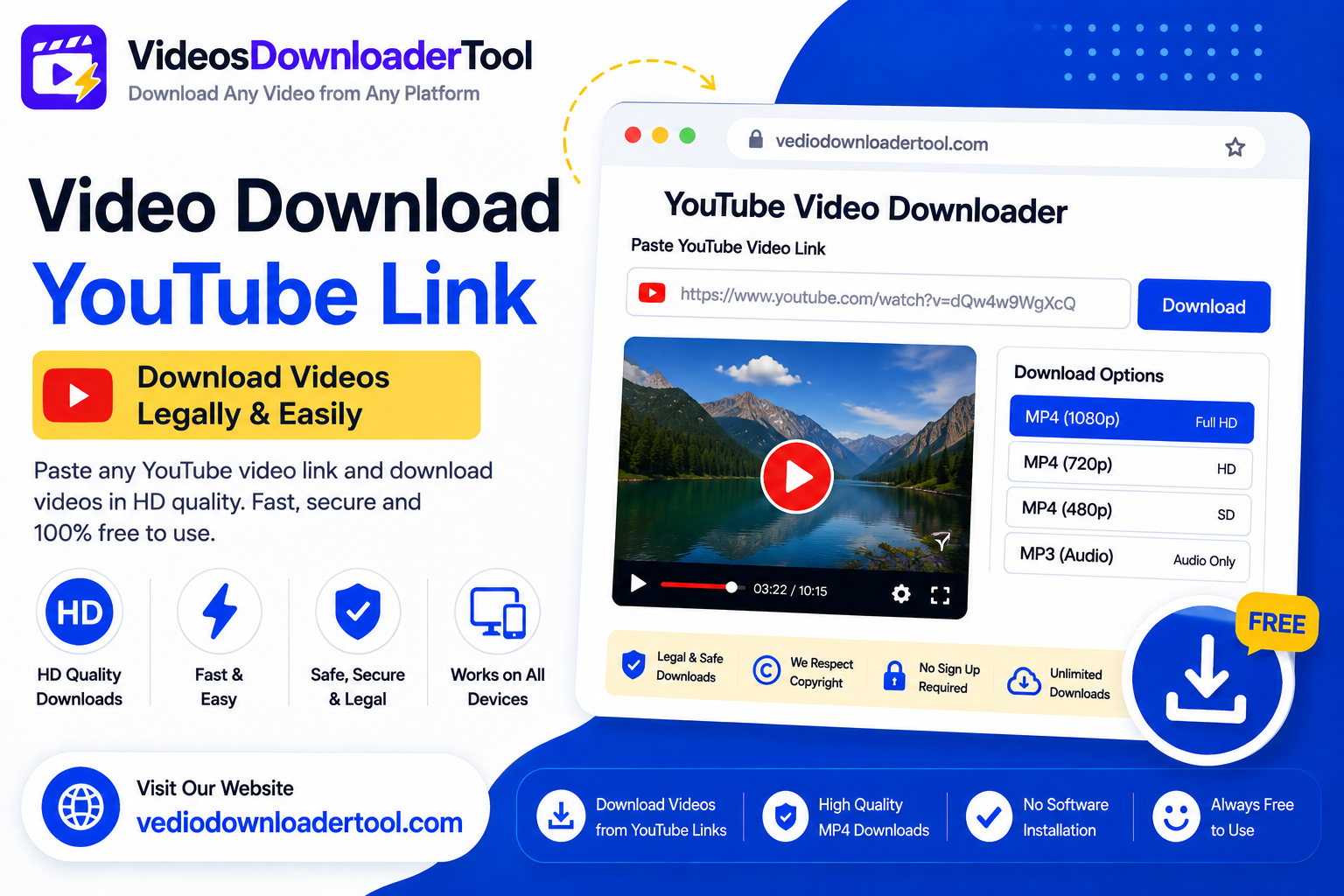
Downloading YouTube Video by Link” refers to linking to YouTube video and pasting the URL of a video into the program that can extract and download a video file to your device. It’s a fast, no-software way to keep a copy of a video — but it only makes sense to do this when you actually have the right to download that particular video.
Not all videos posted on YouTube are legal to download. The majority of the videos are copyrighted and it is only through YouTube’s official downloading options such as YouTube Premium’s offline downloads that can be legally downloaded. Most third party video download sites that offer download for any video you paste in their site’s URL are in violation of the terms.
This guide is for content that you can download responsibly, your own uploaded video content, Creative Commons-licensed video content, and public domain video content. The categories where a link-based downloader comes in handy — and where you’re not subject to legal danger if you use one — are those that students, educators, researchers, and content creators use.
Quick answer
There are several ways to legally download a YouTube video via a link, including if the video is owned by you, if the creator has applied a Creative Commons license to it, if it is in the public domain, and if it is part of YouTube Premium’s official offline feature. In all other cases, without permission, it is a violation of YouTube’s Terms and Copyright law.
What is your definition of a video that can be legally downloaded from YouTube?
A YouTube video can be safely downloaded if any of the following conditions are met: You are the copyright owner, the creator has released the video under Creative Commons, the creator has put it in the Public Domain, or you use YouTube’s official download feature. In all other cases, the video will be copyrighted automatically, even if no copyright symbol or lock is seen on the video.
Let’s look at how each category applies:
Your own uploads. You will have the rights to the video if you posted it, and it’s up to you to decide whether or not to download a backup copy (if you haven’t transferred the rights in a separate agreement).
Creative Commons (CC BY) videos. Others give their videos Creative Commons Attribution licenses, which allow viewers to use the video or download it without any restrictions as long as they give proper credit to the video creator. This license is displayed by YouTube in the video description, when you click on “Show more.
Public domain content. Older government-created movies, work with expired copyrights and a portion of historical footage are in the public domain, making them free to use.
Download videos from YouTube using YouTube Premium offline. YouTube Premium will enable users to download eligible videos directly in the YouTube app for offline viewing without breaking any YouTube guidelines.
Videos that are not in any of these buckets (which is most of YouTube) should not be downloaded via a link-paste tool, because of the convenience factor, to say the least.
How a YouTube Link Downloader Functions?
A link-based downloader reads the ID of the video from the URL you paste and checks the permissions, if the video is allowed to be downloaded it will download the video file and then you can save it on your computer. It’s fast but the permission check is the most important part.
Typical flow:
Click on Share and copy the URL from YouTube.
Copy and paste the download link in the downloader software.
The tool verifies whether the video is yours, under Creative Commons or is public domain.
You choose between a resolution, including 720p, 1080p or the available resolutions for HD/4K.
This file will download onto your device and is typically an MP4.
Any tool which bypasses step 3 (the license check) and allows you to download any link you paste is not helping you. It’s leaving you with all of the compliance liability.
Here are the steps for downloading a YouTube video from a link (legally).
If you are sure it is your own video or a Creative Commons or Public Domain:
Watch the video on YouTube.
Verify it has a Creative Commons License in the description, or it is your own upload.
Copy the URL of the video from the address bar or Share button.
Use a downloader tool that also checks licences like VideosDownloaderTool.
Copy and paste the YouTube link.
Click Download.
Select your desired resolution (HD, Full HD or options).
Save the document to your device.
If you don’t own the video or it’s not Creative Commons or public domain, subscribe to YouTube Premium instead, as it has an integrated offline download function that will allow you to save the videos for offline use without violating terms of service.
The features you should seek in a YouTube Link Downloader:
A reliable downloader should do more than simply grab a file; it should assist you to abide by the rules and provide a smooth experience. These characteristics to search for are:
Detection of licenses/rights status of videos (Creative Commons, public domain and copyright);
No software installation – runs directly inside your browser.
Several resolutions (HD if the source video is available)
MP4 output – the most widely compatible video format
Mobile and desktop compatibility.
Secure processing, without storing your files longer than necessary
Good communication if a video is not downloadable (Don’t download it just in case!)
Tools that don’t perform the license-detect step may appear to be quicker, but they’re shifting risk to you, the user.
There are multiple advantages to downloading eligible YouTube videos.There are a number of advantages to downloading eligible YouTube videos.
A link-based tool, when it maintains your content that you are permitted to download, has real value with little risk:
When travelling, flying or in areas with low connectivity, you can access your content offline (not online).
Classroom use — teachers recording their own lectures or learning resources which are CC licensed.
Research archiving – maintaining a local stable copy of historical footage that is already available for public use.
Content back-up — creators have their own copies of their own uploads.
Presentations – embedding own materials or properly licensed materials within presentations without needing to have internet access while presenting
None of these use-cases involve physically touching copyrighted content that is not one’s.This is precisely the point of all of these use-cases: none of them involve physically touching copyrighted content that is not one’s.
Supported Devices and Browsers
A good link-based downloader should work consistently across common devices and browsers, since users switch between phones, laptops, and tablets throughout the day.
Devices
- Windows
- macOS
- Linux
- Android
- iPhone
Browsers
- Chrome
- Firefox
- Edge
- Safari
| Platform | Browser Support | Notes |
| Windows | Chrome, Firefox, Edge | Full feature support |
| macOS | Safari, Chrome, Firefox | Full feature support |
| Linux | Chrome, Firefox | Full feature support |
| Android | Chrome, Firefox (mobile) | Downloads save to device storage |
| iPhone/iPad | Safari, Chrome (iOS) | Downloads may require “Save to Files” |
For browser-specific download settings, Apple, Microsoft, and Mozilla each publish official guidance.
Common Problems and Solutions
Even with a legitimate video, downloads can hit snags. Here’s how to troubleshoot the most common ones:
- “Invalid URL” error — Make sure you copied the full link, including https:// and the video ID after watch?v=.
- Tool says the video isn’t eligible — This usually means the video is standard copyright, not Creative Commons or public domain. Respect that result rather than searching for a workaround.
- Slow downloads — Check your internet connection speed, or try a lower resolution.
- Downloads not appearing — Check your browser’s default download folder, or your device’s file manager.
- Interrupted downloads — Stay on a stable Wi-Fi connection and avoid switching networks mid-download.
Best Practices When Downloading YouTube Videos
- Always check the video’s license before downloading — look under “Show more” in the description.
- When in doubt, don’t download. Ask the creator directly, or use YouTube Premium’s offline feature instead.
- Credit the original creator when reusing Creative Commons content, as the license requires.
- Use a secure, private internet connection when downloading.
- Keep your browser updated for security and compatibility.
- Organize downloaded files clearly, noting the source and license type for future reference.
Legal Downloading vs Other Methods
| Feature | Link-Based Tool (License-Checked) | Browser Extensions | YouTube Premium Offline |
| Works for CC/public domain videos | Yes | Varies | No |
| Works for your own uploads | Yes | Varies | Yes |
| Works for standard copyrighted videos | No (by design) | Often, but violates ToS | Yes, within the app |
| Installation required | No | Yes | No (uses existing app) |
| Compliant with YouTube’s Terms | Yes, for eligible content | Generally no | Yes |
The safest approach for everyday copyrighted content you don’t own is still YouTube Premium’s official offline download — it’s the one method built and sanctioned by YouTube itself.
Frequently Asked Questions
What is a “video download YouTube link” tool?
This is a website where you can copy and paste a YouTube video link to download the video to your computer. The real websites will check if the YouTube video is allowed to be downloaded for free. They do this by seeing if the video is something you made yourself or if it has a Creative Commons license or if it is domain. If it is one of these then you can save the YouTube video to your device. You can download your YouTube video or a YouTube video that is Creative Commons or public domain.
Can I download any YouTube video by copying its link?
No. Most YouTube videos are copyrighted, and downloading them without permission breaches YouTube’s Terms of Service and copyright law, regardless of how easy a tool makes it.
How do I know if a video is Creative Commons licensed?
Open the video, click “Show more” under the description, and look for a Creative Commons Attribution (CC BY) label. If it’s not listed, assume standard copyright applies.
Can I download my own YouTube videos?
Yes. As the uploader, you generally own the rights to your own content, so downloading a backup copy is your decision to make.
Is downloading public domain videos legal?
Yes. Public domain content has no active copyright holder, so anyone can download and reuse it freely, though crediting the original source is still good practice.
Conclusion
Downloading a YouTube video by pasting its link is easy. It is only a good idea when you have the correct permission to use that video. Your own videos, content that is licensed under Creative Commons or material that is in the public domain. For all videos the official offline feature, from YouTube Premium is the right choice.
Using tools that check licenses keeps you safe from problems while still allowing you to quickly get videos that you are allowed to save. If you are not sure look at the license give credit to the person who made the video and use the way.
If you’re looking for another online video downloading solution, you can also explore SaveFrom. It offers browser-based downloading for supported platforms without requiring software installation. Compare its features with VideosDownloaderTool to choose the option that best fits your needs.
Leave a Reply