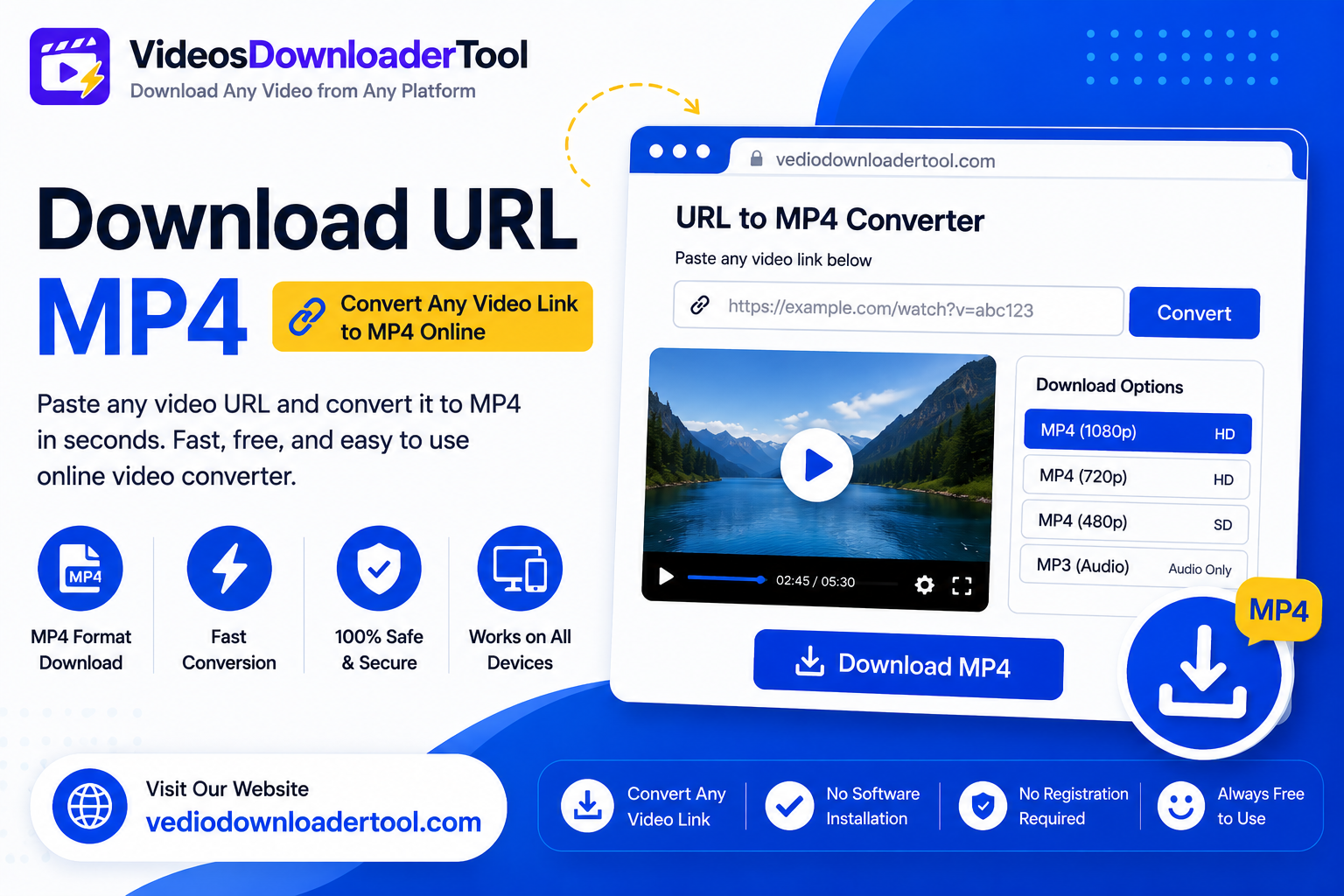
You’ve got a video link — maybe a direct file URL, a public clip someone shared, or a video hosted somewhere that doesn’t offer its own save button. “Download URL MP4” is exactly what it sounds like: taking that link and turning it into an actual MP4 file sitting on your device, instead of a page you have to reopen every time you want to watch it.
This kind of tool is popular with anyone who moves between a lot of video sources — students saving lecture clips, marketers pulling reference material, or just someone who found a video worth keeping. Below, you’ll learn how URL-to-MP4 conversion actually works, how to use it step by step, which sites it plays nicely with, and where the real limits are.
Quick answer
Download URL MP4 refers to converting a video’s web link into a downloadable MP4 file you can save and watch offline. It works with publicly accessible video links, and support varies by source — some platforms allow it freely, others restrict downloading through their own terms of service.
What Is Download URL MP4?
In short: Download URL MP4 is the process of turning a video’s URL into a saved MP4 file using an online tool, instead of a desktop program. It works for publicly viewable video links, and it’s meant for content you’re allowed to save — your own uploads, openly licensed videos, or platforms that explicitly permit downloading.
A useful way to think about it: every video URL points to content sitting somewhere on the internet, and a “download URL MP4” tool reads that link, finds the video file behind it, and gives you a copy in MP4 — the most widely compatible video format around.
Here’s the part that’s easy to skip past: not every platform treats downloading the same way. Some, like Vimeo, let creators flip a setting that explicitly allows downloads. Others, most notably YouTube, spell out in their terms of service that you’re not allowed to download content unless the platform itself shows you a download button (through YouTube Premium, for instance). Using a third-party tool to pull a video from a site that explicitly prohibits it isn’t something a responsible downloader should help with, regardless of the link.
So the realistic, responsible use cases are:
- Direct video file links (a URL that points straight to an MP4 or similar file).
- Public videos on platforms that allow personal downloading.
- Your own uploaded content, wherever it’s hosted.
- Openly licensed video (Creative Commons or similar), where the license permits downloading.
How Does a Download URL MP4 Tool Work?
In short: You copy a video’s URL, paste it into the tool, and it identifies the video file behind the link, offers a choice of quality if more than one exists, and converts or saves it as an MP4 through your browser.
Here’s the process broken down:
- You copy the video URL from wherever it’s hosted or shared.
- The tool fetches the video’s public information tied to that link.
- It checks which quality options are available.
- You select a resolution.
- The video is converted to MP4 if it isn’t already in that format.
- The file downloads through your browser to your device.
Because this all runs in the browser, there’s no software to install, and the workflow is the same on a phone or a laptop. MP4 is the target format because it’s supported by essentially every device, operating system, and media player without needing extra codecs.
How to Use the Download URL MP4 Tool
Here’s the actual step-by-step:
- Copy the video’s URL from its source page.
- Go to VideosDownloaderTool.com.
- Paste the URL into the input field.
- Click Download.
- Select MP4 as your output format.
- Choose your preferred video quality.
- Start the conversion.
- Save the MP4 file to your device.
If a link doesn’t return any download options, it’s usually because the source doesn’t offer public access to the video, or the platform explicitly restricts third-party downloading — not a glitch in the tool.
Features of Our Download URL MP4 Tool
In short: The tool is free, browser-based, and requires no installation. It converts to MP4 automatically, supports multiple quality options where available, and works the same way on mobile and desktop.
- Free to use for standard downloads.
- No software installation — everything runs in the browser.
- Fast conversion, typically within seconds.
- MP4 output by default, for maximum compatibility.
- Multiple resolution options, when the source supports them.
- Mobile and desktop friendly.
- No account required for standard use.
- Simple, clutter-free interface.
Benefits of Using a Download URL MP4 Tool
- Offline viewing anywhere, without depending on a live connection.
- One universal format — MP4 plays on nearly everything.
- Saves time compared to manually locating and saving video files.
- No installation needed, just a browser.
- Cross-device workflow — same steps on phone or desktop.
- Useful for education and presentations, where a stable local file beats streaming.
- Simple, repeatable process for anyone managing video links regularly.
Supported Websites
In short: Support for URL-to-MP4 downloading varies by platform. Some sites, like Vimeo, allow it when the creator enables downloads. Others, including YouTube, explicitly restrict third-party downloading in their terms of service, so those links are handled with that limitation in mind rather than treated as freely downloadable.
Generally, this kind of tool works best with:
- Direct video links (URLs pointing straight to a video file).
- Vimeo videos where the creator has enabled downloads.
- Facebook and Dailymotion public videos, for personal offline viewing.
- Public, openly shared clips on platforms without strict per-video access controls.
For YouTube specifically, it’s worth being upfront: YouTube’s terms of service only permit downloading through official channels like YouTube Premium. Third-party downloading of YouTube content isn’t something this tool is built to encourage, and you should stick to YouTube’s own download features for that platform.
For platform-specific guidance, our dedicated pages — including the Vimeo Video Downloader, Facebook Video Downloader, and Dailymotion Video Downloader — go into more detail on what’s supported for each one.
Supported Devices and Browsers
In short: The tool works across all major operating systems and browsers since it’s fully web-based — Windows, macOS, Linux, Android, and iPhone are all supported without any extra software.
| Platform | Supported | Notes |
| Windows | Yes | Works in any modern browser |
| macOS | Yes | No extra permissions needed |
| Linux | Yes | Browser-based, no install |
| Android | Yes | Chrome, Samsung Internet, and more |
| iPhone / iPad | Yes | Safari and Chrome supported |
| Browser | Supported |
| Chrome | Yes |
| Firefox | Yes |
| Safari | Yes |
| Edge | Yes |
Common Problems and Solutions
- “Invalid URL” error — Make sure you copied the complete link, not a shortened or partial version.
- Unsupported website — Some platforms restrict third-party downloading by design; check whether the source allows it before assuming the tool is broken.
- Slow download — Usually a local connection issue; try a different network or a lower resolution.
- Broken video link — The source video may have been removed, made private, or moved.
- Browser issues — Clear your cache or switch browsers if the page misbehaves.
- Internet connection problems — A stable connection matters more for larger HD files.
- Conversion failure — Occasionally caused by an unusual source format; try the direct link again or a different quality setting.
- Download interruptions — If a download stalls partway, simply restart it.
Best Practices for Downloading Videos as MP4
- Only download content you own, have permission to save, or that the platform explicitly allows.
- Check platform-specific rules before downloading — they vary more than people expect.
- Use trusted, browser-based tools that don’t ask for account logins or passwords.
- Choose a resolution that matches your actual use case.
- Keep downloaded files organized in clearly labeled folders.
- Use a secure, stable internet connection, especially for HD downloads.
- Keep your browser updated for the smoothest experience.
Download URL MP4 vs Other Download Methods
| Feature | VideosDownloaderTool | Browser Extensions | Desktop Software | Screen Recording |
| Speed | Fast | Moderate | Moderate | Slow (real-time only) |
| Ease of use | Very easy | Moderate | Requires setup | Moderate |
| Installation | None | Extension required | Full install required | Sometimes required |
| Output quality | Up to available HD | Varies | Varies | Limited by screen resolution |
| Convenience | High (any device) | Browser-specific | Desktop-only | Any device, but re-encodes video |
| Security | No install, browser-based | Extension permissions needed | Larger attack surface | No install needed |
| Device compatibility | Cross-platform | Browser-specific | OS-specific | Cross-platform |
Screen recording re-encodes whatever’s playing on-screen, which usually means a quality drop compared to the original file. Desktop software often adds editing features but comes with installation and update overhead that a browser-based tool skips entirely.
Frequently Asked Questions
What does Download URL MP4 mean?
It refers to converting a video’s web link into a saved MP4 file you can watch offline, rather than streaming it every time from its original source.
Can I download any video URL as MP4?
Not always. Support depends on the source — direct file links and platforms that allow downloading generally work, while sites with strict terms of service against third-party downloading, like YouTube, are handled with those restrictions in mind.
Is Download URL MP4 free?
Yes, the standard download feature on VideosDownloaderTool.com is free to use, with no account required.
Which websites are supported?
Direct video links, Vimeo videos with downloads enabled, and public videos on platforms like Facebook and Dailymotion generally work. YouTube specifically restricts third-party downloading through its own terms of service.
Does it work on mobile?
Yes, it works the same way on Android and iPhone as it does on desktop, since it’s browser-based.
Conclusion
Download URL MP4 tools solve a genuinely common problem: turning a video link into a file you actually own a copy of, without installing anything extra. The process is simple — paste the link, pick a quality, and save.
What matters is matching that convenience with a bit of judgment about the source. Some platforms are built around letting you download freely; others, like YouTube, are explicit that third-party downloading isn’t allowed. Sticking to content you own, have permission for, or that the platform itself permits keeps things straightforward and above board.
If you’re working with a specific platform regularly, our dedicated guides — including the Vimeo Video Downloader, Facebook Video Downloader, and TikTok Video Downloader — cover the details for each one in more depth.
If you’re looking for another online video downloading solution, you can also explore SaveFrom. It offers browser-based downloading for supported platforms without requiring software installation. Compare its features with VideosDownloaderTool to choose the option that best fits your needs.
Leave a Reply