Category: Uncategorized

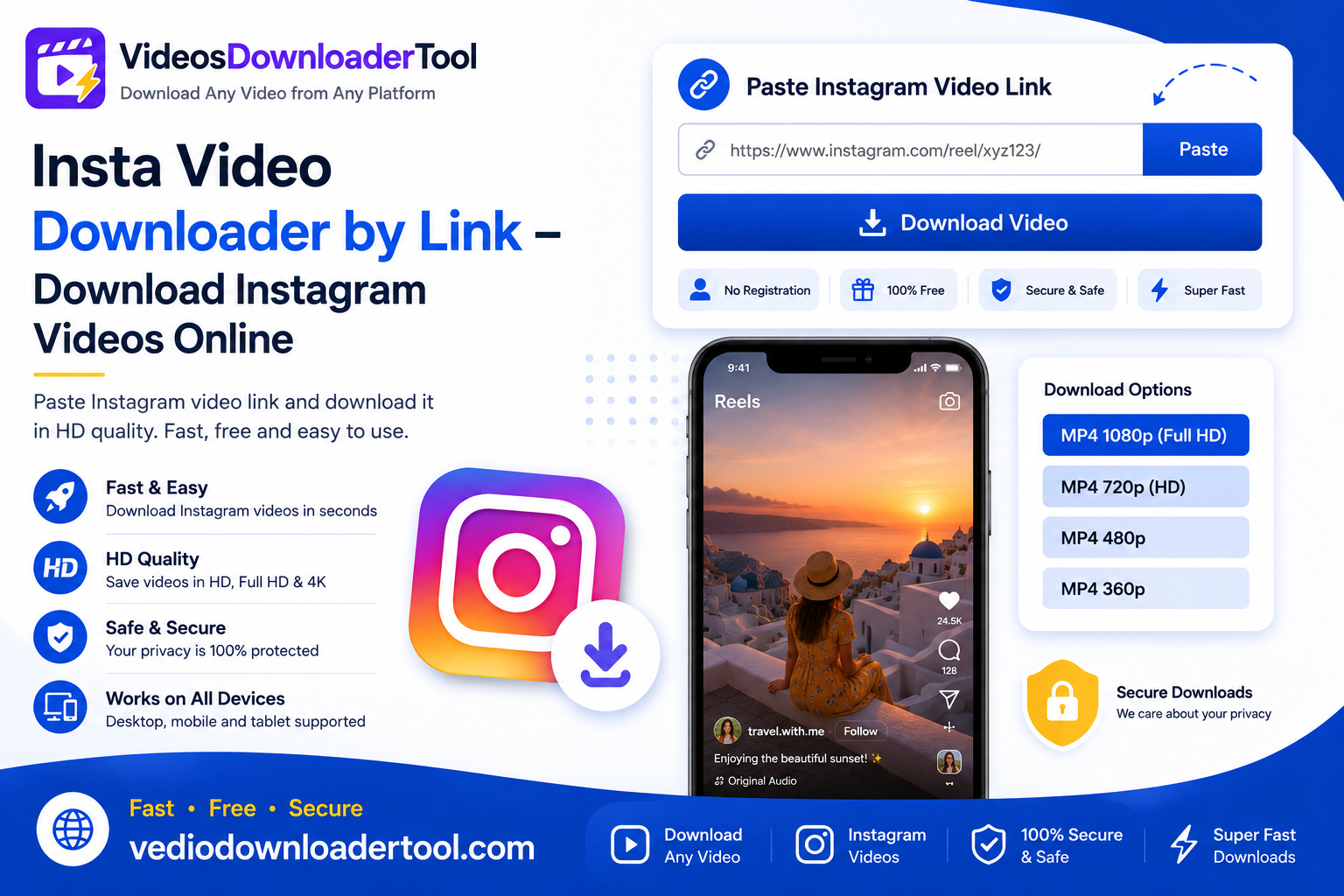
  • Insta Video Downloader by Link – Download Instagram Videos Online

    Insta Video Downloader by Link – Download Instagram Videos Online

    Instagram is full of content worth keeping — a Reel with a recipe you want to try, a tutorial from a creator you follow, or a post from your own business account that you never saved locally. The catch is that Instagram doesn’t offer a built-in download option for most videos.

    An Insta video downloader by link solves that. It’s a browser-based tool that takes a public Instagram video or Reel link and converts it into a downloadable file, without needing an app or account. Creators use it to keep track of their own content, marketers save campaign inspiration, and everyday users just want to rewatch something without hunting through their feed again.

    This guide walks through what this kind of tool actually does, how to use it step by step, which devices and browsers it supports, and what you should know about copyright before saving anything. By the end, you’ll be ready to download your first Instagram video with VideosDownloaderTool in under a minute.

    Quick Answer

    An Insta video downloader by link is an online tool that converts a public Instagram video or Reel URL into a downloadable MP4 file. You paste the link, select a quality option, and download — no app or sign-up needed, and only for content you’re authorized to save.

    What Is an Insta Video Downloader by Link?

    In short: it’s a browser-based tool that reads a public Instagram video’s link and converts it into a downloadable file, filling the gap left by Instagram’s lack of a native save option for most content.

    Instagram allows saving posts to a personal collection within the app, but that doesn’t actually download the video file to your device — it just bookmarks it inside Instagram. A link-based downloader goes a step further by pulling the actual video data and letting you keep a local copy.

    When people typically need this:

    • Saving a Reel or post for offline viewing, like during a flight or commute.
    • A creator or business wanting a local copy of their own uploaded content.
    • Archiving publicly available content for research, education, or reference purposes.

    Limitations to understand:

    • Only public videos can be processed — private accounts and restricted content aren’t accessible.
    • Instagram Stories, being temporary by nature, may not always be retrievable depending on their availability window.
    • Copyright still applies. A video being public doesn’t mean you’re free to redistribute it — download responsibly, sticking to content you own or have explicit permission to use.

    How Does an Insta Video Downloader by Link Work?

    In short: you copy a public Instagram video’s link, paste it into the tool, the tool fetches the available video information, you pick a quality, and download the resulting MP4 — usually in under a minute.

    Here’s the process broken down:

    1. Copy the Instagram video link — using the share option on a post or Reel.
    2. Paste the URL — into the downloader’s input field.
    3. Fetch video information — the tool checks what resolutions are available for that specific video.
    4. Select quality — choose the resolution that best fits your needs.
    5. Download MP4 — the file saves directly to your device.

    Because the whole process runs in-browser, it works the same way across Chrome, Firefox, Safari, and Microsoft Edge, whether you’re on desktop or mobile, with no app permissions to grant.

    How to Use the Insta Video Downloader by Link

    1. Open Instagram.
    2. Find the video or Reel you want to save.
    3. Copy its link using the share option.
    4. Visit VideosDownloaderTool.com.
    5. Paste the URL into the input field.
    6. Click Download.
    7. Choose your preferred video quality.
    8. Save the file to your device.

    That’s the entire process — no account, no app installation, no extra steps.

    Features of Our Instagram Video Downloader

    • Free to use, with no cost for standard downloads.
    • No software installation — the tool works entirely in your browser.
    • Fast downloads, typically completing in seconds.
    • HD quality support for videos and Reels originally uploaded in high resolution.
    • Multiple resolutions, so you can balance quality against file size.
    • Browser-based, requiring no app permissions or extensions.
    • Secure processing with no unnecessary data retention.
    • Mobile friendly design that works smoothly on both Android and iOS browsers.
    • Desktop compatible across Windows, macOS, and Linux.
    • Easy interface — paste, choose, download.

    Benefits of Using an Insta Video Downloader by Link

    • Offline viewing — watch saved Reels and videos without needing a live connection.
    • Saves time — no need to search through your feed to find a video again.
    • Easy access — your saved files are ready whenever you need them.
    • HD downloads — choose the resolution that matches your intended use.
    • Works across devices — download once, watch on any device.
    • No installation — nothing extra taking up storage or needing updates.
    • Fast workflow — from link to file in just a few clicks.
    • Great for education and research — build an offline archive of instructional or reference content.

    Common Reasons People Download Instagram Videos

    • Educational content — informational Reels and tutorials saved for later study.
    • Tutorials referenced repeatedly without needing to search again.
    • Reels worth rewatching or sharing offline.
    • Product demonstrations kept for comparison or reference while shopping.
    • Marketing inspiration — reviewing publicly posted campaigns for research purposes.
    • Creative portfolios — designers and editors saving public work for style reference.
    • Travel videos downloaded ahead of a trip with limited connectivity.
    • Fitness videos saved for offline workouts.
    • Cooking videos kept for step-by-step kitchen reference.
    • Offline viewing in general, for commutes, flights, or low-signal areas.

    Supported Devices and Browsers

    VideosDownloaderTool works consistently across common devices and browsers since everything happens in-browser rather than through an installed app.

    Devices: Windows, macOS, Linux, Android, iPhone

    Browsers: Chrome, Firefox, Safari, Microsoft Edge

    Device/BrowserSupportedExperience
    WindowsYesFull desktop support
    macOSYesSmooth performance
    LinuxYesWorks via any modern browser
    AndroidYesMobile-optimized, saves to gallery
    iPhoneYesBrowser-based, may prompt to save to Files
    ChromeYesRecommended for best performance
    FirefoxYesFully supported
    SafariYesFully supported
    Microsoft EdgeYesFully supported

    Common Problems and Solutions

    Invalid Instagram URL Make sure you’ve copied the complete link using the share option on the post or Reel, not a shortened or partial version.

    Private Instagram accounts Content from private accounts isn’t accessible — this is intentional, since the tool only works with publicly viewable posts.

    Deleted posts If a post or Reel has been removed, the link will no longer resolve to any content.

    Unsupported links Instagram Stories and certain temporary content may not always be retrievable, depending on their availability at the time of the request.

    Browser issues Clear your cache or update your browser if the page isn’t loading or behaving correctly.

    Slow downloads Usually tied to your internet connection or the video’s file size rather than the tool itself — try a stronger connection.

    Internet connection problems Switch to a more stable network, especially for higher-resolution downloads.

    Download interruptions Restart the download once you have a stable connection; larger files are more prone to interruption on unreliable networks.

    Best Practices When Downloading Instagram Videos

    • Respect copyright and only download content you own or have explicit permission to save.
    • Stick to publicly accessible or clearly authorized content rather than attempting to access private accounts.
    • Use a secure, private internet connection when downloading, especially on public Wi-Fi.
    • Choose a video quality suited to your actual need rather than defaulting to the largest file every time.
    • Organize downloaded videos into clearly labeled folders.
    • Keep your browser updated for the best performance and security.

    Insta Video Downloader by Link vs Other Download Methods

    FeatureVideosDownloaderToolBrowser ExtensionsDesktop SoftwareScreen Recording
    SpeedFast, near-instant processingFast, but tied to extension updatesVaries, often slower setupSlow — real-time only
    Ease of UseVery easy, no installModerate — requires install and permissionsHarder — installation and setup stepsEasy but manual
    InstallationNone requiredBrowser extension requiredFull software install requiredBuilt-in OS tool, no install
    Video QualityMatches source resolutionMatches source resolutionMatches source resolutionLimited by screen resolution
    SecurityNo extension permissions neededRequires granting browser accessRisk from untrusted installersNo third-party access needed
    ConvenienceHigh — works anywhere, any deviceModerate — tied to one browserLow — desktop onlyModerate — needs manual timing

    Frequently Asked Questions

    1. Is Insta Video Downloader by Link free?

     Yes, VideosDownloaderTool is completely free for standard downloads, with no sign-up or subscription required.

    2. Can I download Instagram Reels?

     Yes, for publicly posted Reels. Simply copy the Reel’s share link and paste it into the tool the same way you would for a regular video post.

    3. Can I download HD videos? 

    Yes, as long as the original video or Reel was uploaded in HD. The tool shows the resolution options actually available for that specific content.

    4. Is downloading Instagram videos legal?

    It depends on what the content’s what rights you have to it. Downloading videos or content you made yourself. Have permission to save is okay. Taking someone Copyrighted content without their approval and sharing it again is not allowed. This can break copyright rules or Instagrams policies.

    5. Can I download videos from private accounts?

     No. The tool only works with publicly accessible content and cannot retrieve videos from private or restricted accounts.

    Conclusion

    An Instagram video downloader, by link fills a gap. Instagram does not make it easy to save most videos or Reels even ones that you have every right to keep. VideosDownloaderTool offers a free browser-based way to do exactly that working across virtually every major device and browser.

    The key is using it responsibly: stick to content that you own have permission to save or are using strictly for personal offline viewing. That way you get all the convenience without any copyright concerns.

    Ready to try it? Head to VideosDownloaderTool.com. Download your first Instagram video by link in seconds. If you regularly save content from platforms too explore our related tools below.


    If you’re looking for another online video downloading solution, you can also explore SaveFrom. It offers browser-based downloading for supported platforms without requiring software installation. Compare its features with VideosDownloaderTool to choose the option that best fits your needs.
  • Instagram Video Downloader – Download Instagram Videos Online

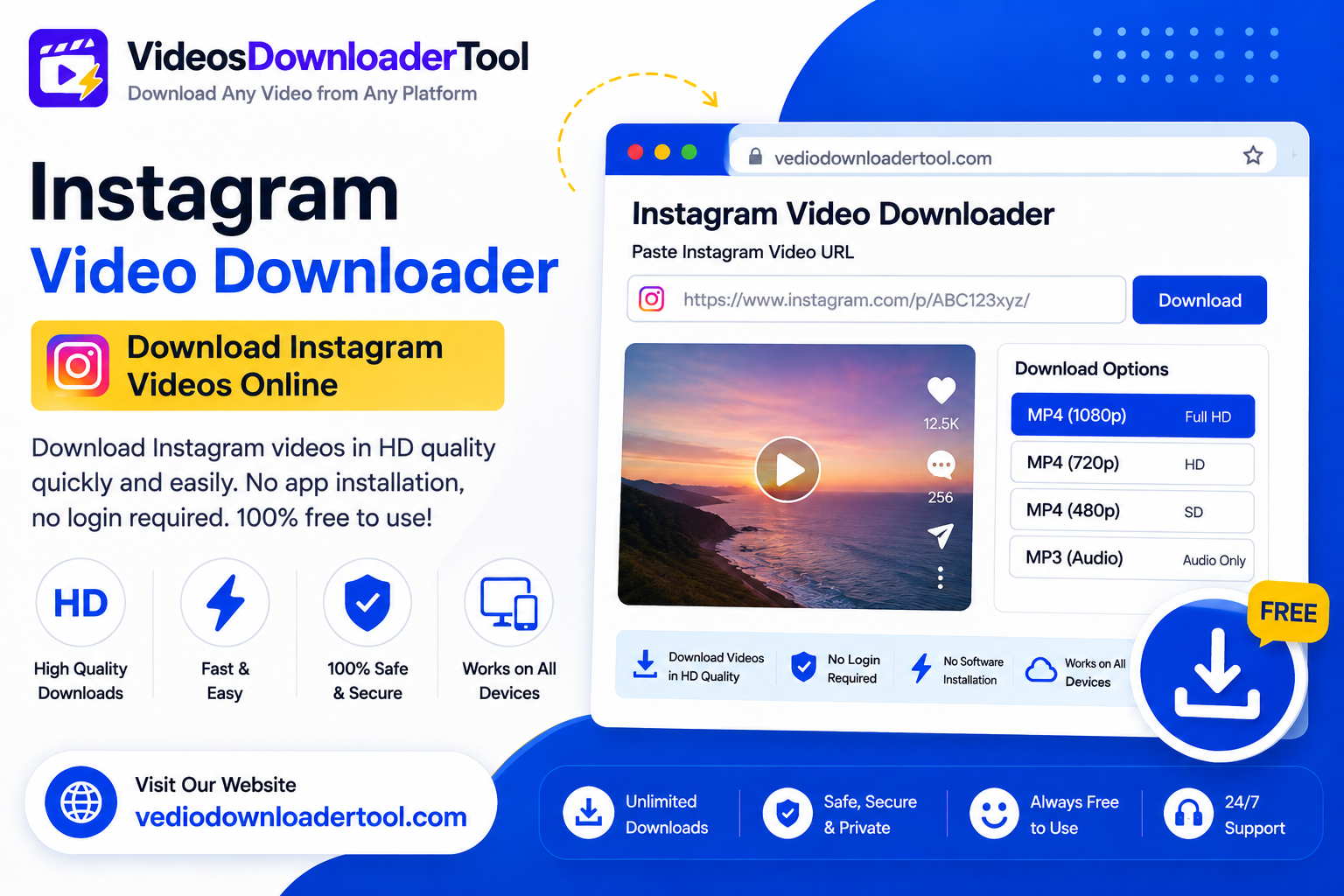
    Instagram Video Downloader – Download Instagram Videos Online

    Ever scrolled past a Reel or video on Instagram that you wanted to keep — a recipe, a workout routine, a friend’s travel clip — only to lose track of it an hour later? An Instagram video downloader solves that problem. It’s a simple online tool that lets you save Instagram videos to your phone or computer in just a few clicks, no app installs or technical know-how required. Students save tutorials, marketers save inspiration, and everyday users save moments they don’t want to lose in the endless scroll. In this guide, you’ll learn exactly how these tools work, how to use one properly, and how to do it responsibly. Ready to save your first video? Keep reading — the steps are easier than you’d think.

    Quick Answer

     An Instagram video downloader is a browser-based tool that lets you save public Instagram videos, Reels, and posts as MP4 files. You paste the post’s link, the tool retrieves the video, and you download it directly to your device — no software, login, or app required.


    What Is an Instagram Video Downloader?

    An Instagram video downloader is a web-based tool that converts a public Instagram video link into a downloadable file, usually MP4, that you can save and watch offline. It works entirely through your browser — there’s nothing to install. People turn to these tools when a video isn’t available for offline saving inside the Instagram app itself, which is the case for most posts and Reels.

    The main benefit is convenience: you copy a link, paste it, and get your file in seconds. The main limitation is that it only works on public content — private accounts and restricted posts can’t be accessed this way, and rightly so, since Instagram’s own terms give creators control over how their content is shared and reused. A good downloader tool respects that boundary. Downloading a video doesn’t transfer ownership of it to you; the original creator still holds the rights, so saved videos should be used personally or with proper permission, not reposted or monetized without the creator’s consent.

    How Does an Instagram Video Downloader Work?

    An Instagram video downloader works by reading the public link you provide, pulling the video’s direct file location from Instagram’s servers, and converting it into a downloadable MP4 you can save to your device — the whole process typically takes just a few seconds. Here’s what happens behind the scenes, step by step:

    1. You copy the video’s URL from the Instagram app or website (using the Share or Copy Link option).
    2. You paste that link into the downloader tool.
    3. The tool fetches the video’s public data, including its available resolutions.
    4. You select a quality option — HD, standard, or a smaller file size for slower connections.
    5. The file downloads as an MP4, ready to open in any media player.

    Because the whole process runs in your browser, it works the same way on Chrome, Firefox, Safari, or Edge — there’s no dependency on a specific operating system.

    How to Use the Instagram Video Downloader

    Using VideosDownloaderTool’s Instagram downloader takes less than a minute once you know the steps:

    1. Open Instagram (app or website) and find the video, Reel, or post you want to save.
    2. Tap the three-dot menu and select Copy Link.
    3. Go to VideosDownloaderTool.com.
    4. Paste the copied link into the input box.
    5. Click Download.
    6. Choose your preferred video quality from the options shown.
    7. Click Save and the file will download to your device.

    That’s the entire process — no account creation, no browser extension, and no waiting around for ads to finish.

    Features of Our Instagram Video Downloader

    Our tool is built to make saving Instagram videos as fast and painless as possible, with no hidden costs or unnecessary steps. Here’s what it offers:

    • Completely free to use, with no download limits
    • No software installation — works entirely in your browser
    • Fast processing, usually just a few seconds per video
    • HD download support where the source video allows it
    • Multiple resolution options so you can pick file size vs. quality
    • Mobile-friendly design that works on Android and iPhone browsers
    • Desktop compatible across Windows, macOS, and Linux
    • Secure processing with no login credentials ever requested
    • Clean, simple interface with no confusing extra steps

    Benefits of Using an Instagram Video Downloader

    Saving videos this way brings a handful of real, everyday advantages:

    • Offline viewing — watch saved clips without needing data or Wi-Fi
    • Time savings — no more searching to relocate a video you saw days ago
    • Easy access — keep favorite content organized in your own folders
    • Higher-quality downloads than a basic screen recording
    • No installation required, so you’re not adding clutter to your device
    • Cross-device compatibility between phone, tablet, and computer
    • Useful for presentations and teaching, where showing a saved clip is more reliable than live-streaming one
    • A simple, repeatable workflow for anyone who downloads regularly

    Common Reasons People Download Instagram Videos

    There’s no single reason people use these tools — the use cases are as varied as Instagram itself:

    • Students and researchers saving educational Reels or explainer clips for later review
    • Content creators collecting inspiration or references for their own projects
    • Marketers archiving campaign content or competitor examples for analysis
    • Businesses saving customer testimonials or product demo videos shared with permission
    • Everyday users keeping recipes, workout routines, or travel clips for offline viewing
    • Teachers pulling short clips into lesson plans or presentations

    Supported Devices and Browsers

    A browser-based downloader should work wherever you already browse the internet, and ours is built to do exactly that across major operating systems and browsers.

    PlatformSupportedNotes
    WindowsYesWorks in any modern browser
    macOSYesFull compatibility with Safari and Chrome
    LinuxYesWorks via Chrome or Firefox
    AndroidYesMobile browser supported, no app needed
    iPhone (iOS)YesWorks in Safari and Chrome for iOS
    ChromeYesFully supported
    FirefoxYesFully supported
    EdgeYesFully supported
    SafariYesFully supported

    Common Problems and Solutions

    Even a simple tool can run into hiccups, and most of them have quick fixes:

    If you get an Invalid URL error you should double check that you copied the post link. Do not copy a shortened preview link. Also make sure that the post is public.

    If your downloads are slow this usually means that your internet connection is weak. You can try switching from data to Wi-Fi.. You can choose a lower resolution.

    Sometimes you will get a content error. This happens when the video is too long or the format is not supported. You can try refreshing the link.. or check if the post is still live.

    You will get an error if you try to download content from an account. Downloaders are not allowed to access accounts. This is not a bug it is intentional.

    If you have issues, with your browser you should clear your cache.. You can try using an updated browser version. This should fix the problem if the page does not load correctly.

    If your connection drops download you should restart the download. Wait until your connection stabilizes. Most files do not resume automatically so you have to restart the download.

    Instagram Video Downloader vs Other Download Methods

    Not all download methods are created equal. Here’s how a browser-based tool stacks up against the alternatives:

    FeatureVideosDownloaderToolBrowser ExtensionsDesktop SoftwareScreen Recording
    Installation requiredNoYesYesNo (built-in on most devices)
    SpeedFastModerateModerateSlow (real-time only)
    Video qualityOriginal qualityVariesOriginal qualityReduced quality
    Ease of useVery easyModerateModerateEasy but tedious
    Cross-platformYesBrowser-dependentOS-dependentYes
    SecurityNo login neededVaries by extensionDepends on sourceSafe (native feature)

    Frequently Asked Questions

    Is an Instagram Video Downloader free?

     Yes, VideosDownloaderTool’s Instagram downloader is completely free to use, with no hidden fees or download caps. You simply paste a link and download the file — no account or subscription required.

    Can I download Instagram videos in HD?

     Yes, as long as the original video was uploaded in HD. The tool shows the available resolutions for each post, and you can pick the highest quality offered.

    Is downloading Instagram videos legal?

     It depends on the content and how you use it. Downloading your own posts or public content for personal, non-commercial use is generally fine, but reposting or monetizing someone else’s video without permission can infringe their copyright.

    Can I download videos from private Instagram accounts?

     No. Downloaders can only access publicly available posts. Private account content is protected by Instagram’s privacy settings and cannot — and should not — be accessed this way.

    Does the downloader work on mobile? 

    Yes, it works directly in your mobile browser on both Android and iPhone, with no app installation needed.


    Conclusion

    I found this cool thing that lets me save videos from Instagram. It is very easy to use. I do not have to spend a lot of time on it. I can just copy the link. Save the video. The video will be in quality and I can watch it on any device I want. This is great for students and people who make things and also for people who just like to look at videos.

    When I save videos I have to remember to do it in a way that’s fair to the people who made the videos. I should only save videos that I have permission to use.

    If I want to try this out I can go to VideosDownloaderTool.com. Paste the link to the video I want to save.

    I also use websites, like YouTube and Facebook and TikTok and I found out that I can use similar tools to save videos from those websites too. They have a YouTube Video Downloader and a Facebook Video Downloader and a TikTok Video Downloader that work in the easy way.


    If you’re looking for another online video downloading solution, you can also explore SaveFrom. It offers browser-based downloading for supported platforms without requiring software installation. Compare its features with VideosDownloaderTool to choose the option that best fits your needs.
  • Save Videos from IG – Download Instagram Videos

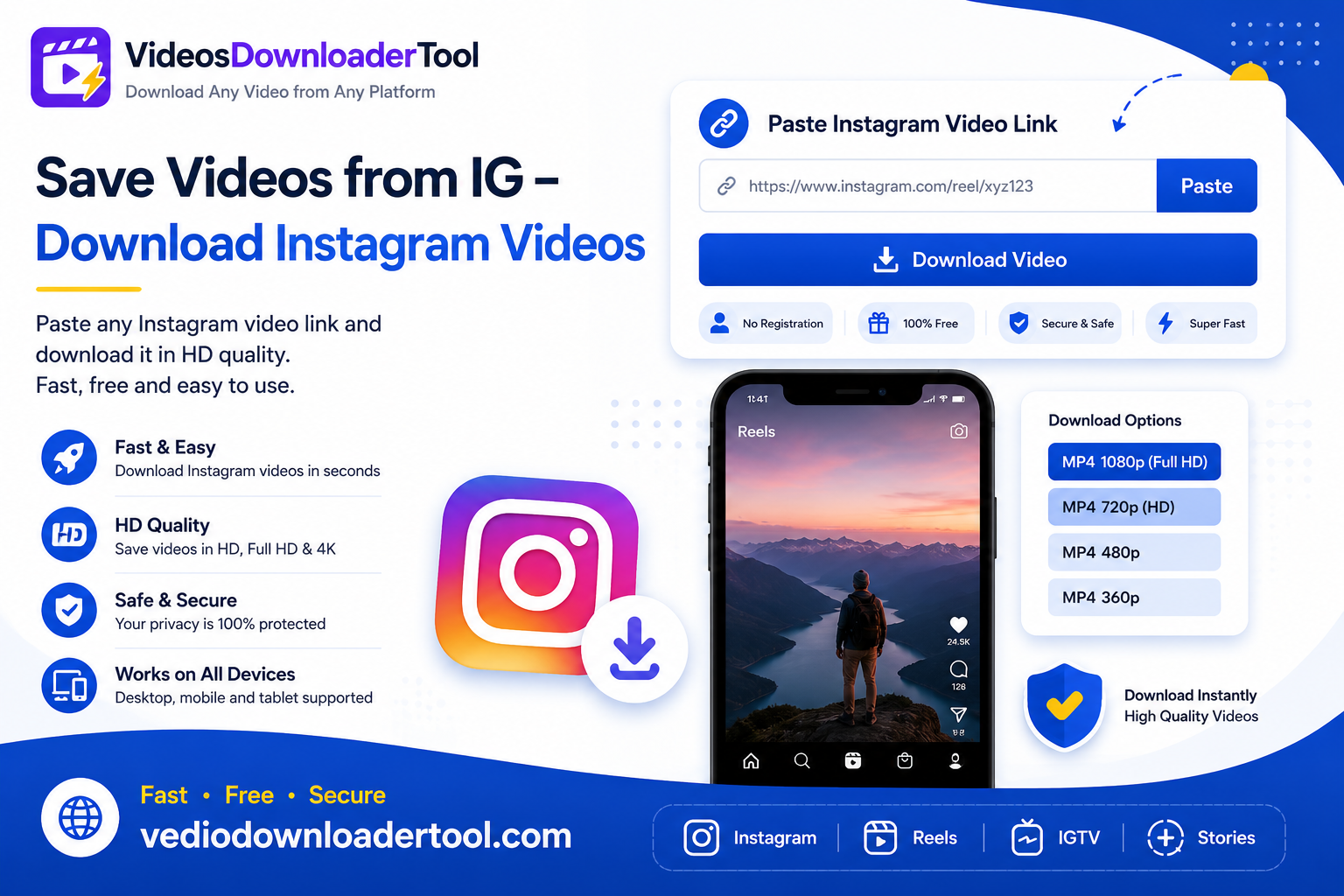
    Save Videos from IG – Download Instagram Videos


    Instagram isn’t just Reels anymore — feed videos, carousel clips, and the occasional Story still make up a big chunk of what people want to keep. “Save videos from IG” covers all of it: any public video on the platform that you want saved as a file instead of scrolling back to find it again later.

    This guide is about saving a video from Instagram. It tells you what saving a video from Instagram is about and how it works with the different kinds of videos on Instagram. You will also learn how to save videos from Instagram

    If you are a student who wants to save a demo video from Instagram or a social media manager who is making a collection of videos from Instagram or someone who just wants to watch a video from Instagram without using the internet this guide is for you.

    Saving a video from Instagram is easy with VideosDownloaderTool. You just have to copy the link of the video, from Instagram and choose the quality of the video you want to save.

    Quick Answer

    To save videos from Instagram you need to use a tool that you can find on the internet. This tool helps you download videos from Instagram that anyone can see. You can download any kind of video like a Reel or a video that someone posted on their feed. You just have to copy the link to the video choose how clear you want the video to be. Then you can download it right to your device. You do not need to use an app or have an Instagram account to do this. You can save Instagram videos, like Instagram Reels or Instagram feed videos easily.

    What Does “Save Videos from IG” Mean?

    To save videos from Instagram you need to download an Instagram video to your device. You do this using a tool that’s, on the web. You do not need an app or something that you add to your browser.

    Here is what you do. You copy the link of the Instagram video. Then you paste this link into the web tool. After that the tool gives you a file that you can watch whenever you want to watch the Instagram video. This way you can save videos from Instagram. Watch them anytime.

    Instagram hosts video content across a few different formats — Reels, feed videos, and carousel posts among them. IGTV, Instagram’s older long-form video format, has largely been folded into regular video posts on the platform, so most of what you’ll save today falls under Reels or standard feed videos. Stories are a separate case: they’re temporary by design and typically aren’t accessible through the same downloading process once they expire.

    The appeal is simple — an offline copy you control, without needing to reopen the app and search again. The responsibility that comes with it is just as simple: Instagram videos belong to whoever posted them. Instagram’s Help Center makes clear that content ownership doesn’t change just because a video is public. Save only videos you’ve made yourself, content you have permission to use, or material licensed for reuse — not someone else’s work to repost as your own.

    How Does Saving Videos from IG Work?

    In short: copy the Instagram video’s link, paste it into the tool, and download the file it returns — all inside your browser.

    Here’s the process step by step:

    1. Copy the Instagram video link from the post’s share menu.
    2. Paste the URL into the downloader’s input field.
    3. The tool fetches the video’s information, checking what’s publicly available for that specific link.
    4. You select a quality, from a lighter file to HD when it’s offered.
    5. You download the file, typically as an MP4, ready to save or view offline.

    Since everything runs in-browser, the process works the same across Chrome, Firefox, Safari, and Edge, without needing any extension.

    How to Save Videos from IG

    Here’s the full process using VideosDownloaderTool:

    1. Open Instagram.
    2. Find the video or Reel you want to save.
    3. Copy the video’s link.
    4. Visit VideosDownloaderTool.com.
    5. Paste the Instagram URL into the input box.
    6. Click Download.
    7. Choose your preferred video quality.
    8. Save the file to your device.

    No login, no waiting on install prompts — just a finished file within seconds.

    Features of Our Instagram Video Downloader

    Here’s what the tool offers for everyday use:

    • Free to use, with no hidden charges.
    • No software installation — everything happens in your browser.
    • Fast downloads, typically ready within seconds.
    • HD support, where the original video allows it.
    • Multiple resolution options to balance quality and file size.
    • Mobile-friendly, working as well on a phone as a desktop.
    • Desktop compatible across Windows, macOS, and Linux.
    • Browser-based, with nothing to update or maintain.
    • Secure processing, without requiring an Instagram login.
    • A user-friendly interface that keeps things simple.

    Benefits of Saving Videos from IG

    The practical case for saving Instagram videos this way is straightforward:

    • Offline viewing for flights, commutes, or low-signal areas.
    • Saving favorite content you don’t want to lose track of.
    • Educational reference, keeping tutorials or demos handy for later.
    • Content inspiration, letting creators archive formats worth revisiting.
    • High-quality downloads that hold up well on a bigger screen.
    • No installation required, which matters on shared or work devices.
    • Cross-device compatibility — save on one, watch on another.
    • A simple workflow that doesn’t require any technical skill.

    Common Reasons People Save Instagram Videos

    People save Instagram videos for all kinds of practical reasons:

    • Educational tutorials — how-to content worth referencing later.
    • Cooking recipes — recipe videos saved for the next grocery run.
    • Fitness videos — workout routines saved for offline gym use.
    • Business marketing ideas — social media managers building a swipe file of formats that perform well.
    • Creative inspiration — designers and creators archiving reference material.
    • Travel planning — saving destination videos before a trip.
    • Offline viewing — loading videos before a flight or road trip.
    • Research purposes — analysts and academics citing video content in their work.

    Supported Devices and Browsers

    Since the tool runs entirely in a browser, compatibility is broad:

    PlatformSupportedNotes
    WindowsYesWorks in any modern browser
    macOSYesFull support in Safari and Chrome
    LinuxYesSupported in Chrome and Firefox
    AndroidYesWorks through mobile browsers
    iPhone (iOS)YesSupported in Safari and Chrome for iOS
    ChromeYesFully supported
    FirefoxYesFully supported
    EdgeYesFully supported
    SafariYesFully supported

    No operating system or device locks you out, since there’s nothing to install in the first place.

    Common Problems and Solutions

    A handful of issues tend to come up more often than others. Here’s how to fix them:

    Invalid Instagram URL: Make sure you’ve copied the full link from the share menu, not a shortened or partial version.

    Private account restrictions: Videos from private accounts can’t be downloaded, since the content isn’t publicly accessible.

    Slow download: Usually tied to your internet connection rather than the tool — try a stronger network.

    Browser compatibility: Clearing your cache or switching browsers typically resolves display problems.

    Unsupported content: Stories are temporary by design and often aren’t accessible once they’ve expired, unlike permanent feed posts and Reels.

    Internet connection problems: A weak or interrupted connection can cause a download to fail partway through.

    Download interruptions: If a download stalls, simply repaste the link and try again.

    Best Practices When Saving Instagram Videos

    A few habits keep the process smooth and respectful of creators:

    • Respect copyright. Only download videos you own, have permission for, or that are licensed for reuse.
    • Download only content you’re authorized to save. Private or restricted content isn’t meant to be accessed outside its intended audience.
    • Respect creators, especially before reposting or reusing any saved video.
    • Use a secure internet connection, particularly on public Wi-Fi.
    • Choose appropriate quality for your purpose — a quick reference save doesn’t always need maximum resolution.
    • Organize downloaded videos into folders so nothing gets lost.
    • Keep your browser updated for the best compatibility and security.

    Save Videos from IG vs Other Download Methods

    Here’s how a browser-based tool compares to the alternatives:

    FeatureVideosDownloaderToolBrowser ExtensionsDesktop SoftwareScreen Recording
    SpeedFastFastModerateSlow
    Ease of UseVery easyModerateModerateModerate
    InstallationNoneYesYesSoftware required
    QualityHD (where available)VariesHDDepends on recording settings
    ConvenienceHighMediumMediumLow
    SecurityBrowser-based, nothing installedVaries by extensionDepends on sourceDepends on software

    A browser-based tool tends to win on setup time and simplicity, since there’s nothing to install and no permissions needed beyond visiting a website.

    Frequently Asked Questions

    Is it free to save videos from IG? Yes. A valid browser Downloader will not charge you for downloading the basic materials. Beware of any tool that requires payment and/or an Instagram username or password to save a video. 

    Can I save Instagram Reels? Yes. Reels work the same way as other public Instagram videos — copy the link, paste it into the tool, and download the file.

    Can I download Instagram videos in HD? In many cases, yes. Available resolutions depend on the quality the video was originally uploaded in.

    Can I save Instagram videos? This depends on rights to the content. It’s okay to download videos or information that you have the rights to download. Instagram’s Terms of Use and copyright laws may be infringed upon by downloading and sharing content that is copyrighted without permission.

    Are there videos that can be saved from private accounts? No. Content of private accounts is not publicly available and therefore no downloader can have access to it.

    Does the tool work on mobile? Yes. The tool works in your browser so it works the way on Android and iOS as it does on your desktop computer. 

    Which browsers can you use? You can use Chrome, Firefox, Safari and Edge. These browsers are supported because the tool operates entirely through your browser. You can use Chrome, Firefox, Safari and Edge to use the tool. 

    What kind of files can you get? You can get MP4 files. The tool gives you MP4 files because they work on a lot of devices and media players. 

    Why is my Instagram link not working? It is probably because the URL is not complete or your account is private or the content is gone. You should check the link again. Try one more time. My Instagram link is not working so I will check the link. Try again because the link might be incomplete or my account might be private or the content might be gone.

    Do you need to put software on your computer? No. The tool works in your browser so you do not need to put any software on your computer. You will not need to install anything except the video file that you download. You can download the video file. That is all you need to do because the tool works in your browser. 

    Conclusion

    Saving videos from IG solves a simple, everyday need: keeping a public Instagram video — Reel, feed post, or otherwise — available offline without installing anything or creating an account. It’s fast, works across devices and browsers, and keeps the process down to pasting a link and picking a quality. The key is downloading responsibly — sticking to videos you own, have permission for, or that are licensed for reuse.

    Ready to save your first video? Head to VideosDownloaderTool.com, paste your link, and see how quickly it works. While you’re there, check out the site’s other download tools for platforms beyond Instagram.


    If you’re looking for another online video downloading solution, you can also explore SaveFrom. It offers browser-based downloading for supported platforms without requiring software installation. Compare its features with VideosDownloaderTool to choose the option that best fits your needs.
  • FB MP4 Video Downloader – Download FB Videos

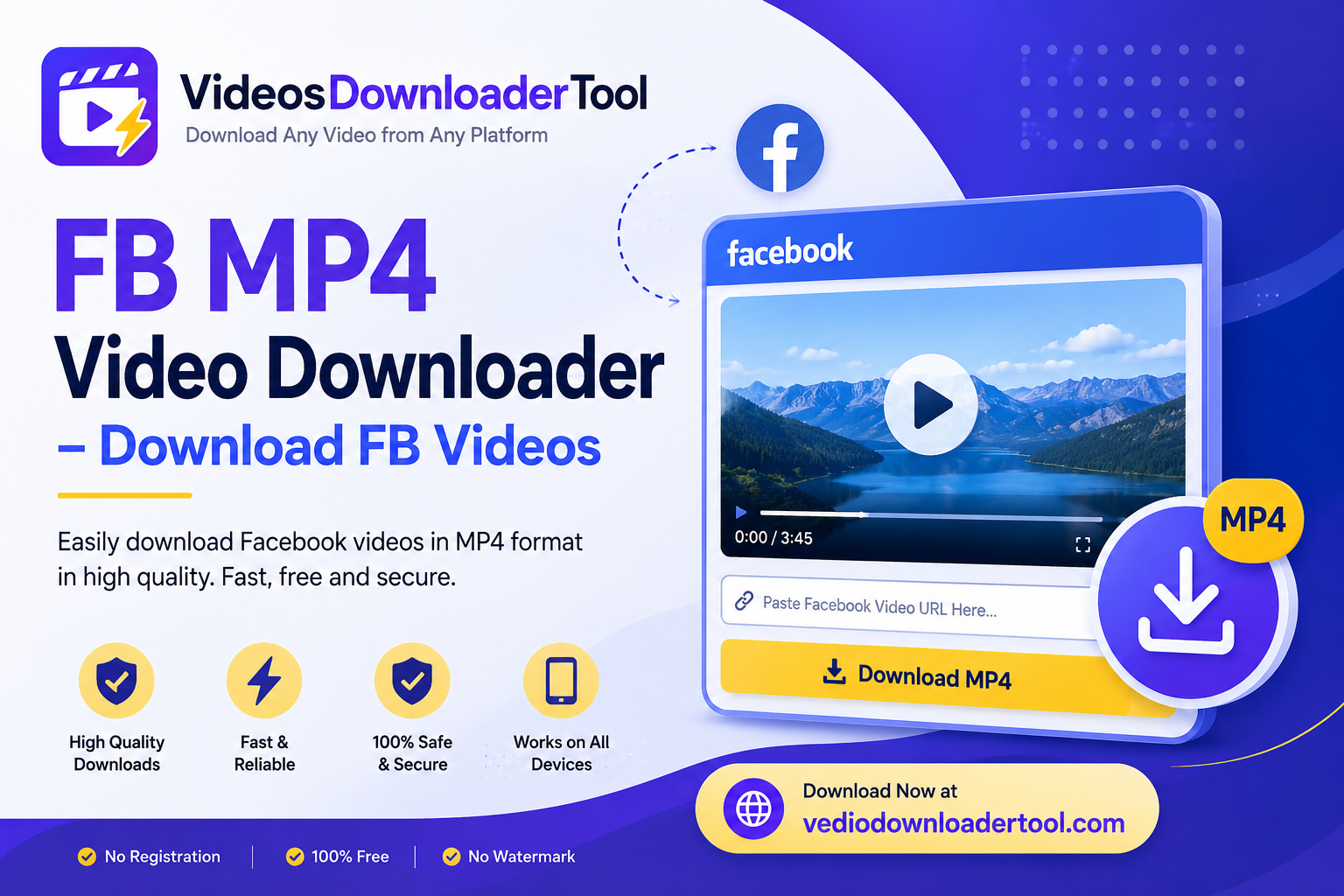
    FB MP4 Video Downloader – Download FB Videos


    Trying to save a Facebook video and want to make sure it’ll actually play on your phone, laptop, or TV later? That’s the whole appeal of an FB MP4 Video Downloader — it saves the video in MP4, the one format that’s guaranteed to open on almost anything, without you needing to think about codecs or compatibility.

    This guide is about Facebook video downloaders that save videos in MP4 format. Facebook video downloaders are useful because MP4 is a format for videos. The guide will explain how to use a Facebook video downloader.

    If you want to save a video from Facebook for work or, for a project this guide will help you. You can use Facebook video downloaders to save videos and then use them later.

    When you are ready to save a video from Facebook you can use VideosDownloaderTool. It is easy to use. You just need to copy the link of the Facebook video. Then click the download button.

    Quick Answer

    You can use a Facebook video downloader to save videos from Facebook. This tool is really simple, to use. You just need to copy the link of the Facebook video you want to save. Then you paste this link into the Facebook video downloader. After that you choose the quality of the video you want. The Facebook video downloader will then save the Facebook video as an MP4 file. This is a thing because MP4 files can be played on pretty much any device. The best part is that you do not need to install any software to use the Facebook video downloader. You can just download the Facebook video directly to your computer.

    What Is an FB MP4 Video Downloader?

    A Facebook video downloader is a website that changes a Facebook video into a file that you can save on your computer or phone. You copy the link to the video the website works on it. Then it gives you a file that you can play on pretty much any device.

    The reason it saves the video as an MP4 file is that this type of file works well on everything. It looks good. The file is not too big so you can play it on your phone, laptop or even a smart TV. That is why people like to use MP4 files of other types of files that only work on certain devices.

    The good thing about saving a Facebook video is that you can watch it whenever you want even if you are not connected to the internet.. You have to remember that Facebook videos belong to the people who posted them. Facebook has rules about what you can. Cannot do with the videos, on their site. So you should only save Facebook videos that you made yourself or videos that you have permission to save or videos that say it is okay to use them.

    How Does an FB MP4 Video Downloader Work?

    In short: you paste a Facebook video’s link, the tool retrieves the video and prepares it as an MP4, and you download the finished file.

    Here’s what happens at each step:

    1. Copy the Facebook video URL from the address bar or the video’s share menu.
    2. Paste the link into the downloader’s input field.
    3. The tool fetches the video’s information, identifying the source file tied to that link.
    4. It retrieves or converts the video into the MP4 format, since that’s the standard output for maximum compatibility.
    5. You select your preferred quality, based on what’s available for that particular upload.
    6. You download the MP4 file directly to your device.

    Since the whole process runs in-browser, it works the same whether you’re on Chrome, Firefox, Safari, or Edge — no extensions or installs needed.

    How to Use the FB MP4 Video Downloader

    Here’s how to save a Facebook video as MP4 using VideosDownloaderTool:

    1. Open Facebook.
    2. Find the video you want to save.
    3. Copy the video’s URL.
    4. Visit VideosDownloaderTool.com.
    5. Paste the URL into the input box.
    6. Click Download.
    7. Select your preferred MP4 quality.
    8. Save the video to your device.

    No account creation, no software prompts — just a finished file in a few seconds.

    Features of Our FB MP4 Video Downloader

    Here’s what to expect from the tool itself:

    • Free to use, with no hidden fees.
    • No software installation — everything happens in your browser.
    • Fast downloads, typically ready within seconds.
    • MP4 support across every download, for maximum compatibility.
    • HD and Full HD quality, when the original video allows it.
    • Mobile-friendly, working as smoothly on a phone as a laptop.
    • Desktop compatible across Windows, macOS, and Linux.
    • Browser-based, with nothing to update or maintain.
    • Secure processing, without needing a Facebook login.
    • A user-friendly interface that keeps the process simple.

    Benefits of Using an FB MP4 Video Downloader

    MP4 specifically brings a few advantages worth calling out:

    • You can play MP4 files on any device. The file will open on any device or media player.
    • This is really useful for things, like flights or commutes. You can also watch them in areas where you do not have a signal.
    • MP4 files are good because they let you watch high quality videos. MP4 supports HD and Full HD. The file size is not too big.
    • MP4 files work on every device. This includes phones and smart TVs and laptops.
    • Easy sharing where permitted, since MP4 doesn’t require special software to open.
    • No installation required, which matters on shared or work devices.
    • A fast and simple workflow — paste, choose quality, download.
    • Convenient for education and presentations, where a reliable, universally playable file matters.

    Common Reasons People Download Facebook Videos as MP4

    MP4 downloads get used for all kinds of practical purposes:

    • Educational tutorials — saving how-to content in a format that plays anywhere.
    • Business presentations — embedding an MP4 clip directly into a slide deck.
    • Online training — keeping course material accessible offline.
    • Product demonstrations — sales teams saving demo footage for client meetings.
    • Social media research — analysts studying video trends and formats.
    • Marketing inspiration — archiving content that performs well for reference later.
    • Offline travel viewing — loading MP4 files before a flight or road trip.
    • Personal reference — keeping videos you have rights to for later use.

    Supported Devices and Browsers

    Since the tool runs entirely in a browser, compatibility is broad:

    PlatformSupportedNotes
    WindowsYesWorks in any modern browser
    macOSYesFull support in Safari and Chrome
    LinuxYesSupported in Chrome and Firefox
    AndroidYesWorks through mobile browsers
    iPhone (iOS)YesSupported in Safari and Chrome for iOS
    ChromeYesFully supported
    FirefoxYesFully supported
    Microsoft EdgeYesFully supported
    SafariYesFully supported

    Because MP4 is such a broadly supported format, the files you download will open on virtually any of these platforms without needing a special player.

    Common Problems and Solutions

    A handful of issues tend to come up more than others. Here’s how to handle them:

    Invalid Facebook URL: Make sure you’ve copied the full link from the address bar or share menu, not a shortened or partial version.

    MP4 option unavailable: This is rare, since MP4 is the standard output format, but if it happens, try repasting the link or refreshing the page.

    Slow download: Usually tied to your internet connection rather than the tool — try a stronger network.

    Unsupported video: Livestreams still in progress may not be downloadable until they’ve finished and posted as a standard video.

    Private Facebook videos: Videos shared with a limited audience or private groups can’t be downloaded, since the content isn’t publicly accessible.

    Browser issues: Clearing your cache or switching browsers usually resolves display problems.

    Internet connection problems: A weak or interrupted connection can cause a download to fail partway through.

    Interrupted downloads: If a download stalls, simply repaste the link and try again.

    Best Practices When Downloading Facebook Videos as MP4

    A few habits keep the process smooth and appropriate:

    • Respect copyright. Only download videos you own, have permission for, or that are licensed for reuse.
    • Download only public or authorized videos. Private or restricted content isn’t meant to be accessed outside its intended audience.
    • Respect creator rights, especially before reposting or reusing any saved video elsewhere.
    • Choose the appropriate MP4 quality for your purpose — a quick reference clip doesn’t always need Full HD.
    • Use a secure internet connection, particularly on public Wi-Fi.
    • Organize downloaded files into folders so nothing gets lost.
    • Keep your browser updated for the best compatibility and security.

    FB MP4 Video Downloader vs Other Download Methods

    Here’s how a browser-based MP4 downloader compares to the alternatives:

    FeatureVideosDownloaderToolBrowser ExtensionsDesktop SoftwareScreen Recording
    SpeedFastFastModerateSlow
    Ease of UseVery easyModerateModerateModerate
    InstallationNoneYesYesSoftware required
    MP4 SupportYesVariesYesDepends on software
    HD QualityYes, where availableVariesYesDepends on recording settings
    ConvenienceHighMediumMediumLow
    SecurityBrowser-based, nothing installedVaries by extensionDepends on sourceDepends on software

    A browser-based MP4 downloader tends to offer the simplest path to a universally compatible file, without the setup overhead that comes with extensions or desktop software.

    Frequently Asked Questions

    What is an FB MP4 Video Downloader? It is a browser-based tool that saves a Facebook video as an MP4 file the widely compatible video format. It is a tool that allows users to paste a link and download the file directly.

    Is the Facebook MP4 downloader free? It is free. A legitimate browser-based downloader does not charge for downloading. It is important to be cautious of any tool asking for payment or a Facebook login just to save a video.

    Can I download Facebook videos as MP4? It is possible. MP4 is the output format for most browser-based downloaders since it is supported across nearly every device.

    Can I download Facebook videos in HD MP4? In cases it is possible. HD availability depends on the resolution the video was originally uploaded in.

    Why isn’t my Facebook video downloading? This is usually caused by an URL, a private video or a livestream still in progress. It is important to check the link and try again.

    Can I download private Facebook videos? It is not possible. Videos shared privately. With a limited audience are not publicly accessible so no downloader can retrieve them.

    Does the downloader work on mobile? It works on mobile. Since it runs in your browser it works the way on Android and iOS as it does on desktop 

    Is MP4 the best format for Facebook videos? For purposes it is. MP4 balances quality and file size well. Plays on nearly any device without needing special software.

    Can I use the tool without installing software? It is possible. That is the idea. Everything happens in-browser so there’s nothing to install beyond the downloaded video file itself 

    Conclusion

    An FB MP4 Video Downloader solves a problem that happens every day: getting a Facebook video into a format that will actually play, no matter where you are or when you need it. It is fast it works on all devices and all browsers. It keeps the process as easy, as copying a link. The important thing is to download responsibly. Making sure you are only downloading videos you own or that you have permission to use or that are allowed to be reused.

    Ready to save your first Facebook video as MP4? Head to VideosDownloaderTool.com, paste your link, and see how quickly the process works. While you’re there, take a look at the site’s other download tools for platforms beyond Facebook.


    If you’re looking for another online video downloading solution, you can also explore SaveFrom. It offers browser-based downloading for supported platforms without requiring software installation. Compare its features with VideosDownloaderTool to choose the option that best fits your needs.
  • Paste Link and Download Video – Download Videos Online Instantly

    Paste Link and Download Video – Download Videos Online Instantly

    Downloading a video was a pain. You had to put up with software lots of pop-up ads or search for a browser extension that might not even work. Nowadays people just want to copy a link paste it and get a video file to watch when they are not online. That is what these “paste link and download video” tools are for.

    This guide will show you what these video tools can do how they work and which websites they support. You will also learn about copyright and permissions which’s really important to know before you download any video. If you want to try it out you can go to VideosDownloaderTool.com. Paste a link right, in your browser. You do not have to install anything it is that simple.

    Quick Answer

    Paste link and download video refers to online tools that let you copy a video’s URL, paste it into a web-based downloader, and save the video file to your device. No software installation is needed — the tool fetches the video from the link and lets you choose a quality before downloading, provided you have the right to save that content.

    What Is Paste Link and Download Video?

    To download a video from the internet you can use a method called paste link and download video. This is how it works: you copy the web address of the video you want to save. Then paste it into a tool that you can find on a website. This tool will then get the video file for you so you can download it. You do not need to install any software on your computer because this tool works in your web browser. It usually works with video formats like MP4. You should only use this method for videos that you are allowed to save.

    The idea, behind this method is really simple. Of having to download a special program or trying to figure out how to download a video from a website you can use a website that does all the hard work for you. You just paste the link to the video. The tool will find the video file and give you options to download it. You can usually choose from quality settings or formats.

    There are a couple of things you should know before you start using this method. First you cannot download every video this way. Some websites do not allow it. Some videos are protected so you cannot download them. Second just because you can download a video does not mean you are allowed to. If you made the video yourself or if it is okay to download and use then it is fine.. If someone else made the video and it is copyrighted you should not download it. This is something we will talk about later. Paste link and download video is a tool but you have to use it responsibly and only download videos that you are supposed to.

    How Does Paste Link and Download Video Work?

    First, the tool reads the public webpage from the link you paste. Next, it identifies the video file or stream available on that page. Then, it generates a downloadable version, often in MP4 format, so your browser can save it directly to your device. As a result, you can download the video without installing any browser extensions or apps.

    Here’s what’s happening in more detail:

    1. You copy the URL of a video from its original page — the address bar link, or the “copy link” / “share” option many platforms provide.
    2. You paste the link into the input box on the downloader tool.
    3. The tool fetches video information — title, thumbnail, and the resolutions or formats that are technically available for that link.
    4. You select a quality, such as 720p, 1080p, or the best available option.
    5. The file downloads directly to your device through your browser, the same way any other file download works.

    Because this all happens in the browser, it works the same whether you’re on a Windows laptop, a Mac, an Android phone, or an iPhone — as long as the browser can load a webpage and handle a file download, the core process is the same.

    How to Use the Paste Link and Download Video Tool

    Using VideosDownloaderTool.com follows the same basic flow described above, condensed into a few clicks:

    1. Find the video you want and copy its link (use the “Share” or “Copy link” option on the platform, or copy the URL from your browser’s address bar).
    2. Go to VideosDownloaderTool.com.
    3. Paste the URL into the input box on the homepage.
    4. Click Download.
    5. Choose your preferred quality or format from the options shown.
    6. Save the file to your device or a cloud storage folder.

    The whole process usually takes under a minute, depending on your internet connection and the size of the video.

    Features of Our Video Downloader

    • Free to use — no subscription or hidden paywall for standard downloads
    • No registration required — paste and go, no account needed
    • No software installation — runs entirely in your browser
    • Browser-based — works on any modern browser without plugins
    • Fast processing — video information loads within seconds
    • HD support — download in higher resolutions where the source allows it
    • MP4 compatibility — MP4 remains the most widely supported format across devices
    • Multiple resolution options — pick a smaller file for slow connections or a higher one for quality
    • Mobile-friendly interface — works from a phone browser as easily as a desktop
    • Secure processing — the tool doesn’t require account credentials from the source platform
    • Simple, uncluttered interface — built around one task: paste, preview, download

    Benefits of Using Paste Link and Download Video

    • Offline viewing — watch videos on flights, commutes, or anywhere without reliable data
    • Time savings — skip installing and updating separate desktop software
    • Quality control — choose the resolution that fits your storage or bandwidth
    • No installation friction — nothing to download except the video itself
    • Cross-device convenience — the same tool works on a phone, tablet, or computer
    • Simple workflow — three or four steps from link to file
    • Useful for education and business — teachers, trainers, and marketers often need to save authorized clips for presentations or archives
    • Good for travel and low-connectivity situations — download once on Wi-Fi, watch later anywhere

    Supported Video Platforms

    Paste-link tools are commonly used with publicly shared videos from platforms such as:

    • YouTube
    • Facebook
    • Instagram
    • TikTok
    • Vimeo
    • X (formerly Twitter)
    • Pinterest
    • Dailymotion

    Supported Devices and Browsers

    Because the tool runs in the browser rather than as installed software, compatibility comes down to the operating system and browser rather than the tool itself.

    PlatformWindowsmacOSLinuxAndroidiPhone
    Chrome
    Firefox
    Microsoft Edge
    Safari

    On mobile, downloaded files typically save to your device’s default downloads folder or photo/video library, depending on your browser’s settings. On desktop, they go to your browser’s designated download location, which you can usually change in browser settings.

    Common Problems and Solutions

    Invalid URL error — Double-check that you copied the full link, including “https://” at the start, and that there are no extra characters or spaces.

    Broken or expired links — Some platforms generate temporary URLs (especially for Stories or time-limited posts). If the original post has been deleted or expired, the link will no longer work.

    Unsupported video — Certain videos use encryption or platform-specific protections that prevent third-party tools from accessing the file. This is intentional on the platform’s part.

    Private videos — Content set to private or restricted to specific accounts generally can’t be accessed through a paste-link tool, and shouldn’t be — that privacy setting exists for a reason.

    Slow downloads — This is usually related to your internet connection speed or the size/resolution of the video. Try a lower resolution if speed is an issue.

    Browser cache issues — If the tool behaves unexpectedly, clearing your browser cache or trying a private/incognito window often resolves it.

    Download interruptions — A dropped connection mid-download typically requires restarting the download; most browsers will show a “failed” or “incomplete” file you can delete before retrying.

    Best Practices When Downloading Videos

    • Respect copyright.First, make sure you download only videos that you own, have explicit permission to save, or are licensed for reuse, such as public domain content, Creative Commons media, or videos with platform-provided download options. By doing so, you respect creators’ rights, comply with copyright guidelines, and use downloaded content responsibly.
    • Check the platform’s terms of service. Many platforms, including YouTube, restrict downloading content outside their own official tools — see Google’s support documentation for platform-specific policies.
    • Use a secure, private internet connection, especially on public Wi-Fi, when downloading files.
    • Choose an appropriate resolution for your storage space and intended use — you don’t need 1080p for a quick reference clip.
    • Organize downloaded files into folders by date or project so they’re easy to find later.
    • Keep your browser updated. Browser vendors like Mozilla and Chrome’s developer team regularly patch security issues that affect how downloads and web content are handled.

    Paste Link and Download Video vs Other Download Methods

    FeatureVideosDownloaderToolBrowser ExtensionsDesktop SoftwareScreen Recording
    Installation requiredNoYes (extension)YesNo (built into OS)
    SpeedFastFastVariesReal-time only
    Ease of useVery easyModerateModerate–complexEasy
    Video qualityDepends on sourceDepends on sourceDepends on sourceLimited by screen/output settings
    Device compatibilityAny browserBrowser-specificOS-specificOS-specific
    Security considerationsNo extension permissions neededRequires granting browser permissionsRequires trusting installed softwareNo download needed, but re-encoding loses quality
    Best forQuick, occasional downloadsFrequent downloads on one browserPower users, batch downloadsContent without a direct file option

    Screen recording is sometimes used as a fallback when a video truly can’t be downloaded any other way, but it re-encodes the video and usually results in lower quality than a direct file download.

    Frequently Asked Questions

    Is Paste Link and Download Video free? Yes simple downloading through VideosDownloaderTool.com is free. There is no need for an account or payment for use. Some extra features on tools might be locked behind a paid plan.. The main function of copying and downloading is usually free, in this type of service.

    Which websites are supported? Commonly supported platforms include YouTube, Facebook, Instagram, TikTok, Vimeo, X, Pinterest, and Dailymotion. Support can vary video by video depending on privacy settings, DRM protections, and each platform’s current policies.

    Can I download HD videos? Yes, where the original video was uploaded in HD and the platform doesn’t restrict quality on the specific link, you can typically choose 720p, 1080p, or higher when available.

    Can I use it on Android? Yes. The tool works through any modern mobile browser, such as Chrome or Firefox, on Android without needing a separate app.

    Can I use it on iPhone? Yes, it works through Safari or Chrome on iOS. Downloaded files usually save to the Files app or your photo library, depending on browser settings.

    Final Thoughts

    Paste link and download video tools solve a genuine problem: getting a video off the web and onto your device without installing software or navigating a platform’s limited built-in options. Used responsibly — for your own content, authorized material, or videos explicitly shared for reuse — they’re a fast, simple way to enable offline viewing, support classroom or business use, and save content for travel or low-connectivity situations.

    The tradeoff for that convenience is responsibility. Always confirm you have the right to download and keep a copy of a given video before you do. When you’re working with content you’re authorized to save, VideosDownloaderTool.com gives you a straightforward way to do it: paste the link, choose your quality, and download — no installs, no accounts, no hassle.

    If you’re looking for another online video downloading solution, you can also explore SaveFrom. It offers browser-based downloading for supported platforms without requiring software installation. Compare its features with VideosDownloaderTool to choose the option that best fits your needs.
  • Link Video Save – Save Videos Online Using Any Video URL

    Link Video Save – Save Videos Online Using Any Video URL

    You come across a video that you want to keep. You can’t find a download button anywhere. That’s the issue that link-based video saving is meant to solve. Instead of depending on a websites own options you take the videos web address and let a tool take care of the rest.

    This method works for students who want to save lecture videos, marketers who want to keep their campaign videos, teachers who are creating offline lesson materials and anyone who just wants to have a video available to watch without needing an internet connection. It all happens in your browser with no installations required and no fees to pay.

    This guide explains what “link video save” means, how the process works step, by step, which websites, devices and browsers are supported and what to think about regarding copyright before saving any video with VideosDownloaderTool.

    Quick Answer

    Link video save refers to using a video’s URL to download it as a file, typically MP4, through a browser-based tool. You paste the link, choose a quality option, and download — no software required, and only for videos that are publicly accessible and permitted to be saved.

    What Is Link Video Save?

    In short: it’s the process of taking a video’s web address and converting it into a downloadable file you can keep on your device, instead of only being able to stream it from the original page.

    Most video platforms are built around streaming, not saving, which means there’s rarely a native download option for content you don’t own. Link video save tools close that gap by reading the public video data behind a URL and converting it into a standard file format.

    A few things worth knowing:

    • The tool works with publicly accessible video links — it can’t retrieve private or restricted content.
    • Download speed and file size depend on the source video’s resolution and your internet connection.
    • Copyright still applies regardless of how easy the download is. A public link doesn’t mean you have the right to redistribute the content, so save responsibly.

    How Does Link Video Save Work?

    In short: you copy a video’s URL, paste it into the tool, the tool fetches the available video information, you select a quality option, and download the resulting file — usually an MP4, ready in under a minute.

    Here’s the breakdown:

    1. Copy the video URL — from the address bar or a share option on the site hosting the video.
    2. Paste the link — into the downloader’s input field.
    3. Fetch video information — the tool checks what resolutions and formats are available.
    4. Select video quality — choose the resolution that fits your needs.
    5. Download the file — saved directly to your device as an MP4.

    Since this entire process happens in your browser, it works consistently across Chrome, Firefox, Microsoft Edge, and Safari, and on both desktop and mobile, without any extra software.

    How to Use Link Video Save

    1. Copy the video’s URL.
    2. Visit VideosDownloaderTool.com.
    3. Paste the URL into the input box.
    4. Click Download.
    5. Choose the desired video quality.
    6. Save the video to your device.

    That’s the entire process — no account, no software, no complicated steps.

    Features of Our Link Video Save Tool

    • Free to use, with no cost for standard downloads.
    • No software installation — the tool runs entirely in your browser.
    • Browser-based, so there’s nothing to install or update.
    • Fast processing, with most downloads completing in seconds.
    • HD video downloads for content originally uploaded in high resolution.
    • Multiple resolutions, so you can balance quality against file size.
    • MP4 support, ensuring compatibility with most devices and media players.
    • Mobile friendly design that works well on phones and tablets.
    • Desktop compatible across Windows, macOS, and Linux.
    • Secure processing with no unnecessary data retention.
    • User-friendly interface — paste, choose, download.

    Benefits of Using Link Video Save

    • Offline viewing — watch saved videos without needing a live internet connection.
    • Saves time — no need to search for the same video twice.
    • High-quality downloads — pick the resolution that fits your actual use case.
    • Works across devices — download once, watch anywhere.
    • No installation required — nothing extra to manage on your device.
    • Simple workflow — the process takes just a few clicks.
    • Convenient for education — build an offline library of instructional content.
    • Useful for business presentations — run videos locally without depending on streaming reliability.
    • Helpful for research purposes — archive publicly available content for reference.

    Supported Video Platforms

    In short: VideosDownloaderTool supports saving publicly accessible videos, where permitted, from major platforms including YouTube, Facebook, Instagram, TikTok, Vimeo, X (Twitter), Pinterest, and Dailymotion.

    Availability always depends on the individual platform’s policies and the specific video’s privacy settings. Public videos are generally accessible, while private, restricted, or login-protected content is not — this holds true no matter which platform the link comes from.

    For frequent use on a specific platform, VideosDownloaderTool also offers dedicated tools built around that platform’s particular link structure and quality options, which can make the process even smoother.

    Supported Devices and Browsers

    VideosDownloaderTool works consistently across common devices and browsers since the entire process runs in-browser.

    Devices: Windows, macOS, Linux, Android, iPhone

    Browsers: Chrome, Firefox, Microsoft Edge, Safari

    Device/BrowserSupportedExperience
    WindowsYesFull desktop support
    macOSYesSmooth performance
    LinuxYesWorks via any modern browser
    AndroidYesMobile-optimized, saves to device storage
    iPhoneYesBrowser-based, may prompt to save to Files
    ChromeYesRecommended for best performance
    FirefoxYesFully supported
    Microsoft EdgeYesFully supported
    SafariYesFully supported

    Common Problems and Solutions

    Invalid URL Double-check that you’ve copied the complete link directly from the address bar or share option, not a shortened or partial version.

    Unsupported links Some platforms restrict downloading through their own terms of service, which can limit what’s technically retrievable.

    Slow downloads Usually tied to your internet connection or the source video’s file size rather than the tool itself.

    Private videos Private or restricted content isn’t accessible, since the tool only works with publicly viewable links.

    Browser issues Update your browser or clear your cache if the page isn’t loading or behaving correctly.

    Internet connection problems Switch to a more stable network, especially for larger or higher-resolution files.

    Download interruptions Restart the download once your connection is stable; larger files are more prone to interruption on unreliable networks.

    Cache-related issues Clearing your browser’s cache regularly can help avoid loading or processing errors on any web-based tool.

    Best Practices When Saving Videos by Link

    • Respect copyright and only download content you own or have explicit permission to save.
    • Stick to publicly accessible or clearly authorized content.
    • Use secure, private internet connections when downloading, especially on public Wi-Fi.
    • Choose a video quality suited to your actual need rather than defaulting to the largest file every time.
    • Keep downloaded files organized in clearly labeled folders.
    • Keep your browser updated for the best performance and security.

    Link Video Save vs Other Download Methods

    FeatureVideosDownloaderToolBrowser ExtensionsDesktop SoftwareScreen Recording
    SpeedFast, near-instant processingFast, but tied to extension updatesVaries, often slower setupSlow — real-time only
    Ease of UseVery easy, no installModerate — requires install and permissionsHarder — installation and setup stepsEasy but manual
    InstallationNone requiredBrowser extension requiredFull software install requiredBuilt-in OS tool, no install
    Video QualityMatches source resolutionMatches source resolutionMatches source resolutionLimited by screen resolution
    ConvenienceHigh — works anywhere, any deviceModerate — tied to one browserLow — desktop onlyModerate — needs manual timing
    SecurityNo extension permissions neededRequires granting browser accessRisk from untrusted installersNo third-party access needed
    Device CompatibilityWorks across all major devices/browsersLimited to supported browsersLimited to installed OSWorks on any screen, but manual

    Frequently Asked Questions

    1. Is Link Video Save free? 

    Yes, VideosDownloaderTool is completely free for standard downloads, with no account or subscription required.

    2. Can I save HD videos?

     Yes, as long as the original video was uploaded in HD. The tool displays the resolution options actually available for that specific video.

    3. Can I save videos on mobile?

     Yes. The tool works directly through your phone’s browser on both Android and iOS, with files saving to your device’s storage or gallery.

    4. Which websites are supported?

     Publicly accessible videos from platforms including YouTube, Facebook, Instagram, TikTok, Vimeo, X (Twitter), Pinterest, and Dailymotion are generally supported, depending on each platform’s policies.

    5. Is downloading videos legal?

     It depends on the content and your rights to it. Downloading your own videos or content you have explicit permission to save is fine. Downloading and redistributing someone else’s copyrighted content without authorization is not, and may violate copyright law or a platform’s terms of service.

    Conclusion

    You can save a video from a link. Watch it offline, which is really easy. You do not need to buy any software or set anything up. VideosDownloaderTool works on lots of devices and browsers. You can even get high quality video. It only takes a clicks.

    When you use a video downloader you should only save videos that you own or have permission to save. Some videos are public. You can save them for your own use. This way you can watch videos offline without worrying about getting in trouble, for copyright.

    If you want to try it you can go to VideosDownloaderTool.com. Save a video in just a few seconds. If you always save videos from the place you should check out the other tools we have below. They can help you save videos from that place even easier.

    You can use VideosDownloaderTool on lots of devices and browsers

    It is easy to use. You can get high quality video

    You can save videos from lots of websites

    Just go to VideosDownloaderTool.com to get started

    If you’re looking for another online video downloading solution, you can also explore SaveFrom. It offers browser-based downloading for supported platforms without requiring software installation. Compare its features with VideosDownloaderTool to choose the option that best fits your needs.
  • Online Video Download – Download Videos Free

    Online Video Download – Download Videos Free


    Not every video you want to keep lives on a big-name platform. Sometimes it’s a clip embedded in a news article, a demo on a company site, or a video shared through a link you found in a forum thread. Online video download covers all of that — using a browser-based tool to save a video from the web, regardless of which site is hosting it, without installing anything.

    This guide is about online video downloading. It tells you what online video downloading is and how it works. You will also learn how to do it in an responsible way.

    If you need to save a video for your work or for some reason this guide is, for you. You might be a researcher who wants to save a video for later or a marketer who wants to use a video as a reference. Maybe you just want to watch a video without using the internet

    You can learn about online video downloading here. If you want to try it VideosDownloaderTool makes it easy. All you have to do is copy the link to the video and click the download button. VideosDownloaderTool is a way to download online videos.

    Quick Answer

    When you want to download a video from the internet you can use a tool that’s on the web. This tool lets you save the video as a file on your computer or phone. To do this you copy the videos address, from the internet. Paste it into the tool. Then you choose how clear you want the video to be. After that you can download the video away using your internet browser. You do not need to add any programs to your device or make an account to download the video.

    What Is Online Video Download?

    Online video download is the process of saving a video from a website to your device using a browser-based tool, instead of installing separate downloading software. You provide a video’s URL, and the tool retrieves it as a file you can keep.

    These tools generally work with publicly accessible video content across a range of websites, since a downloader can only retrieve what’s already public. The core benefit is convenience: no software cluttering your device, no license to manage, and a process that works the same way regardless of which browser you’re using.

    So when you are online you need to remember that you cannot download everything.. Just because you can download something it does not mean you can use it however you want. The Cloudflare Learning Center has information on how videosre delivered and hosted online.. When it comes to videos, the person who made the video still owns it because of copyright.

    This means that if you want to download videos you should only download videos that you made yourself. You can also download videos if you have been given permission to use them.. Sometimes videos are licensed in a way that allows you to reuse them so it is okay to download those videos too. Responsible downloading is all about being careful, with video content and respecting the people who made the videos.

    How Does Online Video Download Work?

    In short: you paste a video’s link, the tool fetches its available quality options, and you download the resulting file — all inside your browser.

    Here’s the process broken down:

    1. Copy the video URL from the site hosting it.
    2. Paste the link into the downloader’s input field.
    3. The tool fetches the video’s information, checking which resolutions are publicly available.
    4. You select a quality, from a lighter file to HD when it’s offered.
    5. You download the file, typically as an MP4, though other formats may be available depending on the source.

    Because the process runs entirely in-browser, it works identically across Chrome, Firefox, Safari, and Edge, without needing an extension.

    How to Download Videos Online

    Here’s the full process using VideosDownloaderTool:

    1. Open the website containing the video.
    2. Copy the video URL.
    3. Visit VideosDownloaderTool.com.
    4. Paste the video link.
    5. Click Download.
    6. Choose your preferred video quality.
    7. Save the file to your device.

    No account creation, no waiting on install prompts — just a finished file within seconds.

    Features of Our Online Video Downloader

    Here’s what the tool offers for everyday use:

    • Free to use, with no hidden charges.
    • No software installation — everything happens in your browser.
    • Fast downloads, typically processed within seconds.
    • HD support, where the original video allows it.
    • Multiple resolution options to balance quality against file size.
    • Mobile-friendly, working as well on a phone as a desktop.
    • Desktop compatible across Windows, macOS, and Linux.
    • Browser-based, with nothing to update or maintain.
    • Secure processing, without requiring an account.
    • A user-friendly interface that keeps the process simple.
    • Cross-platform compatibility, working the same way regardless of device.

    Benefits of Online Video Download

    The practical case for downloading videos this way adds up quickly:

    • Offline viewing for flights, commutes, or low-signal areas.
    • Faster access, since you don’t need to re-locate the video later.
    • High-quality downloads that hold up well on a bigger screen.
    • No installation required, which matters on shared or work devices.
    • Works across devices — download on one, watch on another.
    • Saves mobile data, since you download once instead of re-streaming repeatedly.
    • Convenient for education and presentations, where a reliable offline copy matters.
    • A simple workflow with no technical steps to trip over.

    Common Reasons People Download Videos Online

    Downloading videos serves a wide range of practical purposes:

    • Educational courses — saving lessons for offline study.
    • Tutorials — keeping how-to content handy while working through a task.
    • Business presentations — embedding a saved clip directly into a slide deck.
    • Product demonstrations — sales teams saving demo footage for client meetings.
    • Research — journalists and academics archiving video sources for their work.
    • Creative inspiration — designers and creators building reference libraries.
    • Offline travel viewing — loading videos before a flight or road trip.
    • Personal reference — keeping videos you have rights to for later use.

    Supported Devices and Browsers

    Since the tool runs entirely in a browser, compatibility is broad:

    PlatformSupportedNotes
    WindowsYesWorks in any modern browser
    macOSYesFull support in Safari and Chrome
    LinuxYesSupported in Chrome and Firefox
    AndroidYesWorks through mobile browsers
    iPhone (iOS)YesSupported in Safari and Chrome for iOS
    ChromeYesFully supported
    FirefoxYesFully supported
    Microsoft EdgeYesFully supported
    SafariYesFully supported

    No operating system or device locks you out, since there’s nothing to install in the first place.

    Common Problems and Solutions

    A handful of issues tend to come up more than others. Here’s how to fix them:

    Invalid video URL: Make sure you’ve copied the complete link, including everything after the domain. A partial URL won’t process correctly.

    Slow download: Usually tied to your internet connection rather than the tool — try a stronger network.

    Unsupported website: Not every site allows public video retrieval; if a source isn’t supported, the tool won’t be able to process the link.

    Browser issues: Clearing your cache or switching browsers typically resolves display problems.

    Internet connection problems: A weak or interrupted connection can cause a download to fail partway through.

    Download interruptions: If a download stalls, simply repaste the link and try again.

    File format issues: If a downloaded file won’t play, check that your media player supports MP4 — most modern players do by default.

    Best Practices for Online Video Download

    A few habits keep the process smooth, safe, and appropriate:

    • Respect copyright. Only download content you own, have permission for, or that’s licensed for reuse.
    • Download only content you have permission to save. Availability doesn’t equal permission to reuse or redistribute.
    • Use a secure internet connection, particularly on public Wi-Fi.
    • Choose appropriate quality for your purpose — a quick reference clip doesn’t always need maximum resolution.
    • Organize downloaded videos into folders so nothing gets lost.
    • Keep your browser updated, since browser updates often include important security fixes — see Google’s Chrome support resources or your browser’s own update settings for details.
    • Avoid suspicious websites. Stick to reputable, well-known downloading tools, and be wary of sites that ask for unnecessary personal information, payment details, or software installs just to save a video.

    Online Video Download vs Other Download Methods

    Here’s how a browser-based tool compares to the alternatives:

    FeatureVideosDownloaderToolBrowser ExtensionsDesktop SoftwareScreen Recording
    SpeedFastFastModerateSlow
    Ease of UseVery easyModerateModerateModerate
    InstallationNoneYesYesSoftware required
    QualityHD (where available)VariesHDDepends on recording settings
    ConvenienceHighMediumMediumLow
    SecurityBrowser-based, nothing installedVaries by extensionDepends on sourceDepends on software
    Device CompatibilityCross-platformBrowser-dependentOS-dependentOS-dependent

    A browser-based tool tends to offer the simplest, lowest-risk path, since there’s no software to install and no extension permissions to grant. Fewer moving parts generally means fewer security concerns.

    Frequently Asked Questions

    What is Online Video Download? It’s the process of saving a video from the internet as a file using a browser-based tool, without installing software. You paste a video’s link and download the resulting file.

    Is online video download free? Yes. A legal browser-based downloader does not charge for downloading. Be careful of any tool that wants money or personal information just to save a video.

    Can I download videos in HD? In many cases, yes. Available resolutions depend on the quality the video was originally uploaded in.

    Is downloading online videos legal? It depends on your rights to the content. Downloading your own videos or material you have permission to save is generally fine. Downloading and redistributing copyrighted content without permission may violate copyright law.

    Which websites are supported? Support depends on whether a site hosts publicly accessible video content. Coverage can vary, so it’s worth trying the tool directly with your specific link.

    Does the downloader work on devices? Yes. Because it runs inside your browser it functions the way on Android and iOS as it does on a computer.

    Which browsers are compatible? Chrome, Firefox, Safari and Microsoft Edge are all usually supported, because the tool works completely through the browser.

    What file formats can be downloaded? MP4 is the commonly available format, selected for its broad compatibility, with devices and media players.

    Why is my video link not working? This often happens because the URL is not complete the website is not. The content has been taken down. Check the link again. Try once more.

    Can I download videos without installing software? Yes — that’s the entire point of a browser-based tool. Everything happens in-browser, so there’s nothing to install beyond the downloaded video file itself.

    Conclusion

    Online video download is something that helps with a need. You find a video on the internet. Want to save it!. You do not have to think about what website it’s on. You also do not have to put any software on your computer or pay any money.

    Online video download is quick. It works on your phone, computer and any other device you use. It also works with any browser. To use it you just have to copy the link to the video and choose what quality you want.

    The important thing is to download videos safely and, in a responsible way. This means you should only use tools that you trust. You should also only download videos that you own or that you have permission to download. Online video download is okay if the video is licensed for people to reuse.

    Ready to try it? Head to VideosDownloaderTool.com, paste your link, and see how quickly it works. While you’re there, take a look at the site’s other download tools for specific platforms.


    If you’re looking for another online video downloading solution, you can also explore SaveFrom. It offers browser-based downloading for supported platforms without requiring software installation. Compare its features with VideosDownloaderTool to choose the option that best fits your needs.
  • Twitter Videos Saver – Save X Videos Online

    Twitter Videos Saver – Save X Videos Online


    You find a lot of videos on X like news clips and sports highlights even before they are posted anywhere else. Sometimes you see a video, on X that you really want to keep. A Twitter Videos Saver is a tool that helps you do that. It is a tool that you can use in your browser.

    You are browsing through X. You see a video that you like. Of trying to find it again later you can save it to your computer with just a few clicks.

    This guide will tell you what a Twitter video saver does and how it works. It will also show you how to use it in a way. Maybe you are a journalist who wants to save a video for a story. You are a teacher who wants to save a video to show your students.. Maybe you just want to save a video so you can watch it when you are not connected to the internet.

    Whatever the reason this guide will give you the information you need. If you want to try saving a video from X you can use VideosDownloaderTool. It is easy to use you just paste the link to the video. It will save it for you.

    Quick Answer

    A Twitter Videos Saver is a browser-based tool that downloads a public video from a post on X (Twitter) as a file on your device. Paste the post’s link, choose your quality, and download it directly — no app install or account required.

    What Is a Twitter Videos Saver?

    A Twitter Videos Saver is a web-based tool that lets you save a video posted on X to your device by pasting the post’s link. You copy the URL, paste it into the tool, and get back a downloadable file — no software or account needed.

    People use this thing because videos on X go by fast. A video clip becomes popular then it gets. It just disappears from your screen before you can go back to it. If you have a saved copy of the video you do not have to look for the post later. The tool works in your internet browser so you do not have to put anything on your computer. The process is the same no matter what device you are using so you can use it on any device. Videos, on X are what people want to save so they use this tool to save videos on X.

    The limitation worth understanding is that a saver can only retrieve videos from public posts, and saving a video doesn’t transfer any rights to it. Content posted to X remains the property of whoever shared it, and X’s Help Center outlines the platform’s policies around content and copyright. Responsible use means saving only videos you’ve made yourself, content you have explicit permission to use, or material licensed for reuse — not redistributing someone else’s clip as your own.

    How Does a Twitter Videos Saver Work?

    In short: copy the link to the post containing the video, paste it into the tool, and download the file it returns — all inside your browser.

    Here’s the process step by step:

    1. Copy the Tweet URL from the post’s share menu.
    2. Paste the link into the downloader’s input field.
    3. The tool fetches the video’s information, checking what’s publicly available for that post.
    4. You select a quality, from a smaller file to HD when it’s offered.
    5. You download the file, typically as an MP4, ready to save or view offline.

    Because everything happens in-browser, the process works the same across Chrome, Firefox, Safari, and Microsoft Edge, without needing an extension.

    How to Use the Twitter Videos Saver

    Here’s the full process using VideosDownloaderTool:

    1. Open X (Twitter).
    2. Find the Tweet containing the video.
    3. Copy the Tweet URL.
    4. Visit VideosDownloaderTool.com.
    5. Paste the Tweet link.
    6. Click Download.
    7. Choose your preferred video quality.
    8. Save the file.

    No account creation, no waiting on install prompts — just a finished file within seconds.

    Features of Our Twitter Videos Saver

    Here’s what the tool offers for everyday use:

    • Free to use, with no hidden charges.
    • No software installation — everything happens in your browser.
    • Fast downloads, typically processed within seconds.
    • HD support, where the original video allows it.
    • Multiple resolution options to balance quality against file size.
    • Mobile-friendly, working as well on a phone as a desktop.
    • Desktop compatible across Windows, macOS, and Linux.
    • Browser-based, with nothing to update or maintain.
    • Secure processing, without requiring an X login.
    • A user-friendly interface that keeps the process simple.

    Benefits of Using a Twitter Videos Saver

    The practical case for saving X videos this way adds up quickly:

    • Offline viewing for flights, commutes, or low-signal areas.
    • Saving educational content, like a useful explainer that showed up in your feed.
    • Preserving useful tutorials before a post disappears or a thread gets buried.
    • Easy access to saved content whenever you need it.
    • High-quality downloads that hold up well on a bigger screen.
    • No installation required, which matters on shared or work devices.
    • Works across devices — save on one, watch on another.
    • A convenient workflow with no technical steps to trip over.

    Common Reasons People Save Twitter Videos

    X video gets saved for a wide range of practical reasons:

    • News clips — footage that broke first on the platform.
    • Educational threads — explainer videos worth keeping for later reference.
    • Tutorials — step-by-step content kept handy while working through a task.
    • Sports highlights — key plays saved before they’re deleted or buried in a feed.
    • Business presentations — embedding a saved clip into a slide deck.
    • Product demonstrations — teams saving demo footage for internal use.
    • Creative inspiration — creators archiving formats worth revisiting.
    • Research purposes — journalists and academics citing video sources in their work.
    • Offline travel viewing — loading videos before a flight or road trip.

    Supported Devices and Browsers

    Since the tool runs entirely in a browser, compatibility is broad:

    PlatformSupportedNotes
    WindowsYesWorks in any modern browser
    macOSYesFull support in Safari and Chrome
    LinuxYesSupported in Chrome and Firefox
    AndroidYesWorks through mobile browsers
    iPhone (iOS)YesSupported in Safari and Chrome for iOS
    ChromeYesFully supported
    FirefoxYesFully supported
    Microsoft EdgeYesFully supported
    SafariYesFully supported

    No operating system or device locks you out, since there’s nothing to install in the first place.

    Common Problems and Solutions

    A handful of issues tend to come up more than others. Here’s how to fix them:

    Invalid Tweet URL: Make sure you’ve copied the complete link from the share menu, not a shortened or partial version.

    Slow download: Usually tied to your internet connection rather than the tool — try a stronger network.

    Deleted Tweet: If a post has been removed, its video can’t be retrieved, since the file no longer exists publicly.

    Protected or private account: Videos from protected or private accounts can’t be downloaded, since the content isn’t publicly accessible.

    Browser issues: Clearing your cache or switching browsers typically resolves display problems.

    Internet connection problems: A weak or interrupted connection can cause a download to fail partway through.

    Download interruptions: If a download stalls, simply repaste the link and try again.

    Best Practices When Saving Twitter Videos

    A few habits keep the process smooth and respectful of creators:

    • Respect copyright. Only download videos you own, have permission for, or that are licensed for reuse.
    • Download only content you have permission to save. A public post doesn’t automatically make its video fair to redistribute.
    • Respect creators’ rights, especially before reposting or reusing any saved video elsewhere.
    • Use a secure internet connection, particularly on public Wi-Fi.
    • Choose appropriate quality for your purpose — a quick reference save doesn’t always need maximum resolution.
    • Organize downloaded videos into folders so nothing gets lost.
    • Keep your browser updated for the best compatibility and security.

    Twitter Videos Saver vs Other Download Methods

    Here’s how a browser-based tool compares to the alternatives:

    FeatureVideosDownloaderToolBrowser ExtensionsDesktop SoftwareScreen Recording
    SpeedFastFastModerateSlow
    Ease of UseVery easyModerateModerateModerate
    InstallationNoneYesYesSoftware required
    Video QualityHD (where available)VariesHDDepends on recording settings
    ConvenienceHighMediumMediumLow
    SecurityBrowser-based, nothing installedVaries by extensionDepends on sourceDepends on software

    A browser-based saver tends to win on setup time, since there’s nothing to install and no extension permissions to grant just to save one video.

    Frequently Asked Questions

    Is Twitter Videos Saver free? Yes. A legitimate browser-based downloader doesn’t charge for basic downloading. Be cautious of any tool that asks for payment or an X login just to save a video.

    Can I save Twitter videos in HD? In many cases, yes. Available resolutions depend on the quality the video was originally uploaded in.

    Is downloading Twitter videos legal? It depends on your rights to the content. Downloading your own videos or material you have permission to save is generally fine. Downloading and redistributing copyrighted content without permission may violate X’s terms and copyright law.

    Can I download videos from protected accounts? No. Videos from protected or private accounts aren’t publicly accessible, so no downloader can retrieve them.

    The user wants to know if the tool works on mobile. The answer is yes. The tool works in your browser so it works the way, on Android and iOS as it does on desktop. Tool is pretty simple to use on any device because the tool runs in your browser. The tool works on Android. The tool works on iOS just like the tool works on desktop.

    Which browsers are supported? Usually, it is supported by Chrome, Firefox, Safari, and Microsoft Edge as all these browsers are used for its operation.

    What kind of file formats exist? The standard format that is provided is MP4 because it is widely supported by all devices and media players. 

    Why isn’t my Tweet link working? This usually comes down to an incomplete URL, a deleted post, or a protected account. Double-check the link and try again.

    Can I use the tool without installing software? Yes — that’s the core idea. Everything happens in-browser, so there’s nothing to install beyond the downloaded video file itself.

    Is my data safe while downloading? Reputable browser-based tools don’t require account creation or an X login to process a download, which limits how much data is ever shared.

    Conclusion

    A Twitter Videos Saver solves a simple, everyday need: keeping a public X video available after the post that shared it scrolls away, gets deleted, or otherwise becomes hard to find again. It’s fast, works across devices and browsers, and keeps the process down to pasting a link and picking a quality. The key is downloading responsibly — sticking to videos you own, have permission for, or that are licensed for reuse.

    Ready to save your first video? Head to VideosDownloaderTool.com, paste your link, and see how quickly it works. While you’re there, take a look at the site’s other download tools for platforms beyond X.


    If you’re looking for another online video downloading solution, you can also explore SaveFrom. It offers browser-based downloading for supported platforms without requiring software installation. Compare its features with VideosDownloaderTool to choose the option that best fits your needs.
  • Facebook Videos Saver – Save Facebook Videos Online Free

    Facebook Videos Saver – Save Facebook Videos Online Free

    Introduction

    A Facebook Videos Saver is an online tool that lets you download public Facebook videos to your device for offline viewing, without installing any software. People use these tools for all kinds of reasons — saving a tutorial to watch later, keeping a recipe video handy while cooking, or pulling a clip for a classroom presentation. If you have ever tried to save a video from Facebook and found it difficult you already understand that the app does not make it simple. This guide explains how a Facebook video saver really works, how to use one in a step by step way what to be careful, about and how to do it in a manner. Are you ready to save your video? VideosDownloaderTool is free to use at this moment. Just copy a link and start.

    Quick Answer

    You can use a Facebook Videos Saver to download Facebook videos. This Facebook Videos Saver is a tool that you can use in your browser. You can download Facebook videos, in MP4 format. To do this you just need to paste the videos URL into the Facebook Videos Saver. The Facebook Videos Saver works on any device that has a browser. You do not need to install any app to use the Facebook Videos Saver. When you use the Facebook Videos Saver to download a Facebook video you can usually choose the video quality before you download the Facebook video.

    What Is a Facebook Videos Saver?

    A Facebook Videos Saver is an online utility that extracts the direct video file from a public Facebook post so you can download and store it on your device. It works entirely in your browser — you paste a video link, the tool retrieves the available download options, and you pick one.

    When you want to save a video from Facebook you usually find that there is no way to do it. This is because Facebook does not have a download” button, for most of its videos. So people look for ways to save these videos. They do not want to use the screen recording feature or download apps. A browser-based Facebook video saver is an option. It is easy to use. You can save a video in just a few clicks. You will get a Facebook video file that you can play anywhere.

    Benefits:

    The benefits of this are simple: it is fast it does not require any installation. Facebook videos work the same way whether you are on a laptop or a phone. The main limitation of Facebook videos is scope. These tools are built to work with public Facebook videos meaning Facebook content that anyone can view without logging into a group or a friends-only Facebook profile. Private or restricted Facebook videos generally can not be retrieved this way. That is by design.

    It is worth saying not every Facebook video is yours to redistribute. Responsible use of Facebook videos means downloading only Facebook videos you have the right to save. Your own Facebook uploads Facebook content shared under terms or Facebook material you have been given explicit permission to keep. Facebooks own terms of service govern what Facebook users can do with Facebook content, on the Facebook platform. When in doubt check with the Facebook videos creator or refer to Metas Terms of Service before downloading and reusing any Facebook video.

    How Does a Facebook Videos Saver Work?

    So you find a video, on Facebook that you like. You copy the videos URL from Facebook. Then you paste the videos URL into this tool. The tool then gets versions of the video that you can download and save to your computer. You can save the video from Facebook to your computer using this tool.

    Here’s what happens at each step:

    I am copying the Facebook video URL. The thing about Facebook videos is that they all have a link that I can share with others. I can get this link by clicking on the share menu for the video and then selecting “Copy Link”.. I can just copy the link from the address bar, at the top of the page when I am watching the Facebook video.

    Pasting the link. You paste that URL into the input field on the downloader site.

    Fetching video information. The tool reads the link, connects to the video source, and retrieves details like available resolutions and file size.

    Selecting video quality. Most tools offer more than one resolution — for example, standard definition and HD — so you can choose based on how much storage space or download time you’re willing to use.

    Downloading the file. Once you select a quality option, the tool generates a direct download link, and the video saves to your device.

    The formats that we support are listed here. We usually save things in MP4 format. This is because MP4 works on every device and media player. You can use it on your smartphone or your smart TV. We, like MP4 because it is easy to use on lots of things. MP4 is a format for us to use.

    Browser compatibility is really important. The whole process happens in a browser tab. This means it works the way, in Chrome, Firefox, Edge and Safari. You do not need to get an app for this to work. It just works in these browsers. Browser compatibility is a big plus here.

    How to Use the Facebook Videos Saver

    1. Open Facebook. Find the video you want to save.
    2. Locate the video. Open it to full view.
    3. Copy the video URL using the share menus “Copy Link” option. Copy it directly from your browsers address bar.
    4. Visit VideosDownloaderTool.com, in a browser tab.
    5. aste the URL into the download box on the homepage.
    6. Click Download to let the tool fetch the available file options.
    7. You need to decide what quality you want like Standard Definition or High Definition depending on what you’re going to use it for.
    8. Then you can save the video to the downloads folder on your device or, to your photo gallery.

    The whole process usually takes less, than a minute. It depends on how fast your internet’s how long the video is.

    Features of Our Facebook Videos Saver

    VideosDownloaderTool is built to be quick, straightforward, and accessible to anyone, regardless of technical experience.

    • Free to use — no subscription or hidden fees
    • No software installation — everything runs in your browser
    • Fast downloads — optimized for minimal wait time
    • HD support — save videos in higher resolutions when available
    • Multiple resolutions — pick the file size and quality that suits you
    • Mobile friendly — works smoothly on Android and iPhone browsers
    • Desktop compatible — full support for Windows, macOS, and Linux
    • Browser-based — no downloads, plugins, or extensions needed
    • Secure processing — no account creation or personal data required to use the tool
    • User-friendly interface — a simple paste-and-download workflow anyone can follow

    Benefits of Using a Facebook Videos Saver

    Saving Facebook videos through a browser-based tool offers a few clear advantages over other methods:

    • Offline viewing — watch saved videos without needing an internet connection
    • Saves time — no need to dig through apps or extensions to find a download option
    • Easy access — saved files live on your device, ready whenever you need them
    • High-quality downloads — HD options preserve video clarity
    • No installation required — nothing to download, update, or uninstall later
    • Works across devices — the same process applies whether you’re on a phone or a computer
    • Useful for education and presentations — pull a video into a slideshow or lesson without relying on live streaming
    • Simple workflow — copy, paste, download; no learning curve

    Common Reasons People Save Facebook Videos

    There’s a wide range of everyday situations where saving a Facebook video makes sense:

    • Educational lessons — teachers saving instructional clips for classroom use
    • Tutorials — keeping a how-to video accessible without needing to search for it again
    • Business presentations — embedding a relevant clip into a pitch or training deck
    • Marketing inspiration — reviewing competitor or industry content for research
    • Cooking videos — saving a recipe demonstration to follow along later
    • Fitness videos — keeping a workout routine handy for offline use at the gym
    • Creative ideas — collecting reference clips for design or content projects
    • Offline travel viewing — downloading videos before a flight or trip with limited connectivity
    • Research purposes — archiving publicly available content for academic or professional analysis

    Supported Devices and Browsers

    Because the tool works completely through a web browser it works with any modern device. The tool works completely through a web browser it works with any modern device. The tool is easy to use because it works completely through a web browser. It works with any modern device. The tool is easy to use.

    PlatformCompatibilityNotes
    WindowsFull supportWorks on any modern browser
    macOSFull supportNo additional software needed
    LinuxFull supportBrowser-based, OS-independent
    AndroidFull supportWorks in mobile browser, saves to gallery/downloads
    iPhone (iOS)Full supportDownloads save to Files app or Photos, depending on browser settings
    ChromeFully supportedRecommended for fastest performance
    FirefoxFully supportedFull feature compatibility
    EdgeFully supportedWorks identically to Chrome
    SafariFully supportediOS download behavior may vary slightly by version

    Common Problems and Solutions

    Even a simple tool can run into hiccups. Here’s how to troubleshoot the most common ones:

    Invalid URL. Make sure you copied the link, including “https://” at the beginning. Links taken from, inside the Facebook app can sometimes be cut short. Try copying from a browser window instead.

    Unsupported video. Some videos are. Limited by the person who uploaded them which stops other tools from opening them.

    Private Facebook videos. Videos shared with a limited audience (friends-only, private groups) aren’t accessible to download tools — this is intentional, since it respects the uploader’s privacy choices.

    Internet connection problems. A weak or unstable connection can cause downloads to stall — switching to Wi-Fi from mobile data (or vice versa) often resolves this.

    When you are downloading something and it stops, do not try to keep going with what you have. Instead go back to the page where you started the download and begin again from the beginning. This is better, than trying to use a file that did not download all the way.

    Best Practices When Saving Facebook Videos

    • We need to respect the copyright of people. This means we should only download videos that we own ourselves or that we have been given permission to use. We can also download videos that are shared in a way that allows us to share them with people.
    • Save only videos you have permission to download. When a video belongs to someone else, check with them or review the post’s sharing terms before saving and reusing it.
    • Use secure internet connections. Avoid downloading over unsecured public Wi-Fi when possible.
    • Choose the quality. HD is good for presentations. A smaller file size is usually easier to use when you want to watch something quickly without an internet connection. HD is good, for presentations. A smaller file size is usually easier to use when you want to watch something quickly without an internet connection.
    • Organize saved videos. Keep a dedicated folder so downloaded content stays easy to find later.
    • Keep your browser updated. Newer browser versions tend to handle downloads more reliably and securely.

    Facebook Videos Saver vs Other Download Methods

    FeatureVideosDownloaderToolBrowser ExtensionsDesktop SoftwareScreen Recording
    SpeedFast, direct downloadFast, but adds browser overheadModerate, depends on installSlow, records in real time
    Ease of useVery easy — paste and downloadRequires installation and setupRequires installation and setupRequires setup and editing after
    InstallationNone neededExtension install requiredFull software install requiredSometimes needs recording software
    QualityHD availableVaries by extensionVaries by softwareLimited by screen/display resolution
    ConvenienceWorks on any device with a browserLimited to the browser it’s installed onLimited to the device it’s installed onTime-consuming, ties up your screen
    SecurityNo account or software requiredExtensions can request broad permissionsSoftware may include unwanted bundled programsNo third-party access needed, but low quality

    Frequently Asked Questions

    What is a Facebook Videos Saver? A Facebook Videos Saver is a tool that lets you download public Facebook videos by pasting the videos link. It processes the link, in your browser. Provides a downloadable MP4 file without requiring any app installation.

    Is Facebook Videos Saver free? Yes, VideosDownloaderTool is free to use. There’s no subscription, signup, or hidden fee required to download a video — you simply paste the link and choose your preferred quality.

    You want to know if you can save Facebook videos in definition. The answer is usually yes. If the person who uploaded the video did so in definition then you can probably download it in that quality. You will also have the option to download the Facebook video in quality if you want to.

    So is it okay to download Facebook videos? It really depends on the Facebook video. What you plan to do with it. If the Facebook video is yours or if you have permission, from the person who made it then it is probably fine to download it.. If you download a Facebook video that someone else made and you do not have their permission that can be a problem. You could be breaking the law. Violating Facebooks rules if you share or use someone elses Facebook video without asking them first. Always make sure you have permission before you use someone Facebook video.

    Does the tool work on mobile? Yes. The tool works in any browser on Android or iPhone. The tool works in any browser on Android or iPhone. Downloaded videos save to your devices gallery. Downloaded videos save to your devices gallery. Downloads folder. Downloads folder. Files app. Files app. Depending on your phones settings. Depending on your phones settings.

    Which browsers are supported? The tool works across all browsers. The tool works across all browsers. Including Chrome. Including Chrome. Firefox. Firefox. Edge. Edge.. Safari.. Safari. On both desktop. On both desktop.. Mobile.. Mobile.

    What file formats are available? Downloads are provided in MP4 format. Downloads are provided in MP4 format. Which is compatible with every device. Which is compatible with every device. Media player. Media player.. Operating system.. Operating system.

    Is my data safe while saving videos? The tool doesn’t require an account, login, or personal information to function. You paste a public video link and download the file directly, without submitting any personal data in the process.

    Conclusion

    I really like using a Facebook Videos Saver because it makes downloading videos so easy. You do not have to install any app or follow steps. All you have to do is get a link click on it. Then you have a saved file that you can watch offline.

    Sometimes I save a Facebook video because I want to watch a tutorial. Times I save a Facebook video because I need a clip, for a presentation. I also like to save Facebook videos that have information so I can watch them again. The Facebook Videos Saver makes it quick and easy to save Facebook videos.

    Just remember to download Facebook videos responsibly. Only save Facebook videos that you are allowed to use.

    When you want to save a Facebook video you can use VideosDownloaderTool.com. It is free. You can use it right in your browser. All you have to do is paste the link to the Facebook video and you are done. VideosDownloaderTool.com also has tools to save content from platforms so it is worth checking out.


    If you’re looking for another online video downloading solution, you can also explore SaveFrom. It offers browser-based downloading for supported platforms without requiring software installation. Compare its features with VideosDownloaderTool to choose the option that best fits your needs.

  • Video Downloader Online Site – Download Videos Quickly and Securely

    Video Downloader Online Site – Download Videos Quickly and Securely

    You do not always get a button to save the videos you want to keep. That is where a video downloader website comes in. A website you can visit in your browser. You can go to this website. Put in a link to a video and you will get a file that you can watch at any time even when you are not connected to the internet. You do not have to go to an app store or install anything or deal with a lot of stuff on your computer.

    This guide will tell you how these video downloader websites work. It will also tell you what you should expect from a website. You will learn which devices you can use with these websites and some important rules, about copyrights that you should know before you download any videos. If you want to try it out you can use VideosDownloaderTool.com now. This is a website that you can use in your browser. You do not need to make an account to use it. You can just go to the website. Start using it to download videos. VideosDownloaderTool.com is an option because it is easy to use and you can get started right away.

    Quick Answer

    A video downloader online site is a website that lets you save video files by pasting a link, rather than installing separate software. You paste the URL, the site retrieves the available video streams, you pick a resolution, and the file downloads through your browser — as long as you’re authorized to save that video.

    What Is a Video Downloader Online Site?

    A web site to download video online is a website that will let you download the video without the need to install anything, generally in MP4 format. It’s designed to scan the public page behind a URL, and provide access to video streams in that page for download, depending on the technical and legal restrictions of the source platform.

    It’s primarily an appeal of friction or the lack thereof. Software for downloading files from the desktop must be installed, updated and frequently includes additional toolbars or ads that are not wanted. Browser extensions must have permissions and can cease function if a platform alters its page structure. A downloader site avoids both of the above issues – open a tab, paste a link, and done.

    With this convenience comes a boundary that needs to be clearly defined. Not all videos are suitable for a website that has a link and can display the video. With DRM protected content, it may be impossible to be able to retrieve this way, and even if a download is successful, the video you have may not be yours. It is usually safe to download an upload you’ve created, footage from the public domain, or footage that is explicitly licensed for reuse. It’s not the same thing to download the copyrighted video of another person without their permission, which is what we’ll be discussing later.

    How Does a Video Downloader Online Site Work?

    These sites work by parsing the webpage at a given URL to locate the underlying video file, then presenting that file in downloadable form — usually with a choice of resolution — directly through your browser, with no extension or app required.

    Broken into steps, the flow looks like this:

    1. Copy the video’s URL from the address bar or the platform’s own “share” option.
    2. Paste that link into the downloader site’s input field.
    3. The site pulls video metadata — title, thumbnail, and which resolutions or formats are actually retrievable from that link.
    4. You pick a quality, from a compressed, data-friendly option up to the highest available resolution.
    5. Your browser downloads the file, saving it to your device just like any other download.

    Since none of this depends on installed software, the same process works whether you’re on a desktop, a tablet, or a phone — the only requirement is a browser that can load a page and handle downloads.

    How to Use Our Video Downloader Online Site

    Here’s the process on VideosDownloaderTool.com, start to finish:

    1. Copy the link to the video you want to save.
    2. Open VideosDownloaderTool.com in your browser.
    3. Paste the video link into the search box.
    4. Click Download.
    5. Select the resolution or format you want.
    6. Save the file to your device or preferred storage location.

    Most downloads finish in well under a minute, though larger or higher-resolution files will naturally take longer depending on your connection.

    Features of Our Video Downloader Online Site

    • Completely free for standard downloads, no hidden charges
    • No sign-up or account required at any step
    • Zero software installation — everything runs in-browser
    • Works across browsers without plugins or extensions
    • Quick processing — video info typically loads in seconds
    • HD resolution options where the source video supports it
    • MP4 output for broad device compatibility
    • Multiple quality tiers so you can balance file size against clarity
    • Mobile-optimized layout that works the same on a phone as a laptop
    • No credential requests — you only ever submit a public link
    • Minimal, distraction-free interface built around one task

    Benefits of Using an Online Video Downloader

    • Watch without a connection — download once, view anytime, anywhere
    • Faster than managing software — no updates, no reinstalls
    • Resolution flexibility — match quality to your storage or bandwidth needs
    • Nothing extra to install — no risk of bundled toolbars or unwanted add-ons
    • Consistent across devices — same experience on desktop and mobile
    • Straightforward workflow — link in, file out, in a handful of clicks
    • Storage-conscious — skip installing a dedicated app just for occasional downloads
    • Practical for education, research, and business — save authorized reference material for offline use, presentations, or archiving

    Supported Video Platforms

    Video downloader sites are commonly used with publicly available links from platforms including:

    • YouTube
    • Facebook
    • Instagram
    • TikTok
    • Vimeo
    • X (formerly Twitter)
    • Pinterest
    • Dailymotion

    Coverage isn’t uniform across every platform or every video. Individual platforms set their own rules about third-party downloading — YouTube’s terms of service, for example, restrict downloading content you don’t own or haven’t been explicitly granted rights to. Some videos are also technically protected against this kind of retrieval regardless of policy. Stick to content you have clear rights to save: your own posts, material marked for download, or videos under a license like Creative Commons.

    Supported Devices and Browsers

    Because there’s nothing to install, compatibility mostly comes down to your operating system and browser combination rather than the tool itself.

    PlatformWindowsmacOSLinuxAndroidiPhone
    Chrome
    Firefox
    Microsoft Edge
    Safari

    Where a downloaded file lands depends on your browser’s settings — usually a default Downloads folder on desktop, or your device’s Files app or media library on mobile.

    Common Problems and Solutions

    Invalid URL — Make sure the full link was copied, including “https://,” with no trailing spaces or missing characters.

    Unsupported links — Some video pages use protections or formats that a browser-based tool simply can’t retrieve. This is often intentional on the platform’s side.

    Private videos — If a video is restricted to specific accounts or followers, it generally won’t be accessible through a downloader site, and that’s by design — respect the privacy setting.

    Slow downloads — Usually tied to your connection speed or the file’s resolution. Dropping down a quality tier often helps.

    Browser cache issues — Clearing your cache or opening the site in a private/incognito window resolves most odd behavior.

    Download interruptions — A connection drop mid-download typically leaves an incomplete file; delete it and restart the download once your connection stabilizes.

    Internet connection problems — Test your connection with another site first; a downloader tool can’t outperform an unstable network.

    Mobile browser limitations — Some mobile browsers handle downloads differently than desktop versions; if a file doesn’t save as expected, check your browser’s download settings or storage permissions.

    Best Practices for Using a Video Downloader Online Site

    • Respect copyright — download only what you own or are explicitly permitted to save.
    • Stick to public, authorized content — avoid private, restricted, or clearly copyrighted material that isn’t yours.
    • Use a secure connection, particularly on public Wi-Fi, when downloading files.
    • Match quality to purpose — there’s no need for maximum resolution on a quick reference clip.
    • Keep downloads organized in clearly labeled folders so files are easy to find later.
    • Update your browser regularly — browser vendors such as Microsoft and Apple routinely release security patches that affect how downloads and web content behave.

    Video Downloader Online Site vs Other Download Methods

    FeatureVideosDownloaderToolBrowser ExtensionsDesktop SoftwareScreen Recording
    Installation requiredNoYes (extension)YesNo (built into OS)
    SpeedFastFastVaries by toolReal-time only
    Ease of useVery easyModerateModerate to complexEasy
    Video qualityDepends on sourceDepends on sourceDepends on sourceLimited by recording settings
    Device compatibilityAny browserBrowser-specificOS-specificOS-specific
    Security considerationsNo extension permissions neededRequires browser permissionsRequires trusting installed softwareNo installation, but re-encoding reduces quality
    Best forQuick, occasional downloadsFrequent use on a fixed browserPower users, batch jobsContent with no direct file option

    Screen recording tends to be a last resort — it works when nothing else does, but re-encoding a live playback almost always costs you quality compared to a direct file download.

    Frequently Asked Questions

    Is a video downloader online site free?Yes using VideosDownloaderTool.com in the way is free and you do not need an account. Some websites in this group have paid options, for more features but the main function of copying and downloading videos is usually free everywhere.

    Can I download HD videos? Yes, when the original video was uploaded in HD and the specific link doesn’t restrict quality, you can usually choose from resolutions up to the highest one available.

    Which websites are supported? Commonly supported platforms include YouTube, Facebook, Instagram, TikTok, Vimeo, X, Pinterest, and Dailymotion. Support can vary by individual video depending on privacy settings and platform-side protections.

    Can I use the tool on Android? Yes. It works through any current mobile browser on Android, including Chrome and Firefox, with no separate app needed.

    Can I use it on iPhone? Yes, through Safari or Chrome on iOS. Downloaded files generally land in the Files app or your photo library depending on your browser configuration.

    Final Thoughts

    A good website that lets you download videos online makes it easy to save videos to watch later. You do not have to install anything you do not have to make an account. You do not have to get any extra software that you do not want. If you use it the way it is a really useful tool for students who are getting ready for a test and want to study without the internet for businesses that want to save videos that they are allowed to use or for anyone who wants to be able to watch their own videos or videos that they are allowed to use without being online.

    The thing that is just as important as being easy to use is getting permission. You have to make sure you are allowed to download and keep a video before you do it. If it is your video, a video that is free for anyone to use or a video that you are allowed to use then it is okay.. If it is someone elses video and they have a copyright, on it then you probably are not allowed to download it. When you are being careful and following the rules VideosDownloaderTool.com is an easy way to download videos: you just paste the link to the video choose what quality you want and download it.

    If you’re looking for another online video downloading solution, you can also explore SaveFrom. It offers browser-based downloading for supported platforms without requiring software installation. Compare its features with VideosDownloaderTool to choose the option that best fits your needs.